


YouTube 재생목록을 Apple Music으로 쉽게 전송하는 방법
전환 YouTube 뮤직 에 애플 음악 has become increasingly common, especially for users who want to enjoy Apple's ecosystem, Lossless Audio, Spatial Audio, and seamless integration with iPhone, iPad, and Mac. How to transfer YouTube Music playlists to Apple Music without manually recreating hundreds of songs? In this guide, we'll explain what a YouTube to Apple Music converter really does, introduce the best playlist transfer tools, and show you how to move your playlists efficiently.
컨텐츠 가이드 Part 1. Can You Transfer YouTube Music Playlists to Apple Music?Part 2. Best YouTube Music to Apple Music Converter ToolsPart 3. Tips for a Successful Playlist Transfer4부. 자주 묻는 질문5 부. 개요
Part 1. Can You Transfer YouTube Music Playlists to Apple Music?
Yes. Although YouTube Music and Apple Music don't offer a built-in migration feature, third-party playlist transfer tools make the process simple.
Most YouTube to Apple Music converters rely on metadata such as song titles, artist names, and album information to find matching tracks in Apple Music. The better the matching algorithm, the more accurate your transferred playlists will be.
Part 2. Best YouTube Music to Apple Music Converter Tools
Several YouTube to Apple Music converters can help you transfer YouTube Music playlists to Apple Music. Each has its own strengths and limitations.
1. 튠마이뮤직
Transferring your playlists from YouTube Music to Apple Music using TuneMyMusic is a straightforward process. Because TuneMyMusic uses official APIs for major streaming services, it is generally considered a reliable and secure method for migrating your music library.
일하는 방법 :
- Visit tunemymusic.com and click the "Let's Start" button.
- Choose YouTube Music as your source platform and follow the prompts to grant TuneMyMusic access to your account.
- Select the specific playlists, albums, or tracks you wish to transfer.
- Choose Apple Music as your destination service and authorize it as well.
- Click "Start Transfer" to begin the migration. You can close your browser or leave the page; the process runs in the background.
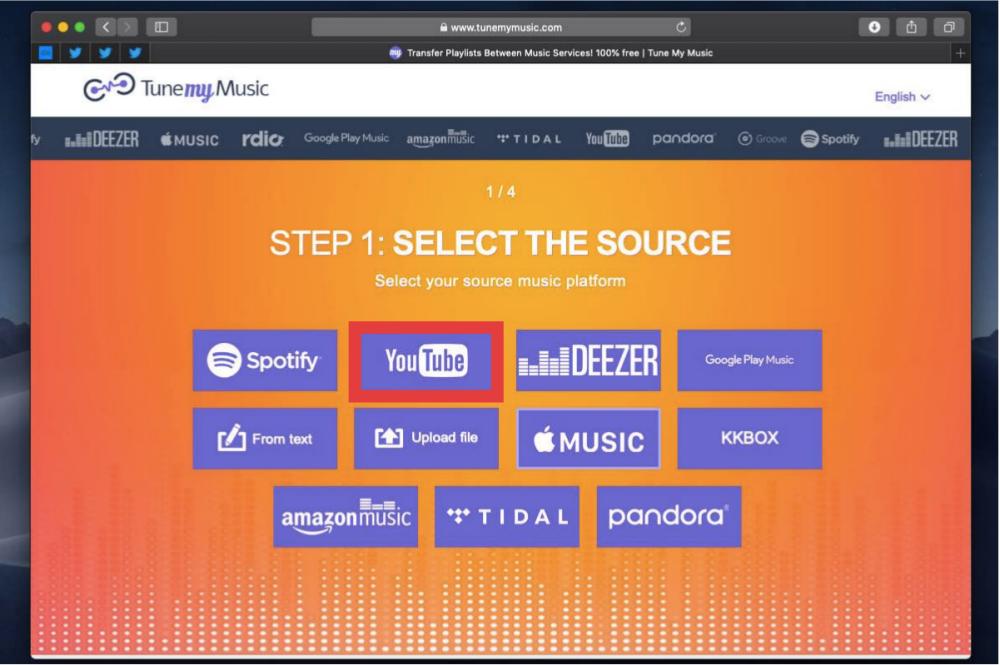
While TuneMyMusic uses advanced algorithms to find your songs, it may occasionally match a track to a different version (e.g., a "Single" version instead of an "Album" version) or fail to find a match if the song is not available on Apple Music.
2. 송시프트
Using SongShift to transfer your playlists from YouTube Music to Apple Music is an excellent choice, as it is one of the most highly-rated tools for this purpose. Here’s how to use the service.
- Download and open the SongShift app.
- Go to the "Connections" tab and link both YouTube Music and Apple Music.
- Tap the "+" icon and select "Setup Source," choosing YouTube Music.
- Choose the playlists you want to move.
- After the initial scan, SongShift will show you any songs that couldn't be matched automatically. You can manually search for and "fix" these mismatches.
- Once confirmed, the app will finalize the transfer to your Apple Music library.
Because Apple has integrated SongShift’s technology directly into the Apple Music app, you may not even need to download a separate app to get the job done. Here’s how to do:
- Open the Settings app on your iPhone or iPad. Scroll down the menu and find the Apps section.
- From the list of all your downloaded apps, select Music.
- Select Transfer Music from Other Music Services.
- Here you'll find a list of the other music streaming services you can choose to transfer songs from. Select YouTube Music.
- Enter your YouTube Music logins when prompted to.
- Select the playlists you want to move and tap Add to Library.
- The app will work in the background to match your tracks to the Apple Music catalog. You will receive a notification once the process is complete.
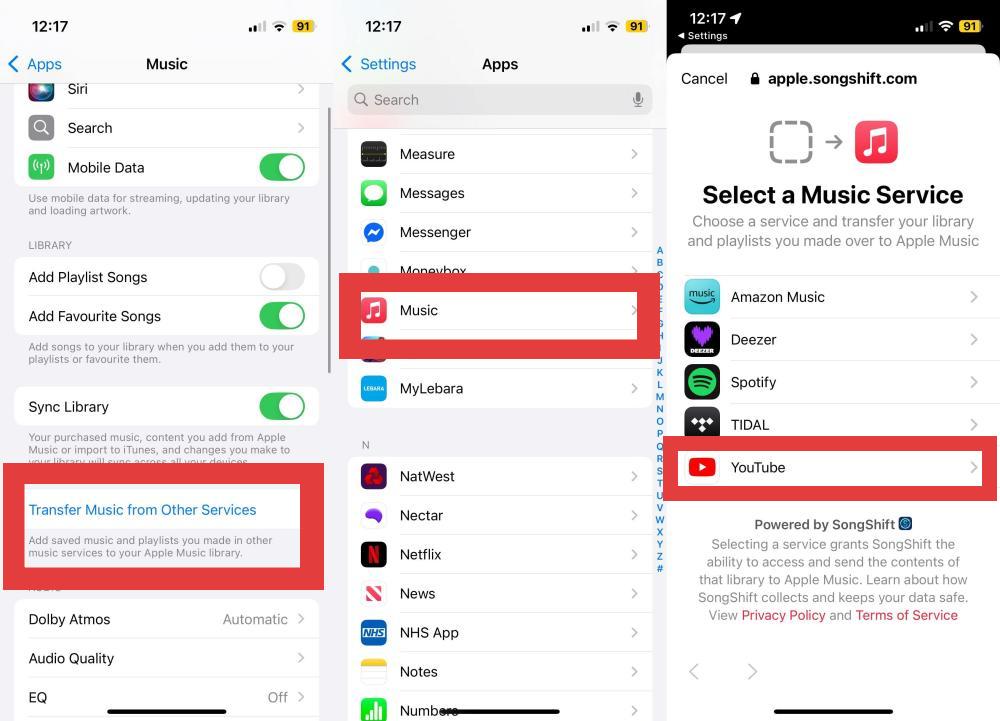
SongShift is very effective at matching, but because it relies on metadata (titles, artists), keep in mind that unofficial uploads (like a user-uploaded live recording) might not successfully map to an official studio track on Apple Music.
이것은 단락이다.
3. 사운디즈
Soundiiz is designed for users managing multiple streaming platforms. Unlike mobile-only apps, it runs directly in your web browser, making it very convenient if you prefer managing your library from a desktop.
However, the catch is that the free version limits you to transferring one playlist at a time (up to 200 tracks). If you have a single playlist of that size or just a few small ones, Soundiiz works perfectly—just follow the steps below.
- Go to soundiiz.com and create an account.
- Navigate to the "Platforms" tab and connect both your YouTube Music and Apple Music accounts by following the login prompts for each.
- Click on the "Transfer" button in the left-hand menu.
- Select "Playlists" (you can also select albums, artists, or tracks).
- Choose YouTube Music as the source.
- Select the playlists you wish to move.
- Follow the final prompts to confirm your selection, choose Apple Music as the destination, and Soundiiz will begin the matching process.
Soundiiz is widely regarded as having one of the most mature matching engines in the industry, having been active since 2013. However, as with all transfer services, it relies on metadata; if a specific YouTube video does not exist as an official track on Apple Music, the system will skip it.
4. DumpMedia 모든 음악 변환기
If you're looking for a reliable YouTube to Apple Music converter, DumpMedia 모든 음악 변환기 offers a convenient Playlist Transfer feature designed to simplify music migration.
DumpMedia's Playlist Transfer feature transfers entire playlists, albums, or just select tracks according to your needs. Maintain playlist order and metadata, so your music experience stays consistent on the new platform. Instead of manually rebuilding your playlists, DumpMedia helps automate the entire migration process, saving significant time and effort.
더 많은 기능 DumpMedia 모든 음악 변환기
- 다음에서 음악을 다운로드하세요. Spotify애플 뮤직, 유튜브 뮤직 등.
- Audible 오디오북을 일반 오디오 포맷으로 다운로드하세요.
- Download music to DRM-free MP3, M4A, AAC, and FLAC.
- 원래의 음질과 ID3 태그로 음악을 출력합니다.
- Process music downloads in batches at 35X faster speed.
- 내장된 뮤직 웹 플레이어로 손쉬운 작동을 제공합니다.
- Extra tools like a music player, format converter, and ID3 editor.
Transfer YouTube Music Playlists to Apple Music Using DumpMedia
1 단계 다운로드 및 설치 DumpMedia Any Music Converter on your Mac/PC.
2 단계 도구 > 재생 목록 전송을 선택하세요.
3 단계 Choose YouTube Music as a source.
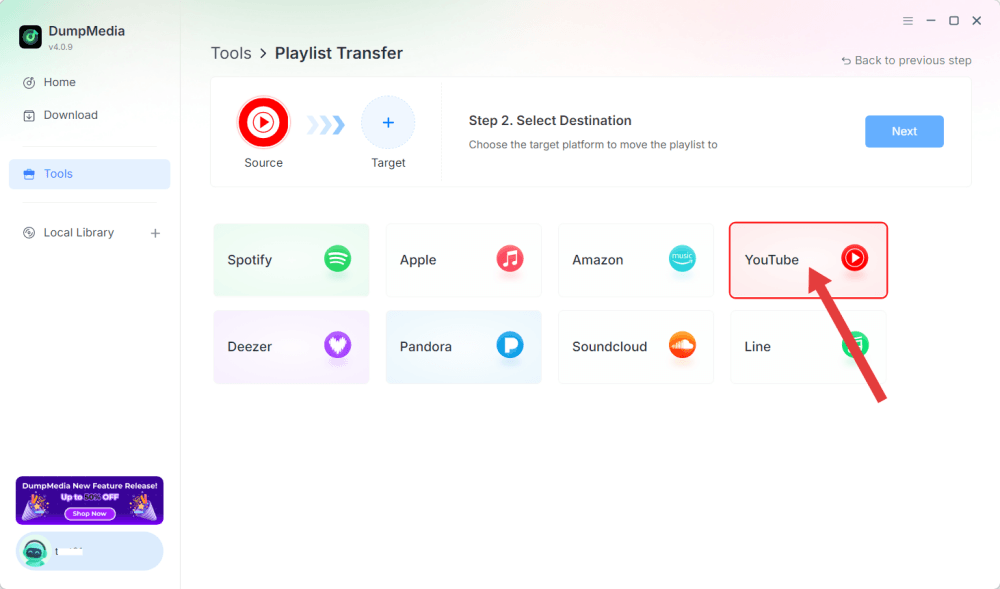
4 단계 Apple Music을 목적지로 설정하세요.
5 단계 Find the playlists you want to transfer, and select all the playlists you want to move.
6 단계 변환을 클릭하여 전송을 시작하세요.
7 단계 The transfer is finished. Click "Go to Apple Music". Your playlists have been moved to a new service.
Part 3. Tips for a Successful Playlist Transfer
To achieve the best results when using a YouTube to Apple Music converter, keep these tips in mind.
Check Song Availability
Not every song is licensed in every country. If a track isn't available on Apple Music in your region, it may not be transferred.
Review Playlist Matches
Most playlist transfer tools provide a report showing which songs were matched successfully and which require manual attention.
장치 간 동기화
Once your playlists are available in Apple Music, enable iCloud Music Library to access them on all your Apple devices.
4부. 자주 묻는 질문
Can I transfer YouTube Music playlists to Apple Music?
Yes. Several playlist migration tools can automatically recreate your YouTube Music playlists in Apple Music.
모든 노래가 성공적으로 전송될까요?
Not always. Success depends on whether the song exists in Apple Music's catalog and regional licensing availability.
Is playlist transfer free?
Many tools offer free transfers with limitations, while advanced features may require a paid plan.
What's the best YouTube to Apple Music converter?
If your primary goal is playlist migration, choose a tool with high song matching accuracy, fast transfer speed, and support for multiple streaming platforms, such as DumpMedia 모든 음악 변환기.
Can I move albums and artists?
Yes. Many services support transferring albums, followed artists, and saved collections.
Will my playlist names stay the same?
In most cases, yes. Playlist names are usually preserved during the transfer process.
부품 5. 마지막 생각들
Instead of manually searching for every song again, a YouTube to Apple Music converter can automatically migrate your playlists, liked songs, albums, and music library with minimal effort. Among the available solutions, DumpMedia Any Music Converter stands out with its dedicated Playlist Transfer feature, making it easy to switch from YouTube Music to Apple Music while preserving your listening experience. If you're planning to move to Apple's music ecosystem, using a reliable YouTube to Apple Music converter is the fastest and most efficient way to bring your playlists with you.

30% 할인 >>>