如何將DVD內容傳輸到USB:複製還是轉換? (完整指南)

羅西(Rosie)撰寫

上次更新時間:2026-03-31

2最小讀取

Many users search for ways to complete a DVD到USB transfer so they can watch movies on modern devices like smart TVs, laptops, or car systems. However, what most people don’t realize is that simply copying files from a DVD to your USB does not always work as expected. In many cases, the files won’t play properly, or won’t play at all. In this guide, we’ll walk you through the correct way to move your DVD content to a USB drive, explain why common methods fail, and show you how to make your DVD content actually playable on any device.

內容指南Part 1. Can You Transfer DVD Content to USB?Part 2. Two Ways to Transfer DVD Content to USB第3部分:全部包裝

Part 1. Can You Transfer DVD Content to USB?

Yes, it is technically possible to complete a DVD to USB transfer. You can insert your DVD into your computer and copy files directly to a USB drive. However, DVDs store video in a specific format (usually VOB files inside a VIDEO_TS folder), which is not supported by many modern devices. So even if you successfully complete a copy, you may end up with files that cannot be opened or played.

Why “DVD to USB” Doesn’t Always Work

Many users assume that moving files is enough. But in reality, a successful DVD to USB process depends on compatibility. Here are the main issues:

  • Unsupported File Formats: DVD files are typically in VOB format, which is not widely supported by TVs, phones, or USB players.
  • Complex DVD Structure: DVDs contain multiple files (IFO, BUP, VOB), and copying them individually can break playback.
  • 設備兼容性問題: Even if your USB contains the DVD files, your device may not recognize or play them correctly.
  • DRM or Copy Protection: Some DVDs include protection that prevents direct copying or playback.

Part 2. Two Ways to Transfer DVD Content to USB

There are two main methods to handle a DVD to USB process. Let’s compare them.

Method 1: Direct Copy (Basic Method)

  1. Insert the DVD into your computer
  2. Open the DVD folder
  3. Copy the VIDEO_TS folder
  4. Paste it into your USB drive

優點:

  • 方便快捷
  • 不需要額外的軟件

缺點:

  • Files may not play on most devices
  • 文件大小較大
  • 相容性差

This method only works if your target device supports DVD file structures, which most modern devices do not.

Method 2: Convert DVD to USB-Friendly Format (Recommended)

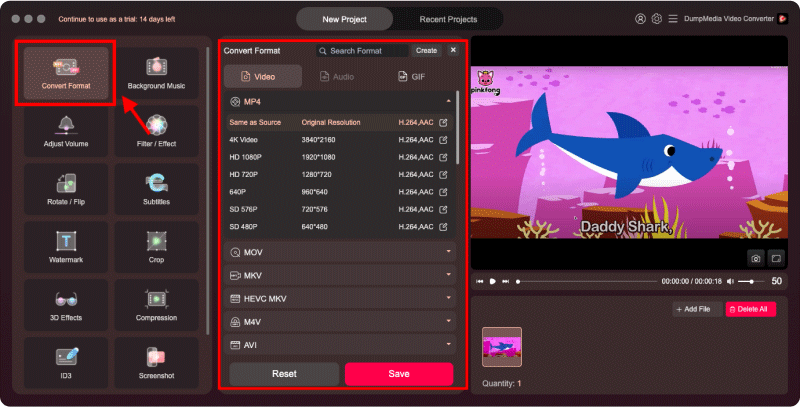
Instead of copying raw files, you convert the DVD into a widely supported format like MP4 before transferring it to USB. This method ensures that your DVD content to USB transfer results in files that actually work. A tool like DumpMedia 視頻轉換 simplifies the entire DVD to USB workflow by allowing you to convert DVD videos to MP4, AVI, or other formats.

免費下載 免費下載

這是一個簡單的分步指南:

步驟二 安裝並啟動 DumpMedia 視頻轉換器。

步驟二 Insert your DVD into the computer.

步驟二 Load the DVD content into the software.

步驟二 Choose MP4 or another compatible format.

將DVD轉換為MP4

步驟二 開始轉換過程。

步驟二 Save the converted files directly to your USB drive.

第3部分:全部包裝

Completing a DVD to USB transfer is not just about moving files; it’s about making sure those files actually work when you need them. Tools like DumpMedia Video Converter make this process straightforward, allowing you to handle both conversion and transfer efficiently without technical complexity. If your goal is to watch your DVD content on different devices without limitations, choosing the right method makes all the difference. Instead of relying on basic copying, a proper conversion-based DVD to a USB workflow provides a long-term solution that is both practical and dependable.

免費下載 免費下載

註冊即可享 30% 折扣 註冊獲取
30% 折扣 >>>