


Apple Music iPod Nano:可以在 iPod Nano 上播放 Apple Music 嗎?
如果您嘗試在 iPod Nano 上使用 Apple Music,您可能已經遇到了一個令人沮喪的問題:您喜愛的 Apple Music 歌曲無法在 iPod Nano 上播放。那麼,是否真的可以在 iPod Nano 上使用 Apple Music 呢?簡而言之:不能直接使用。在本指南中,我們將解釋 Apple Music 無法與 iPod Nano 相容的原因,並提供逐步說明,幫助您成功傳輸音樂。
目錄第一部分:為什麼 Apple Music 無法在 iPod Nano 上運行第二部分:在 iPod Nano 上播放 Apple Music 的唯一方法第三部分:如何將 Apple Music 傳輸到 iPod Nano第四部分:常見問題第5部分:結語
第一部分:為什麼 Apple Music 無法在 iPod Nano 上運行
在學習任何方法之前,你需要了解 Apple Music與 iPod Nano不相容背後的核心問題。
1. DRM保護
Apple Music 曲目受 DRM(數位版權管理)保護。這意味著歌曲經過加密,文件格式並非標準格式。 MP3播放僅限授權設備。 iPod Nano 無法辨識或播放這些受保護的檔案。
2. iPod Nano 不是串流媒體設備
與新款 iPhone 不同,iPod Nano 不支援串流服務。此外,您也無法在 iPod Nano 上安裝 Apple Music。 iPod Nano 只能播放本地儲存的音訊檔案。
第二部分:在 iPod Nano 上播放 Apple Music 的唯一方法
要讓 Apple Music 在 iPod Nano 上運行,您必須移除 DRM 保護並將 Apple Music 歌曲轉換為相容格式,例如 .txt。 MP3這並非可選項,而是唯一有效的解決方案。轉換完成後,您的音樂即可在大多數媒體裝置上播放。要解決 Apple Music 與 iPod Nano 的兼容性問題,您需要一個可靠的轉換器。 DumpMedia Apple Music 音樂轉檔器 是專門為此目的而設計的。
與 DumpMedia,你可以 將 Apple Music 歌曲轉換為 MP3可以儲存為 WAV 或 FLAC 格式。之後,您可以永久保存音樂,並將檔案傳輸到任何裝置。
更多功能 DumpMedia Apple Music 音樂轉檔器
- 永遠保存音樂
- 批量下載整個播放列表
- 保留 ID3 標籤(藝人、專輯、標題)
- 享受高品質音訊輸出
如何獲得 MP3 輕鬆上手 Apple Music(逐步指南)
步驟二 下載並安裝軟體到您的電腦。它適用於兩種系統。 Win支援Windows和Mac系統。介面友好,即使是新手也能輕鬆上手。
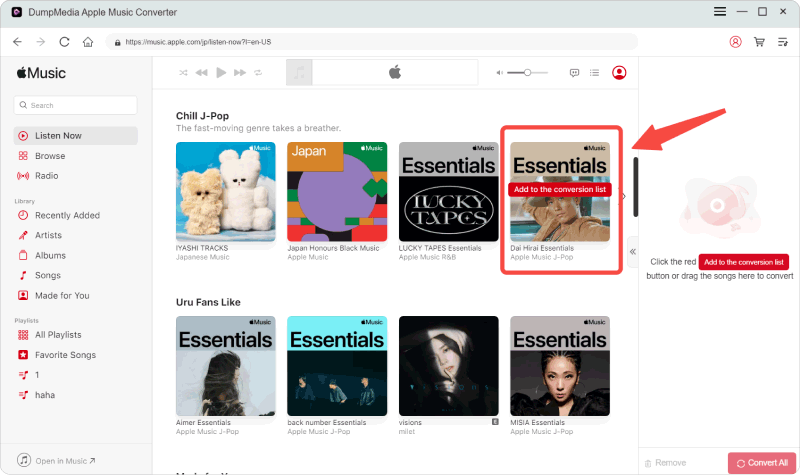
步驟二 開啟內建的 Apple Music 網路播放器 DumpMedia 然後使用您的 Apple Music 帳戶登入。瀏覽 Apple Music,並將您想要下載的歌曲、專輯或播放清單拖入轉換器中。
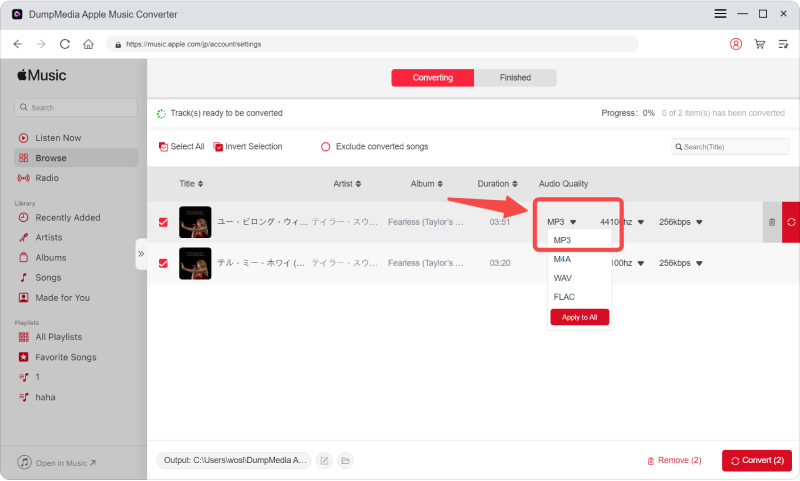
步驟二 在設定面板中,選擇 MP3 作為輸出格式以啟用 MP3 下載您選擇的曲目。
步驟二 點擊轉換並直接下載歌曲。 MP3 文件。
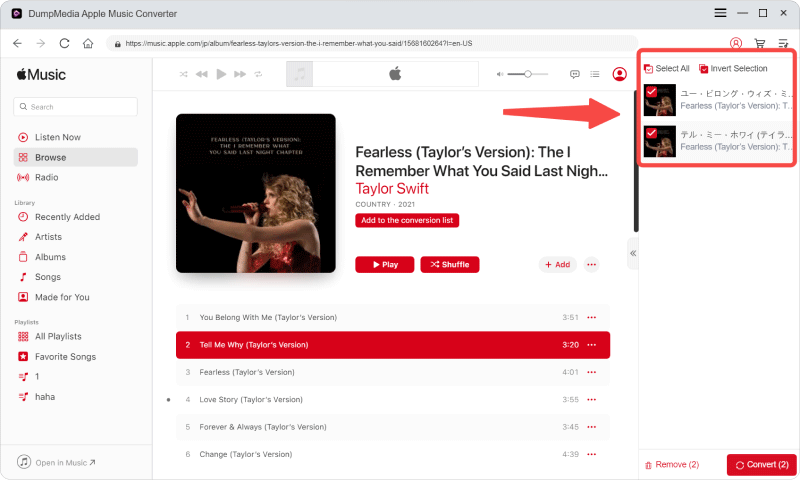
完成此步驟後,您的檔案即可用於 Apple Music iPod Nano 傳輸。
第三部分:如何將 Apple Music 傳輸到 iPod Nano
檔案轉換完成後,即可完成 Apple Music iPod Nano 的設定。
步驟二 在電腦上開啟 iTunes。添加轉換後的內容。 MP3 將文件新增到您的庫中。
步驟二:透過 USB 連接 iPod Nano。在 iTunes 中選擇您的裝置。
步驟 3.將音樂同步到您的 iPod Nano。
同步完成後,您的歌曲即可在您的裝置上無限播放。
第 4 部分:常見問題解答
1. 我可以在 iPod Nano 直接播放 Apple Music 嗎?
不,由於DRM保護和缺乏串流媒體支持,Apple Music與iPod Nano不相容。
2. 為什麼 Apple Music 在 iPod Nano 上無法運作?
因為 Apple Music 檔案是加密的,而 iPod Nano 只支援未加密的音訊格式,例如 MP3.
3. iPod Nano 支援哪些格式?
iPod Nano 支持 MP3、AAC 和其他無 DRM 的標準音訊格式。
4. 將 Apple Music 轉換為 iPod Nano 格式的最佳工具是什麼?
類似的工具 DumpMedia Apple Music Converter 提供了一種簡單有效的方法來轉換和傳輸音樂。
第5部分:最後的想法
乍一看,將 Apple Music 與 iPod Nano 結合使用似乎是不可能的,但一旦了解了其局限性,就會發現其實很簡單。如果沒有轉換,iPod Nano 無法播放 Apple Music。借助合適的工具,您可以輕鬆彌合現代串流媒體設備和傳統設備之間的鴻溝。