


Jak zapisać iMovie w formacie MP4 (przewodnik dla użytkowników systemu macOS)
Jeśli używasz systemu macOS, iMovie To jedno z najłatwiejszych narzędzi do podstawowej edycji wideo. Jednak wielu użytkowników ma problemy z eksportowaniem swoich projektów do plików MP4. W niektórych przypadkach wyeksportowane wideo kończy się plikiem MOV, staje się zbyt duże lub nie można go odtworzyć. Windows lub przesłane na określone platformy. Ten przewodnik wyjaśnia jak zapisać iMovie jako MP4 i jak rozwiązać problemy ze zgodnością, używając DumpMedia. Zanurzmy się.
Przewodnik po zawartościCzęść 1. Czy iMovie umożliwia eksportowanie plików MP4?Część 2. Bezpośrednie zapisywanie iMovie w formacie MP4 (wbudowana metoda)Część 3. Konwertuj wideo iMovie do formatu MP4 za pomocą DumpMedia (Alternatywna droga)Część 4. Często zadawane pytania Część 5. Wniosek
Część 1. Czy iMovie umożliwia eksportowanie plików MP4?
Krótka odpowiedź brzmi: tak, ale nie zawsze. Chociaż iMovie umożliwia eksportowanie plików MP4, ostateczny wynik w dużej mierze zależy od wybranych ustawień kodeka: użycie kodeka H.264 zazwyczaj skutkuje plikiem MP4, podczas gdy wybranie kodeka Apple ProRes lub HEVC często generuje kontener MOV.
Niuans ten prowadzi do częstego mylenia, ponieważ nawet pliki z rozszerzeniem „.mp4” mogą zawierać kodowanie, które jest obsługiwane przez niektóre urządzenia, szczególnie WinKomputery PC i starsze telewizory nie rozpoznają plików MP4. W rezultacie wielu użytkowników błędnie uważa, że iMovie nie eksportuje poprawnie plików MP4, podczas gdy problem w rzeczywistości wynika z konkretnego kodeka wybranego podczas eksportu.
Część 2. Bezpośrednie zapisywanie iMovie w formacie MP4 (wbudowana metoda)
Jeśli chcesz dowiedzieć się, jak zapisać plik iMovie w formacie MP4 za pomocą wbudowanej funkcji eksportu, ta sekcja zawiera pełną, szczegółową procedurę. Chociaż iMovie czasami generuje pliki MOV lub niezgodne filmy w formacie MP4, przestrzeganie prawidłowych ustawień eksportu znacznie zwiększa szansę na wygenerowanie poprawnego pliku MP4.
Poniżej znajdziesz dokładny przewodnik krok po kroku.
Krok 1. Uruchom iMovie na urządzeniu macOS i otwórz projekt, który chcesz wyeksportować. Upewnij się, że wszystkie klipy multimedialne zostały poddane renderowaniu lub analizie, ponieważ niekompletne pliki multimedialne mogą spowodować błąd eksportu lub nieoczekiwane formaty plików.
Krok 2. W prawym górnym rogu interfejsu iMovie kliknij ikonę Udostępnij (Eksportuj).
Krok 3. Z menu podręcznego wybierz Plik. Umożliwi to ręczne sterowanie kodekiem, rozdzielczością i ustawieniami kompresji, które bezpośrednio wpływają na to, czy iMovie eksportuje pliki w formacie MP4 czy MOV.
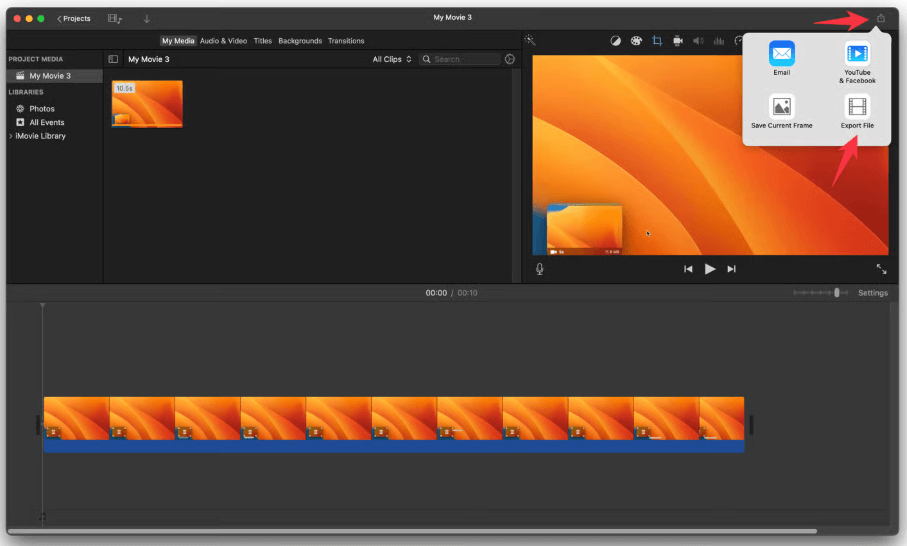
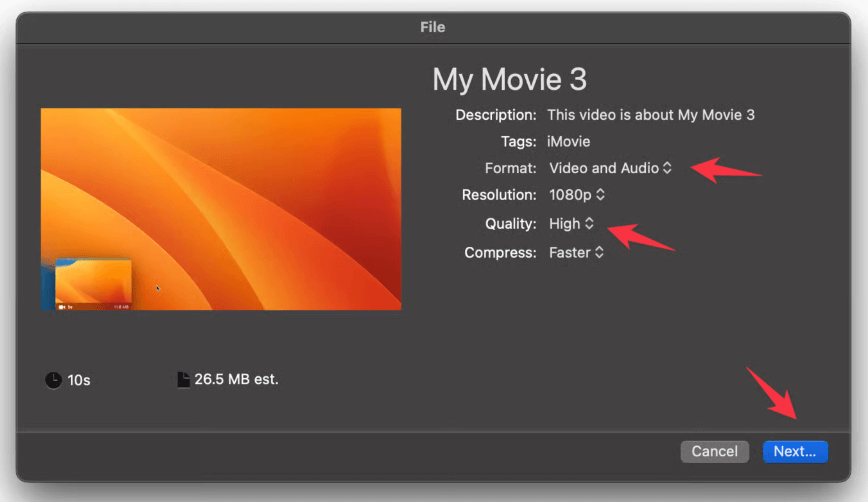
Krok 4. Aby mieć pewność, że iMovie wyeksportuje plik MP4, a nie MOV, zwróć szczególną uwagę na następujące opcje: Format, Rozdzielczość, Jakość i inne ustawienia eksportu.
Krok 5. Jak zapisać iMovie w formacie MP4? Kliknij Dalej, nazwij plik i wybierz folder docelowy.
Krok 6. iMovie rozpocznie eksportowanie wideo. Pasek eksportu w prawym górnym rogu będzie wskazywał postęp.
Typowe problemy podczas eksportowania plików MP4 z aplikacji iMovie
1: Dlaczego iMovie eksportuje format MOV, a nie MP4?
Dzieje się tak, gdy oś czasu obejmuje formaty, które wyzwalają wyjście MOV.
2: Plik MP4 jest za duży
Kodowanie H.264 na komputerach Mac może powodować tworzenie bardzo dużych plików.
3: Dlaczego mój film nie odtwarza się na Windows?
Różne pliki MP4 wykorzystują różne parametry kodowania; niektóre odtwarzacze je odrzucają.
4: Niepowodzenie eksportu z powodu niezgodnych klipów
Mieszane media HEVC/proxy często uniemożliwiają eksport.
Część 3. Konwertuj wideo iMovie do formatu MP4 za pomocą DumpMedia (Alternatywna droga)
Chociaż iMovie oferuje wbudowaną funkcję eksportu, nie zawsze generuje w pełni kompatybilny plik MP4. Wielu użytkowników postępuje zgodnie z instrukcjami w iMovie, a mimo to napotyka:
- iMovie eksportuje MOV zamiast MP4
- Pliki MP4, których nie można odtworzyć Winłajdaki
- Filmy iMovie, których nie można przesłać na YouTube, Instagram ani TikTok
- Pliki, które są zbyt duże, zwłaszcza w rozdzielczości 4K
- Niepowodzenie eksportu z powodu konfliktów kodeków (ProRes, HEVC, zmienna liczba klatek na sekundę itp.)
Dlatego nauczenie się niezawodnego zapisywania iMovie w formacie MP4 często wymaga dodatkowego narzędzia do konwersji, szczególnie dla użytkowników, którzy potrzebują stabilnego i uniwersalnego formatu MP4 do udostępniania, przesyłania, edycji lub przesyłania. Właśnie tutaj DumpMedia Konwerter wideo staje się niezbędna.
Bezpłatne pobieranie Bezpłatne pobieranie
Dlaczego potrzebujesz DumpMedia Konwerter wideo
- Konwersja MOV do MP4: Konwersja plików MOV do MP4 zapewnia uniwersalną kompatybilność na wszystkich platformach i urządzeniach.
- Pełna kontrola: Uzyskaj pełną kontrolę nad parametrami technicznymi, w tym nad wyborem kodera, rozdzielczością i ustawieniami przepływności.
- Kompresja: Skutecznie zmniejszaj duże pliki wideo dzięki inteligentnej kompresji bez utraty czytelności obrazu.
- Zgodność urządzenia: Wyeliminuj błędy odtwarzania na Windows i Android poprzez ponowne kodowanie plików do standardowego formatu.
- Wydajność: Ciesz się błyskawiczną szybkością przetwarzania, która zapewnia płynne przejście bez utraty oryginalnej jakości.
Jak korzystać DumpMedia Konwerter wideo
Jak zapisać iMovie w formacie MP4? Wykonaj poniższe kroki, aby przekonwertować filmy z iMovie na kompatybilne pliki MP4.
Krok 1. Ściągnij i zainstaluj DumpMedia Konwerter wideo. Działa zarówno na macOS, jak i Windowy.
Bezpłatne pobieranie Bezpłatne pobieranie
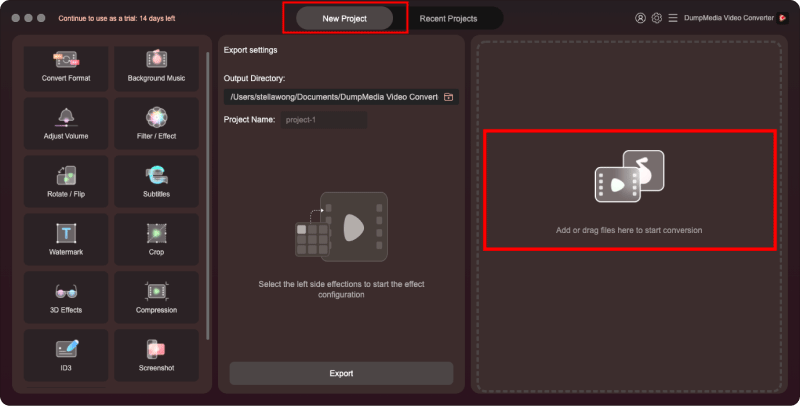
Krok 2. Przeciągnij wyeksportowany plik MOV lub MP4 do programu.
Krok 3. Wybierz MP4 jako format wyjściowy.
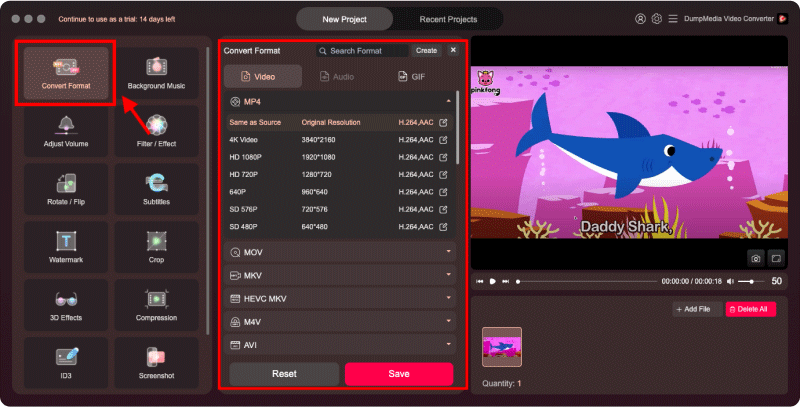
Krok 4. Kliknij „Konwertuj”. Otrzymasz w pełni kompatybilny plik MP4 gotowy do edycji, udostępniania lub przesyłania.
Część 4. Często zadawane pytania
1. Dlaczego iMovie nie eksportuje plików MP4?
iMovie eksportuje pliki MP4 tylko przy użyciu kodeka H.264. Jeśli Twój projekt korzysta z elementów ProRes lub HEVC, iMovie może zamiast tego wyeksportować plik MOV.
2. Jak przekonwertować plik MOV z iMovie na MP4?
Wyeksportuj plik z iMovie, a następnie użyj DumpMedia Konwerter wideo umożliwiający konwersję plików MOV do MP4 z pełną zgodnością.
Bezpłatne pobieranie Bezpłatne pobieranie
3. Dlaczego nie można WinCzy mogę odtworzyć plik MP4 w aplikacji iMovie?
Niektóre pliki MP4 nadal korzystają z kodeków lub ustawień szybkości transmisji bitów niezgodnych z Windows Media Player. Użyj DumpMedia Konwerter wideo umożliwiający rekodowanie formatu MP4 do powszechnie obsługiwanego formatu.
4. Czy MOV jest lepszy niż MP4?
Format MOV oferuje lepszą jakość na macOS, ale jest mniej kompatybilny. Format MP4 oferuje najlepszą kompatybilność między urządzeniami, dzięki czemu idealnie nadaje się do przesyłania i udostępniania.
Część 5. Wniosek
Umiejętność zapisywania iMovie w formacie MP4 jest niezbędna dla każdego, kto potrzebuje uniwersalnego formatu wideo do udostępniania, przesyłania lub odtwarzania na różnych urządzeniach. Chociaż iMovie oferuje wbudowaną opcję eksportu do formatu MP4, nie zawsze generuje w pełni ustandaryzowany plik MP4.
Gdy ograniczenia eksportowe iMovie staną się przeszkodą, DumpMedia Konwerter wideo oferuje najbardziej niezawodne rozwiązanie. Gwarantuje prawdziwy format MP4, rozwiązuje problemy ze zgodnością, zmniejsza rozmiar pliku i zapewnia pełną kontrolę nad ustawieniami kodowania, czego nie oferuje iMovie. Jeśli priorytetem jest spójność, kompatybilność i wysoka jakość sygnału MP4 za każdym razem, połączenie iMovie z… DumpMedia Konwerter wideo to najskuteczniejszy przepływ pracy.