


Jak przenieść muzykę z YouTube do Spotify: Kompletny przewodnik
Jeśli korzystałeś z YouTube Music, ale rozważasz przejście na SpotifyJedną z ważnych kwestii jest to, jak przenieść playlisty bez utraty kolekcji muzycznej. Ręczne tworzenie playlist może zająć dużo czasu, zwłaszcza jeśli poświęciłeś na to lata. Na szczęście istnieje kilka narzędzi i metod, które to umożliwiają. przenieś YouTube Music do Spotify W tym przewodniku przedstawimy praktyczne sposoby migracji biblioteki muzycznej za pomocą oprogramowania komputerowego i narzędzi online.
Przewodnik po zawartości Część 1. Przegląd: YouTube Music vs. SpotifyCzęść 2. Konwertuj muzykę z YouTube na Spotify on Windows/MacCzęść 3. Przenieś playlistę YouTube Music do Spotify OnlineCzęść 4. Często zadawane pytaniaCzęść 5. Wniosek
Część 1. Przegląd: YouTube Music vs. Spotify
Zanim dowiesz się, jak przenieść YouTube Music do SpotifyWarto zrozumieć różnice między tymi dwiema platformami streamingowymi. Chociaż obie usługi zapewniają dostęp do obszernych bibliotek muzycznych, koncentrują się na nieco innych doświadczeniach użytkownika.
Jakość dźwięku
Jedną z najważniejszych różnic jest jakość dźwięku. Spotify Oferuje wysokiej jakości opcje streamingu i stale rozwija zaawansowane funkcje audio dla użytkowników premium. YouTube Music również zapewnia dobrą jakość streamingu, ale jego siła tkwi bardziej w różnorodności treści niż w funkcjach skupionych wyłącznie na dźwięku. Dzięki integracji platformy z YouTube, użytkownicy mają łatwy dostęp do występów na żywo, remiksów, coverów i nieoficjalnych utworów, które mogą nie pojawiać się w tradycyjnych katalogach muzycznych.
Ceny i plany abonamentowe
Obie platformy oferują poziomy bezpłatny i premium. SpotifyDarmowy plan YouTube Music zawiera reklamy i pewne ograniczenia odtwarzania, natomiast darmowa wersja YouTube Music również zawiera reklamy i ogranicza odtwarzanie w tle na urządzeniach mobilnych. Subskrypcje premium usuwają te ograniczenia i oferują dodatkowe funkcje, takie jak pobieranie offline i słuchanie bez reklam.
- Przeczytaj nasze szczegółowe porównanie, aby zobaczyć różnicę między Spotify Wersja bezpłatna a premium.
Odkrywanie muzyki i rekomendacje
Spotify YouTube Music jest szeroko znany ze swoich algorytmicznych playlist, takich jak „Odkryj w tygodniu” i „Daily Mixes”, które pomagają użytkownikom znaleźć nowe utwory na podstawie ich preferencji słuchowych. Z kolei YouTube Music korzysta z systemu rekomendacji YouTube i obszernej biblioteki wideo, oferując połączenie oficjalnych utworów i treści wideo.
Zgodność urządzeń i integracja ekosystemu
Spotify integruje się z szeroką gamą urządzeń, w tym inteligentnymi głośnikami, konsolami do gier i systemami samochodowymi. YouTube Music ściśle integruje się z Google usług i urządzeń z systemem Android. Z powodu tych różnic niektórzy słuchacze decydują się na przeniesienie YouTube Music do Spotify aby skorzystać z SpotifyNarzędzia ekosystemu i wyszukiwania playlist.
Część 2. Konwertuj muzykę z YouTube na Spotify on Windows/Mac
Jedna z najpewniejszych metod przesyłania muzyki z YouTube do Spotify korzysta z oprogramowania komputerowego, które umożliwia pobieranie utworów z YouTube Music i przesyłanie ich do Spotify. Potężnym rozwiązaniem dla tego procesu jest DumpMedia Dowolny konwerter muzyki, który działa na obu Windows i macOS.
Bezpłatne pobieranie Bezpłatne pobieranie
To narzędzie umożliwia użytkownikom pobieranie utworów lub list odtwarzania z YouTube Music i konwertowanie ich do popularnych formatów audio zgodnych z Spotify. Po pobraniu plików można je dodać do Spotifylokalna biblioteka.
Więcej niesamowitych funkcji DumpMedia
- ⭐Integracja z odtwarzaczem internetowym YouTube Music
- ⭐Działa zarówno dla użytkowników YouTube Music Premium, jak i użytkowników bezpłatnych
- ⭐Konwertuj muzykę na MP3/AAC/WAV/FLAC/ALAC/AIFF
- ⭐Oferuj do 35x szybszą prędkość konwersji
- ⭐Pozwala dostosować ustawienia wyjściowe
- ⭐Zachowaj wszystkie informacje metadanych
- ⭐100% Czystość. Brak ryzyka w użytkowaniu
Konwertuj muzykę YouTube na Spotify w DumpMedia
Krok 1. Pobierz i zainstaluj DumpMedia Dowolny konwerter muzyki na Twoim Macu/Windowy.
Bezpłatne pobieranie Bezpłatne pobieranie
Krok 2. Uruchom aplikację, a zobaczysz interfejs. Zaloguj się za pomocą konta YouTube Music Premium/Free. Przeglądaj bibliotekę YouTube Music, aby uzyskać dostęp do dowolnego utworu do pobrania i odtwarzania offline. Wystarczy przeciągnąć i upuścić utwory na liście konwersji (przycisk plus), aby dodać wszystkie zawarte utwory i przygotować się do konwersji.
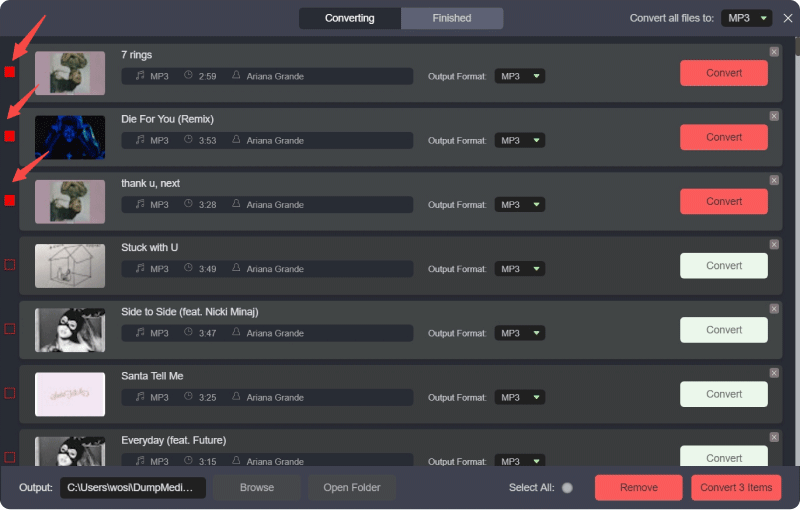
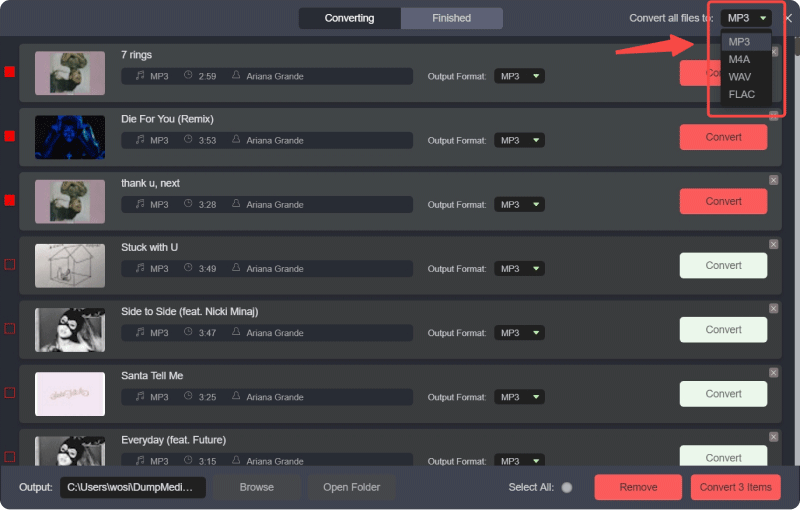
Krok 3. W interfejsie konwersji możesz wybrać format wyjściowy jako MP3i ustaw częstotliwość próbkowania lub szybkość transmisji bitów w Preferencjach. Wybierz również folder, w którym będą zapisywane pliki muzyczne.
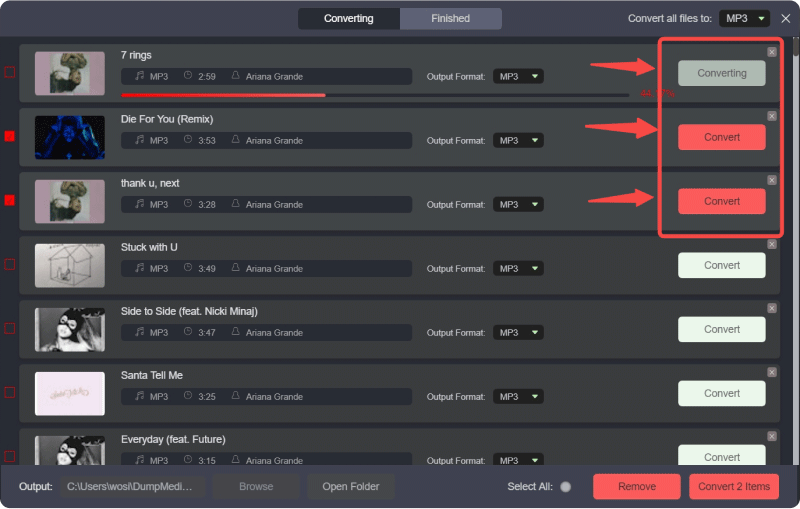
Krok 4. W ostatnim kroku kliknij przycisk „Konwertuj wszystko”, aby rozpocząć konwersję wszystkich utworów YouTube Music do formatu MP3 online.
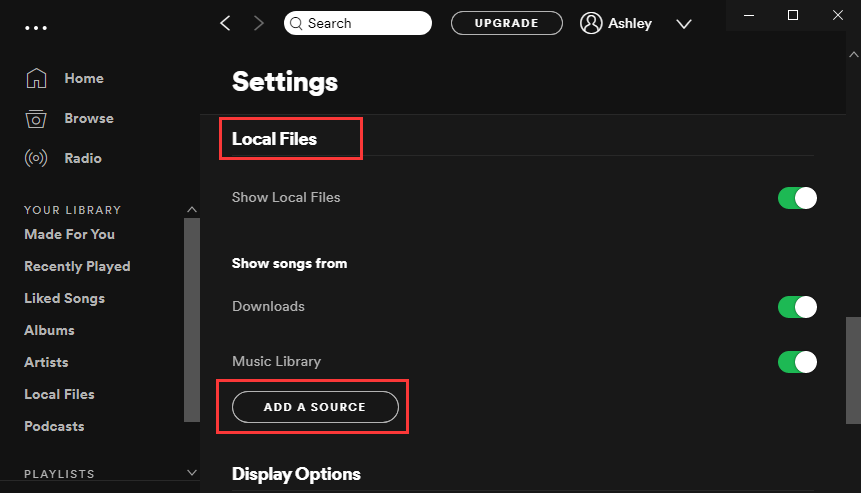
Krok 5. Otwarte Spotify na swoim komputerze i przejdź do menu Ustawienia. Włącz opcję Pliki lokalne, aby Spotify może wykryć muzykę zapisaną na Twoim urządzeniu. Następnie wybierz folder, w którym DumpMedia zapisano pobrane utwory.
Krok 6. Spotify Przeskanuje folder i doda te utwory do Twojej lokalnej biblioteki. Gdy utwory się pojawią, możesz utworzyć nową playlistę i dodać je tak jak każdą inną. Spotify piosenki.
Ta metoda umożliwia pomyślne przeniesienie Muzyki YouTube do Spotify zachowując jednocześnie kontrolę nad plikami muzycznymi.
Dodatkowa wskazówka: Funkcja przenoszenia playlist
DumpMedia Any Music Converter zawiera również funkcję przenoszenia playlist, która upraszcza proces migracji. Zamiast pobierać i dodawać każdy utwór osobno, funkcja ta pozwala automatycznie tworzyć playlisty między platformami.
Łącząc swoje konta i wybierając playlistę, którą chcesz przenieść, DumpMedia można odbudować strukturę listy odtwarzania SpotifyDla użytkowników posiadających duże biblioteki muzyczne jest to jeden z najskuteczniejszych sposobów przeniesienia YouTube Music do Spotify bez konieczności spędzania wielu godzin na ręcznym organizowaniu utworów.

Część 3. Przenieś playlistę YouTube Music do Spotify Online
Jeśli nie chcesz instalować oprogramowania na swoim komputerze, istnieje inny sposób na przeniesienie YouTube Music do Spotify Można to zrobić za pomocą internetowego narzędzia do migracji playlist. Jedną z popularnych usług jest TuneMyMusic, która umożliwia użytkownikom przenoszenie playlist między różnymi platformami streamingowymi za pośrednictwem przeglądarki internetowej.
Przewodnik krok po kroku
Krok 1. Aby rozpocząć, otwórz stronę TuneMyMusic i kliknij opcję rozpoczęcia nowego transferu. Wybierz YouTube Music jako platformę źródłową i zaloguj się na swoje konto, aby narzędzie miało dostęp do Twoich playlist.
Krok 2. Po załadowaniu playlist wybierz playlistę, którą chcesz przenieść. Usługa przeanalizuje listę utworów i przygotuje utwory do dopasowania. Spotifykatalog.
Krok 3. Następnie wybierz Spotify jako platformę docelową i autoryzować połączenie.
Krok 4. Po potwierdzeniu transferu TuneMyMusic automatycznie wyszuka odpowiednie utwory na Spotify i utwórz ponownie playlistę.
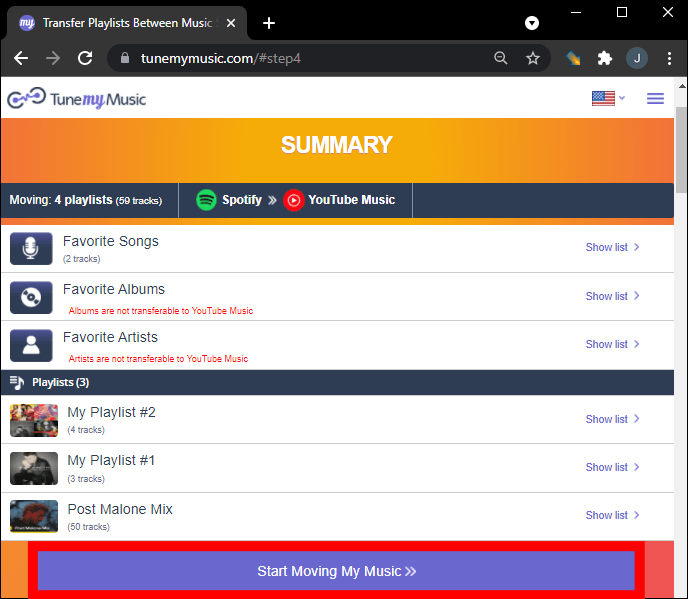
Krok 5. Po zakończeniu procesu możesz otworzyć Spotify i zobacz nowo utworzoną playlistę w swojej bibliotece.
Narzędzia online, takie jak TuneMyMusic, zapewniają wygodne rozwiązanie użytkownikom, którzy chcą przenieść muzykę z YouTube do Spotify Szybko, bez konieczności instalowania oprogramowania na komputerze. Jednak darmowe wersje mogą mieć ograniczenia dotyczące rozmiaru playlisty lub liczby transferów.
Część 4. Często zadawane pytania
Czy mogę przenieść YouTube Music do Spotify bezpośrednio?
Nie. Serwisy streamingowe zazwyczaj nie pozwalają na bezpośrednie przesyłanie playlist między platformami. Potrzebujesz narzędzi innych firm, takich jak DumpMedia lub TuneMyMusic, aby dokończyć proces.
Czy wszystkie utwory zostaną pomyślnie przeniesione?
Większość utworów zostanie przeniesiona poprawnie, ponieważ obie platformy mają obszerne katalogi muzyczne. Czasami jednak niektóre utwory mogą być niedostępne. Spotify, co oznacza, że nie można ich dopasować podczas transferu.
Czy można przenieść całe playlisty?
Tak. Wiele narzędzi obsługuje pełną migrację playlist. DumpMediaFunkcja przesyłania list odtwarzania i usługi online, takie jak TuneMyMusic, umożliwiają ponowne tworzenie list odtwarzania Spotify.
Czy korzystanie z narzędzi do przesyłania playlist jest bezpieczne?
Renomowane narzędzia korzystają z bezpiecznych systemów uwierzytelniania, aby łączyć się z Twoimi kontami streamingowymi. Zawsze wybieraj zaufane usługi, próbując przenieść YouTube Music do… Spotify.
Część 5. Wniosek
Zmiana platformy streamingowej nie oznacza utraty ulubionych playlist. Z odpowiednimi narzędziami przeniesienie YouTube Music do innej platformy jest całkowicie możliwe. Spotify bez konieczności ręcznego przebudowywania biblioteki muzycznej.
Oprogramowanie komputerowe jak DumpMedia Any Music Converter zapewnia potężne rozwiązanie, umożliwiając użytkownikom pobieranie utworów z YouTube Music i przesyłanie ich do Spotify jako pliki lokalne. Funkcja przenoszenia playlist może dodatkowo uprościć proces przenoszenia dużych kolekcji muzycznych. Tymczasem usługi online, takie jak TuneMyMusic, oferują wygodną alternatywę opartą na przeglądarce, umożliwiającą szybką migrację playlist.