


Jak przenieść Spotify Muzyka na YouTube: kompletny przewodnik dla wszystkich urządzeń
Przenoszenie playlist między platformami streamingowymi to częsta potrzeba, zwłaszcza podczas zmiany aplikacji lub konsolidacji biblioteki muzycznej. Jeśli chcesz przenieść Spotify muzyka na YouTubeDobra wiadomość jest taka, że nowoczesne narzędzia do transferu danych sprawiają, że proces ten przebiega płynnie w przeglądarce, na komputerze stacjonarnym i w urządzeniach mobilnych. Ten przewodnik przeprowadzi Cię krok po kroku przez każdą metodę. Dzięki obsłudze… Spotify i YouTube na wszystkich głównych urządzeniach, możesz bez problemu przenieść swoje playlisty i mieć dostęp do swojej muzyki, gdziekolwiek jej słuchasz.
Przewodnik po zawartości Część 1. Przelew Spotify Playlista na YouTube onlineCzęść 2. Przelew Spotify Playlista na YouTube na Windows/MacCzęść 3. Przelew Spotify Playlista na YouTube w systemie iOSCzęść 4. Przelew Spotify Playlista na YouTube na AndroidzieCzęść 5. Często zadawane pytaniaCzęść 6. Podsumowując
Część 1. Przelew Spotify Playlista na YouTube online
Jeśli chcesz najszybszego sposobu transferu Spotify Jeśli chcesz przenieść muzykę na YouTube bez instalowania oprogramowania, najwygodniejszą opcją jest narzędzie do synchronizacji playlist online. Jednym z popularnych rozwiązań jest TuneMyMusic, usługa oparta na przeglądarce, która obsługuje bezpośrednią migrację playlist między głównymi platformami streamingowymi.
Jak działa TuneMyMusic online:
- Otwórz TuneMyMusic w swojej przeglądarce.
- Dodaj Spotify jako platformę źródłową i zaloguj się.
- Wybierz listę odtwarzania, którą chcesz przenieść.
- Dodaj YouTube jako miejsce docelowe.
- Potwierdź listę utworów i rozpocznij transfer.
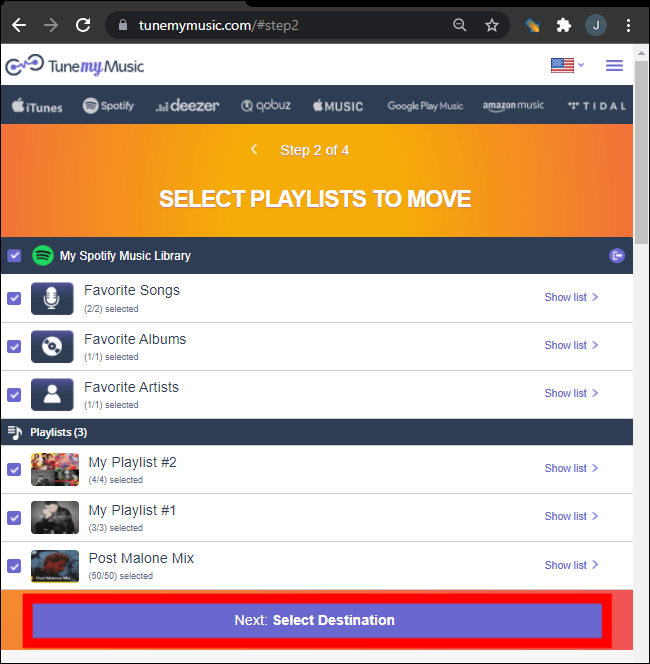
Ta metoda jest szybka, wieloplatformowa i nie wymaga instalacji lokalnej. Jest idealna dla użytkowników, którzy chcą po prostu przenieść muzykę ze Spotify na YouTube w możliwie najbardziej bezproblemowy sposób.
Część 2. Przelew Spotify Playlista na YouTube na Windows/Mac
Dla użytkowników komputerów stacjonarnych, którzy oczekują większej kontroli, wyższej stabilności konwersji i zautomatyzowanej obsługi list odtwarzania, DumpMedia Dowolny konwerter muzyki Oferuje dedykowany moduł przesyłania playlist. Jest to szczególnie przydatne dla użytkowników, którzy regularnie przesyłają Spotify przesyłają muzykę na YouTube w dużych ilościach lub potrzebują przewidywalnego i powtarzalnego mapowania playlist.
Darmowe pobieranie Darmowe pobieranie
Główne zalety funkcji przenoszenia playlist:
- Obsługuje migrację list odtwarzania zbiorczo
- Zajmuje się metadanymi, okładkami i kolejnością utworów
- Zapewnia solidną logikę dopasowywania, aby zminimalizować liczbę niedopasowanych utworów
- Działa na obu Windows i macOS
Jak go używać:
Krok 1. Otwórz Any Music Converter. Wybierz Narzędzia > Przesyłanie playlist.

Krok 2. Wybierz Spotify jako źródło.
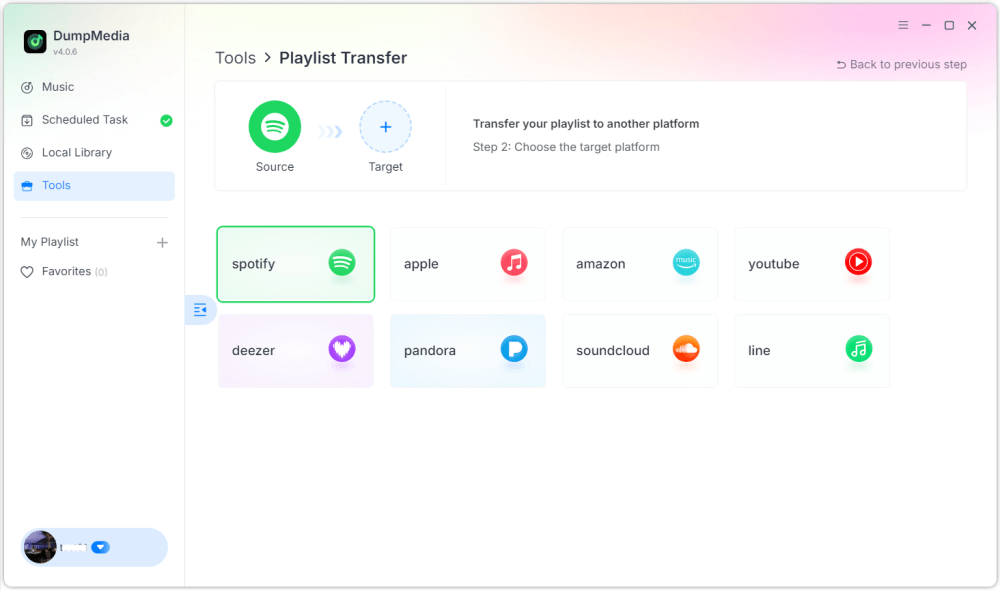
Krok 3. Wybierz YouTube Music jako miejsce docelowe.
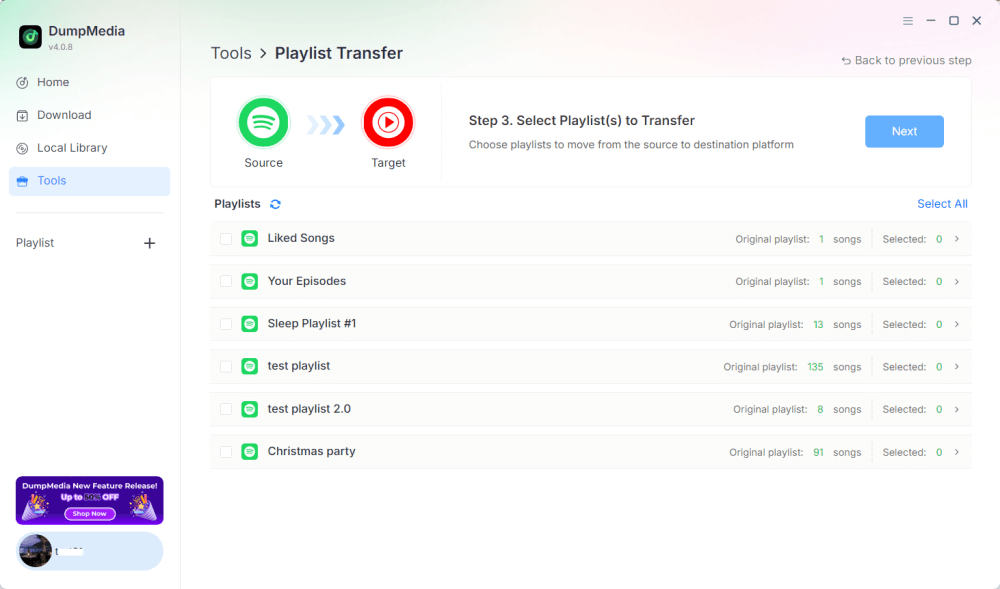
Krok 4. Wybierz, co chcesz przenieść – obsługujemy Twoje ulubione piosenki, artystów, albumy i starannie przygotowane playlisty.
Krok 5. Kliknij Konwertuj, aby rozpocząć transfer.
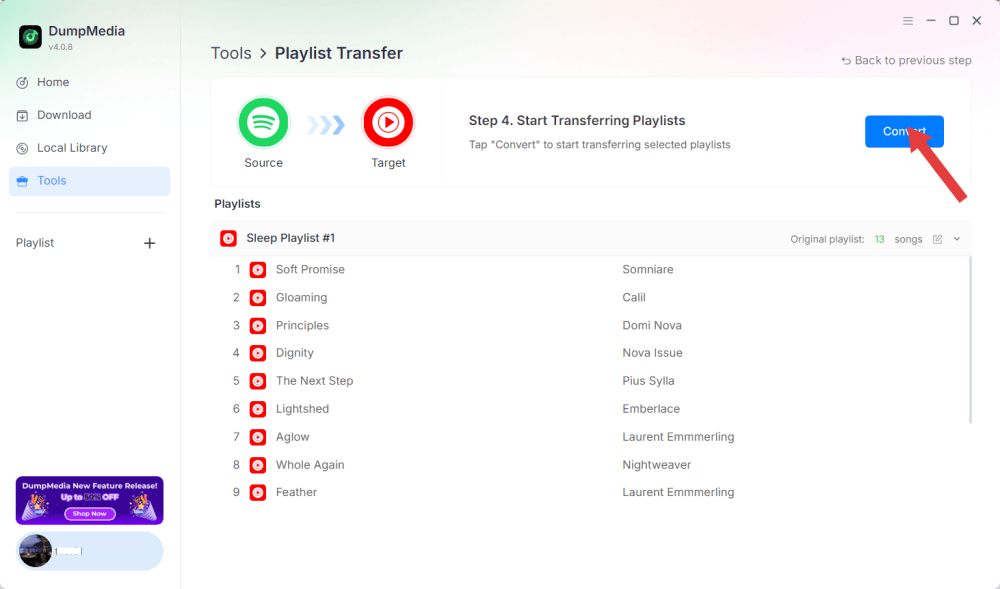
Krok 6. Transfer został zakończony. Kliknij „Przejdź do YouTube Music”. Twoje playlisty zostały przeniesione do nowej usługi i możesz zacząć korzystać z nowej playlisty w YouTube Music.
Ponieważ wszystkie operacje są wykonywane lokalnie, to rozwiązanie jest stabilniejsze niż narzędzia oparte na przeglądarce i idealnie nadaje się dla użytkowników, którzy często muszą przenosić muzykę ze Spotify do YouTube w celu korzystania z wielu playlist lub dużych bibliotek.
Część 3. Przelew Spotify Playlista na YouTube w systemie iOS
Jeśli używasz iPhone'a lub iPada i chcesz przenieść muzykę ze Spotify do YouTube, narzędzie do migracji zoptymalizowane pod kątem urządzeń mobilnych, takie jak SongShift, to sprawdzona opcja. Zostało ono zaprojektowane specjalnie dla ekosystemów Apple i oferuje intuicyjne procesy mapowania playlist.
Jak działa SongShift:
- Zainstaluj SongShift ze sklepu App Store.
- Podłącz Spotify konta.
- Połącz swoje konto YouTube.
- Utwórz nowe zadanie Shift i wybierz Spotify playlistę jako źródło.
- Ustaw YouTube jako miejsce docelowe i sprawdź, czy utwory są zgodne.
- Wykonaj przelew.
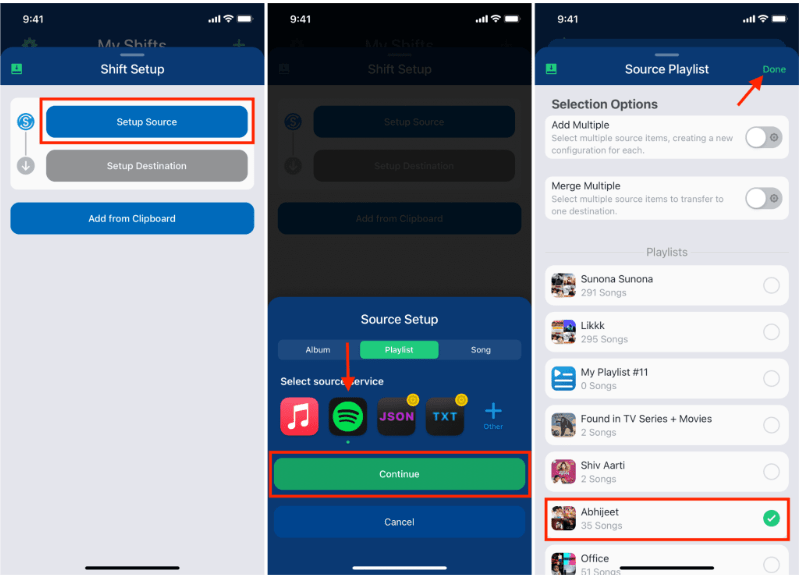
Siłą SongShift są natywne interakcje z interfejsem użytkownika iOS, dzięki którym zadanie transferu danych jest łatwiejsze Spotify muzyka w serwisie YouTube jest płynna dla użytkowników, którzy pracują głównie na urządzeniach mobilnych.
Część 4. Przelew Spotify Playlista na YouTube na Androidzie
Na urządzeniach z systemem Android najłatwiej jest przesłać Spotify Muzykę do YouTube możesz przesyłać za pomocą aplikacji Soundiiz Mobile Web, która dobrze współpracuje z przeglądarkami mobilnymi i obsługuje interfejsy dostosowane do systemu Android.
Kroki dla Soundiiz Mobile Web:
- Otwórz witrynę Soundiiz w przeglądarce Android.
- Zaloguj się do swojego Spotify konta.
- Wybierz playlistę, którą chcesz przenieść.
- Wybierz YouTube jako usługę docelową.
- Potwierdź i rozpocznij synchronizację.
Ten obieg pracy jest wygodny dla użytkowników, którzy nie chcą instalować dodatkowych aplikacji, ale nadal potrzebują prostego sposobu przesyłania danych Spotify słuchaj muzyki na YouTube, gdziekolwiek jesteś.
Część 5. Często zadawane pytania
1. Czy kolejność playlist pozostanie taka sama po przeniesieniu? Spotify muzyka na YouTube?
Większość narzędzi stara się zachować porządek, ale dokładne zachowanie śladów zależy od dostępności śladów i dokładności rozpoznawania.
2. Czy wszystkie Spotify utwory dostępne na YouTube?
Nie zawsze. Różnice w prawach autorskich, ograniczenia regionalne i niedostępność utworów mogą powodować luki.
3. Czy te narzędzia wymagają dostępu do moich kont?
Tak. Potrzebują autoryzacji, aby odczytać Twoje Spotify playlisty i dodaj je do swojej biblioteki YouTube. Renomowane narzędzia korzystają z bezpiecznego uwierzytelniania OAuth.
4. Ile czasu zajmuje przelew? Spotify playlisty na YouTube?
Czas potrzebny na utworzenie małej listy odtwarzania zależy od rozmiaru listy odtwarzania – utworzenie małej listy trwa kilka sekund; utworzenie dużej biblioteki może potrwać kilka minut.
Część 6. Podsumowując
Znalezienie najlepszej metody transferu Spotify Przenoszenie muzyki na YouTube zależy od Twojego sposobu pracy i urządzenia. Z odpowiednim narzędziem możesz bez problemu przenieść Spotify playlisty na YouTube i zachować ciągłość muzyczną na różnych platformach.

30% zniżki >>>