


Jak korzystać DumpMedia Spotify Kopia zapasowa listy odtwarzania
Zarządzanie Spotify Tworzenie list odtwarzania może być wyzwaniem, jeśli chcesz zachować kopię zapasową swojej starannie zorganizowanej kolekcji muzyki. DumpMedia Spotify Kopia zapasowa listy odtwarzania zapewnia wygodny sposób tworzenia kopii zapasowej Spotify listy odtwarzania, eksportuj informacje o listach odtwarzania do plików CSV i przywracaj listy odtwarzania do Spotify konta.
W tym przewodniku wyjaśniono, jak podłączyć Spotify Konto, wybieranie playlist, eksportowanie plików kopii zapasowych, przywracanie playlist, zarządzanie historią kopii zapasowych i dostosowywanie folderu wyjściowego. Zawiera również sugestie dotyczące rozwiązywania typowych problemów.
Przewodnik po zawartości Część 1. Instalacja i rejestracja DumpMedia Dowolny konwerter muzykiCzęść 2. Jak podłączyć swój Spotify KontoCzęść 3. Jak wybrać Spotify PlaylistCzęść 4. Typowe problemy i rozwiązywanie problemówNajczęściej zadawane pytania
Część 1. Instalacja i rejestracja DumpMedia Dowolny konwerter muzyki
Krok 1: Pobierz i zainstaluj DumpMedia Dowolny konwerter muzyki
DumpMedia Na komputerach Mac i Mac obsługiwany jest dowolny konwerter muzyki. WinObecnie na urządzeniach Dows. Pakiet instalacyjny można pobrać ze strony produktu lub po prostu klikając przycisk pobierania dostępny tutaj.
Bezpłatne pobieranie Bezpłatne pobieranie
Krok 2: Uruchom DumpMedia Dowolny konwerter muzyki
Po instalacji otwórz DumpMedia Dowolny konwerter muzyki na Twoim komputerze. Zobaczysz przejrzysty i intuicyjny interfejs zaprojektowany tak, aby konwersja była prosta, nawet dla początkujących użytkowników.
Wskazówka: aby uzyskać najlepsze rezultaty, upewnij się, że masz połączenie z Internetem.
Krok 3: Zarejestruj i aktywuj dowolny konwerter muzyki
Premiera DumpMedia Any Music Converter. Kliknij przycisk „Zaloguj się” lub ikonę profilu w lewym dolnym rogu. Wprowadź adres e-mail i hasło. Kliknij „Zaloguj się”, aby dokończyć rejestrację.
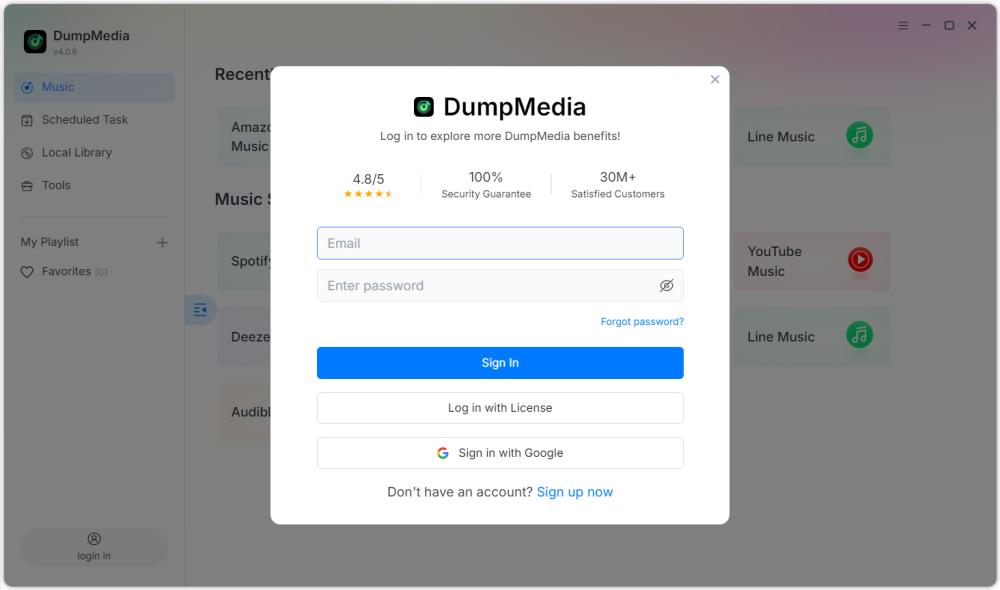
Wskazówka: Odblokuj Spotify Kopia zapasowa listy odtwarzania według odwiedzając stronę produktu i kup plan. Wybierz plan subskrypcji, który odpowiada Twoim potrzebom i nie wahaj się skontaktować z naszym zespołem obsługi klienta, aby zapytać o ekskluzywne zniżki.
Część 2. Jak podłączyć swój Spotify Konto
Przed wybraniem listy odtwarzania należy podłączyć Spotify konto do DumpMedia Spotify Kopia zapasowa playlisty.
Wskazówka: Proszę pamiętać, że Spotify Kopia zapasowa listy odtwarzania sprzedawana jest jako osobna pozycja i nie jest uwzględniona w standardowych planach subskrypcji Music Converter.
Krok 1: Uruchom DumpMedia Spotify Kopia zapasowa listy odtwarzania
Otwórz Any Music Converter. Wybierz Narzędzia > Spotify Kopia zapasowa playlisty.
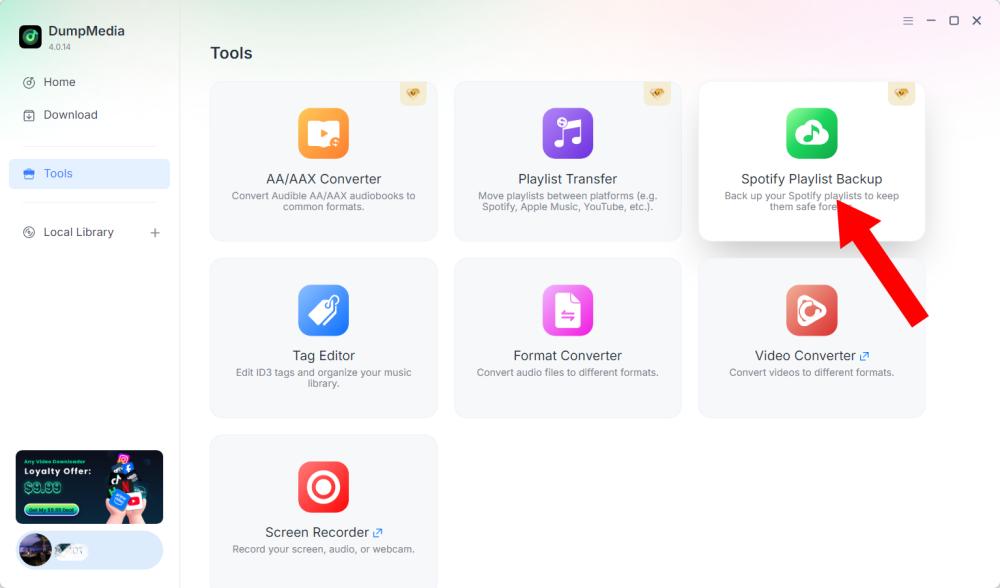
Krok 2: Kliknij „Połącz z Spotify"
Znajdź i kliknij opcję Połącz z Spotify przycisk w interfejsie oprogramowania. Aplikacja automatycznie przekieruje Cię do wbudowanego Spotify gracz.
Krok 3: Połącz swój Spotify Konto
Podczas Spotify odtwarzacz otwiera się w oprogramowaniu, postępuj zgodnie z dostępnymi instrukcjami, aby połączyć się Spotify konto. Zakończ proces łączenia przed przejściem do zarządzania listami odtwarzania. Po Spotify Po pomyślnym połączeniu konta możesz uzyskać dostęp do dostępnych list odtwarzania i wybrać potrzebną operację.
Wskazówka: Jeżeli połączenie nie przebiega zgodnie z oczekiwaniami, sprawdź połączenie internetowe i potwierdź, że Spotify Odtwarzacz został prawidłowo otwarty.
Część 3. Jak wybrać Spotify Playlist
Po podłączeniu Spotify Konto pozwala na wybranie listy odtwarzania, którą chcesz utworzyć kopię zapasową lub przywrócić.
Krok 1: Uzyskaj dostęp do swoich list odtwarzania
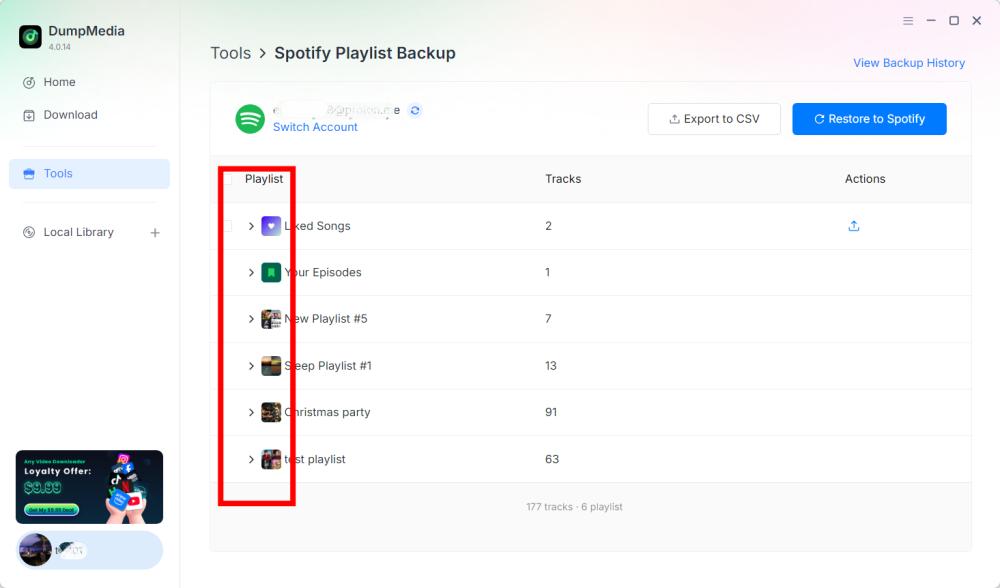
Otwórz sekcję listy odtwarzania w DumpMedia Spotify Kopia zapasowa listy odtwarzania po podłączeniu Spotify Twoje dostępne playlisty powinny być wyświetlane w interfejsie.
Krok 2: Wybierz playlistę
Wybieraj playlistę ostrożnie, zwłaszcza jeśli masz wiele playlist o podobnych nazwach.
Krok 3: Wybierz operację
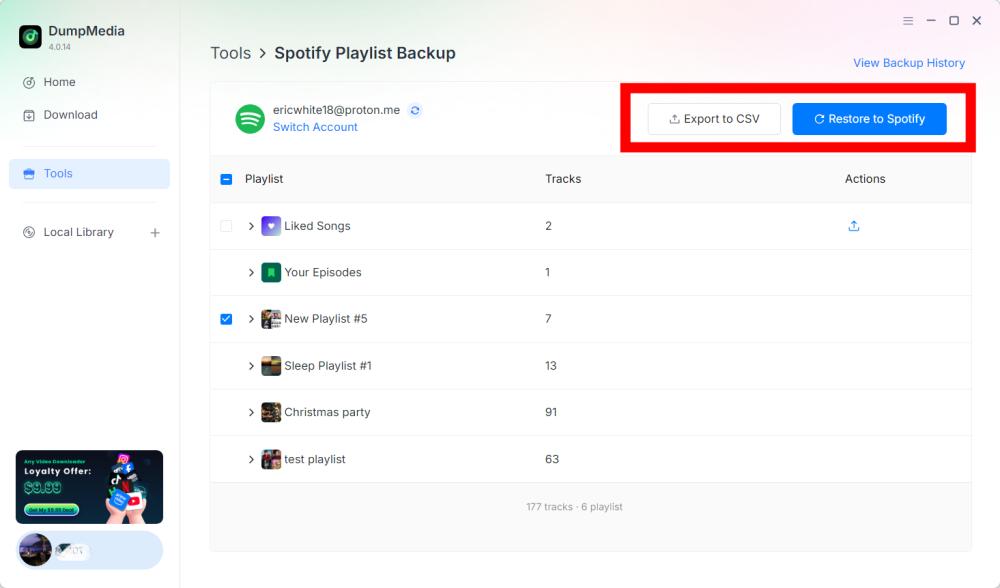
Po wybraniu listy odtwarzania wybierz odpowiednią operację zgodnie ze swoimi potrzebami. Dostępne operacje obejmują eksport do pliku CSV i przywracanie do pliku. Spotify.
- Eksport do pliku CSV: Eksportowanie listy odtwarzania do pliku CSV umożliwia zapisanie informacji o liście odtwarzania w pliku, który można otworzyć i przejrzeć za pomocą arkuszy kalkulacyjnych, np. Microsoft Excel.
- Przywróć Spotify: DumpMedia Spotify Kopia zapasowa listy odtwarzania obsługuje przywracanie listy odtwarzania za pomocą opcji Przywróć do Spotify opcja.
Krok 4: Sprawdź wyeksportowany plik
DumpMedia Spotify Funkcja Kopia zapasowa listy odtwarzania zapisuje pliki kopii zapasowej w domyślnym folderze. Lokalizację tę można zmienić w menu Preferencje. Po zakończeniu eksportu znajdź wygenerowany plik CSV. Możesz otworzyć plik za pomocą kompatybilnego arkusza kalkulacyjnego, aby sprawdzić jego zawartość.
Ważne: Konkretne pola zawarte w pliku CSV należy potwierdzić zgodnie z aktualną wersją DumpMedia Spotify Kopia zapasowa playlisty.
Krok 5: Sprawdź swój Spotify Konto
Jeśli wybierzesz opcję Przywróć do Spotify, otwarty Spotify i sprawdź, czy lista odtwarzania została pomyślnie przywrócona.
Uwaga: Wyniki przywracania mogą zależeć od danych kopii zapasowej, Spotify połączenie z kontem oraz aktualne możliwości przywracania oprogramowania. Dokładne postępowanie z niedostępnymi lub zmienionymi utworami wymaga potwierdzenia w dokumentacji produktu.
Krok 6: Wyświetl historię kopii zapasowych
DumpMedia Spotify Kopia zapasowa playlisty zawiera opcję „Wyświetl historię kopii zapasowych”, która umożliwia przeglądanie zapisów kopii zapasowych. Znajdź „Wyświetl historię kopii zapasowych” w prawym górnym rogu interfejsu oprogramowania. Kliknij tę opcję, aby otworzyć sekcję historii kopii zapasowych.
Część 4. Typowe problemy i rozwiązywanie problemów
Poniższe sugestie dotyczące rozwiązywania problemów dotyczą ogólnych problemów, które mogą wystąpić podczas łączenia się z kontem, obsługi playlist lub zarządzania plikami. Nie są to potwierdzone kody błędów specyficzne dla danego produktu ani oficjalne rozwiązania.
Nie można połączyć się z Spotify
Sugerowane rozwiązania:
- Sprawdź swoje połączenie z internetem.
- Zamknij i otwórz ponownie DumpMedia Spotify Kopia zapasowa playlisty.
- Kliknij Połącz z Spotify ponownie.
- Zakończ proces połączenia w wbudowanym Spotify gracz.
Jeśli problem nadal występuje, zapisz dokładny komunikat o błędzie i skontaktuj się z nami DumpMedia Wsparcie (support@dumpmedia.com).
Listy odtwarzania nie są wyświetlane
Sugerowane rozwiązania:
- Potwierdź, że Spotify Konto jest połączone.
- Otwórz ponownie sekcję playlisty.
- Uruchom ponownie oprogramowanie i spróbuj jeszcze raz.
- Sprawdź, czy problem dotyczy wszystkich list odtwarzania, czy tylko konkretnej.
Jeśli problem nadal występuje, przekaż działowi pomocy technicznej szczegóły dotyczące listy odtwarzania, której dotyczy problem, oraz wszelkie dostępne informacje o błędzie.
- Kliknij menu w prawym górnym rogu programu i wybierz „Prześlij opinię”.
- Opisz swój problem i wpisz klucz licencyjny w polu tekstowym.
- Na koniec, przed wysłaniem, zaznacz pole wyboru „Załącz plik dziennika”.
Eksport do pliku CSV nie został ukończony
Sugerowane rozwiązania:
- Potwierdź, że Spotify Konto jest połączone.
- Spróbuj ponownie wyeksportować listę odtwarzania.
- Sprawdź skonfigurowany folder wyjściowy w Preferencjach.
- Sprawdź, czy folder docelowy jest dostępny.
- Jeżeli to możliwe, przetestuj eksport z inną listą odtwarzania.
Jeśli eksport nadal się nie powiedzie, zapisz komunikat o błędzie i skontaktuj się z działem obsługi klienta.
Przywróć Spotify Nie działa
Sugerowane rozwiązania:
- Połącz ponownie swoje Spotify konta.
- Sprawdź, czy wybrałeś właściwą listę odtwarzania lub kopię zapasową nagrania.
- Spróbuj ponownie przeprowadzić proces przywracania.
- Otwarte Spotify i sprawdź, czy lista odtwarzania została częściowo przywrócona.
- Kontakt DumpMedia Wsparcie, jeśli problem będzie się powtarzał.
Nie zakładaj, że wielokrotne przywracanie tej samej kopii zapasowej jest bezpieczne w każdej sytuacji. Sprawdź utworzoną listę odtwarzania przed podjęciem kolejnych operacji przywracania.
Najczęściej zadawane pytania
Pytanie 1. Jak podłączyć mój Spotify konto do DumpMedia Spotify Kopia zapasowa playlisty?
Kliknij Połącz z SpotifyOprogramowanie automatycznie otworzy wbudowany Spotify odtwarzacz, do którego możesz podłączyć swój Spotify konta.
P2. Czy mogę eksportować Spotify playlisty do pliku CSV?
Tak. Po podłączeniu Spotify konto i wybierając listę odtwarzania, kliknij Eksportuj do pliku CSV, aby utworzyć plik kopii zapasowej.
P3. Czy mogę przywrócić listę odtwarzania do Spotify?
Tak. DumpMedia Spotify Kopia zapasowa listy odtwarzania umożliwia przywrócenie Spotify opcja dla wspieranych operacji renowacyjnych.
P4. Gdzie są zapisywane moje pliki kopii zapasowej?
Pliki kopii zapasowej są zapisywane w domyślnym folderze wyjściowym. Możesz sprawdzić lub zmienić lokalizację, otwierając menu w prawym górnym rogu, wybierając Preferencje i lokalizując Folder wyjściowy.
P5. Jak mogę przeglądać poprzednie kopie zapasowe?
Aby przejrzeć dostępną historię kopii zapasowych, kliknij opcję Wyświetl historię kopii zapasowych w prawym górnym rogu oprogramowania.
Pytanie 6. Co powinienem zrobić, jeśli Spotify nie możesz się połączyć?
Sprawdź połączenie internetowe i ponownie uruchom oprogramowanie. Jeśli problem będzie się powtarzał, skontaktuj się z nami. DumpMedia Prosimy o podanie szczegółów błędu.
P7. Co mam zrobić, jeśli moja lista odtwarzania zniknęła?
Potwierdź, że twój Spotify Jeśli konto jest połączone, uruchom ponownie oprogramowanie i sprawdź ponownie sekcję playlisty. Jeśli playlista nadal jest niedostępna, skontaktuj się z pomocą techniczną.
P8. Czy mogę przywrócić kopię zapasową na inną Spotify konto?
Funkcja ta nie jest jeszcze dostępna w obecnej wersji, prosimy jednak o śledzenie przyszłych aktualizacji.