


Jak zrobić zrzut ekranu na komputerze HP: 5 prostych metod
Jeśli się zastanawiasz jak zrobić zrzut ekranu na HP, nie jesteś sam. Od przechwytywania ważnych informacji, przez zapisywanie obrazów, po udostępnianie treści – wiedza o tym, jak szybko i sprawnie wykonać zrzut ekranu na swoim HP, może zaoszczędzić Ci czas. Dobra wiadomość jest taka, że WinDows oferuje kilka wbudowanych sposobów robienia zrzutów ekranu na urządzeniach HP. W tym przewodniku przedstawimy Ci najłatwiejsze sposoby robienia zrzutów ekranu i przedstawimy bardziej zaawansowane narzędzie, jeśli potrzebujesz czegoś więcej niż tylko podstawowego przechwytywania ekranu.
Przewodnik po zawartości Część 1. Jak zrobić zrzut ekranu w HP (szybkie i proste metody)Część 2. Najlepsze zaawansowane narzędzie do przechwytywania ekranu – DumpMedia Screen RecorderCzęść 3. Często zadawane pytaniaCzęść 4. streszczenie
Część 1. Jak zrobić zrzut ekranu w HP (szybkie i proste metody)
Jeśli chcesz dowiedzieć się, jak wykonywać zrzuty ekranu na laptopie lub komputerze stacjonarnym HP, przedstawiamy najskuteczniejsze sposoby wykonywania zrzutów ekranu.
Metoda 1. Użyj klawisza Print Screen (PrtScn)
To najprostszy sposób na przechwycenie całego ekranu.
Kroki:
- Naciśnij klawisz PrtScn na klawiaturze
- Zrzut ekranu zostanie skopiowany do schowka
- Wklej do programu Paint, Word lub dowolnego edytora obrazów
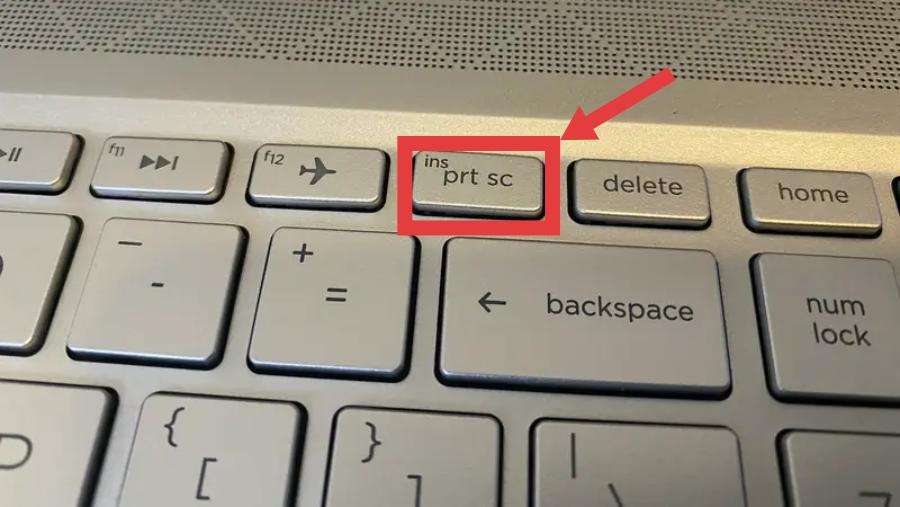
To jeden z najszybszych sposobów nauczenia się wykonywania zrzutów ekranu w systemie HP, wymaga jednak ręcznego zapisu.
Metoda 2. Użyj Alt + Print Screen
Jeśli chcesz przechwycić tylko aktywne okno:
- Naciśnij Alt + PrtScn
- Aktywne okno jest kopiowane
- Wklej do edytora
Ta metoda jest przydatna, gdy nie potrzebujesz pełnego ekranu.
Metoda 3. Użyj Windows + Shift + S (skrót narzędzia Wycinanie)
To jedna z najbardziej elastycznych metod wykonywania zrzutów ekranu.
- Naciśnij przycisk Windows + Shift + S
- Wybierz z: Cięcie prostokątne/Cięcie dowolne/Window snip/Pełnoekranowy snip
- Zapisz lub edytuj zrzut ekranu
Jeśli chcesz mieć większą kontrolę podczas nauki tworzenia zrzutów ekranu w HP, to jest to jedna z najlepszych wbudowanych opcji.
Metoda 4. Użyj narzędzia Wycinanie
Windows udostępnia również wbudowaną aplikację do wykonywania zrzutów ekranu.
- Wyszukaj narzędzie do wycinania
- Kliknij „Nowy”
- Wybierz obszar, który chcesz uchwycić
- Zapisz obraz
Ta metoda jest przyjazna dla początkujących i przydatna przy podstawowej edycji.
Metoda 5. Użyj Windows + Print Screen
Jeśli chcesz automatycznie zapisywać zrzuty ekranu:
- Naciśnij przycisk Windows + PrtScn
- Ekran na chwilę przyciemni się
- Zrzut ekranu jest zapisywany w folderze Obrazy > Zrzuty ekranu
To najłatwiejszy sposób na automatyczne zapisywanie plików podczas nauki wykonywania zrzutów ekranu w systemie HP.
Dlaczego podstawowe metody tworzenia zrzutów ekranu nie wystarczą
Chociaż powyższe metody są przydatne, mają ograniczenia, które wielu użytkowników szybko zauważa. Oto kilka typowych problemów:
- Brak możliwości nagrywania filmów z ekranu
- Ograniczone funkcje edycji
- Brak obsługi przechwytywania przewijanych stron
- Nie można przechwycić dynamicznej lub ruchomej zawartości
- Nieefektywne w przypadku samouczków lub prezentacji
Na przykład, jeśli tworzysz poradnik, nagrywasz rozgrywkę lub nagrywasz wideorozmowę, podstawowe narzędzia do tworzenia zrzutów ekranu po prostu nie wystarczą. W tym momencie wielu użytkowników zaczyna szukać bardziej zaawansowanych rozwiązań wykraczających poza samo tworzenie zrzutów ekranu w HP.
Część 2. Najlepsze zaawansowane narzędzie do przechwytywania ekranu – DumpMedia Screen Recorder
Jeśli potrzebujesz czegoś więcej niż tylko statycznych zrzutów ekranu, DumpMedia Screen Recorder to potężne narzędzie łączące funkcje nagrywania ekranu i tworzenia zrzutów ekranu. Zamiast polegać tylko na podstawowych narzędziach systemowych, to oprogramowanie daje Ci pełną kontrolę nad sposobem przechwytywania ekranu.
Bezpłatne pobieranie komputerów Mac z serii M firmy Intel na komputery Mac Bezpłatne pobieranie
Kluczowe funkcje DumpMedia Screen Recorder
- Rób zrzuty ekranu i nagrywaj filmy: W przeciwieństwie do podstawowych narzędzi, DumpMedia umożliwia wykonywanie zrzutów ekranu i nagrywanie ekranu w tym samym czasie.
- Wysoka jakość wydruku: Wszystkie nagrania i zrzuty ekranu są zapisywane w wysokiej rozdzielczości, co gwarantuje profesjonalne rezultaty.
- Elastyczne opcje przechwytywania: Możesz przechwytywać cały ekran, wybrany obszar lub konkretne okna.
- Narzędzia do edycji w czasie rzeczywistym: dodawaj adnotacje, wyróżnienia i notatki podczas nagrywania lub przechwytywania.
- Łatwy w użyciu interfejs: Nawet początkujący szybko nauczą się go używać, nie posiadając przy tym umiejętności technicznych.
Jak korzystać DumpMedia Screen Recorder
Krok 1. Zainstalować DumpMedia Rejestrator ekranu na Twoim komputerze.
Bezpłatne pobieranie komputerów Mac z serii M firmy Intel na komputery Mac Bezpłatne pobieranie
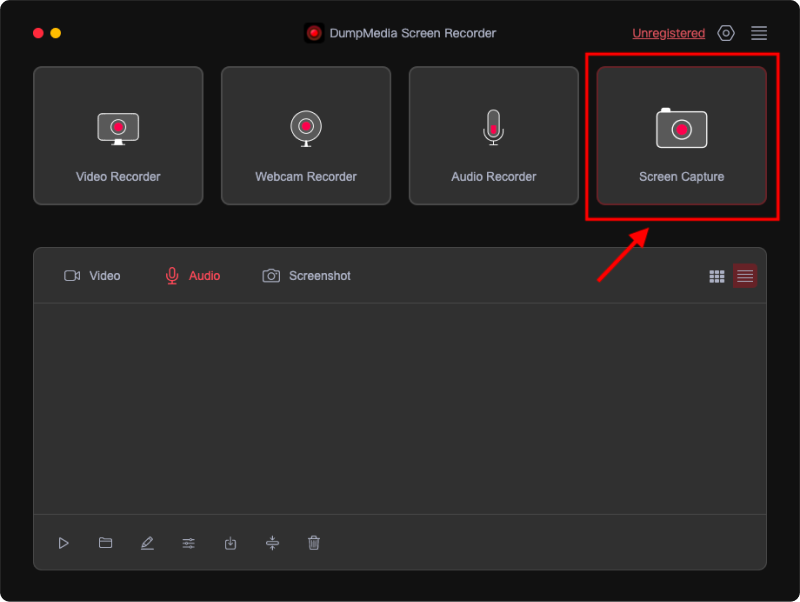
Krok 2. Otwórz program i wybierz opcję zrzutu ekranu.
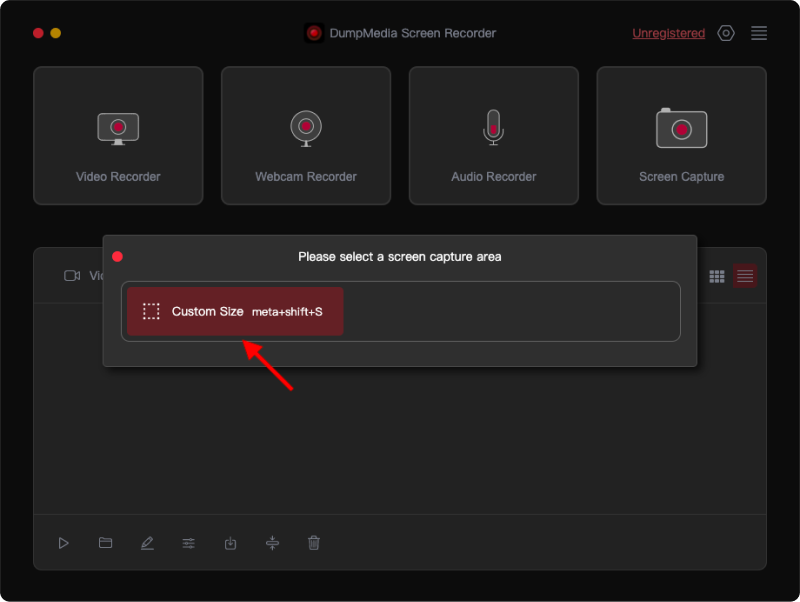
Krok 3. Kliknij opcję „Rozmiar niestandardowy”, aby wybrać rozmiar niestandardowy. Przytrzymaj lewy przycisk myszy i przeciągnij, aby zaznaczyć żądany obszar. Puść przycisk myszy, aby wyświetlić panel z narzędziami do edycji.
Krok 4. Kliknij znacznik wyboru, aby sfinalizować zrzut ekranu, który zostanie automatycznie zapisany na komputerze. Aby skopiować zrzut ekranu do schowka i jednocześnie go zapisać, kliknij przycisk Kopiuj. Aby odrzucić bieżący zrzut ekranu i wykonać kolejny, kliknij przycisk Anuluj.
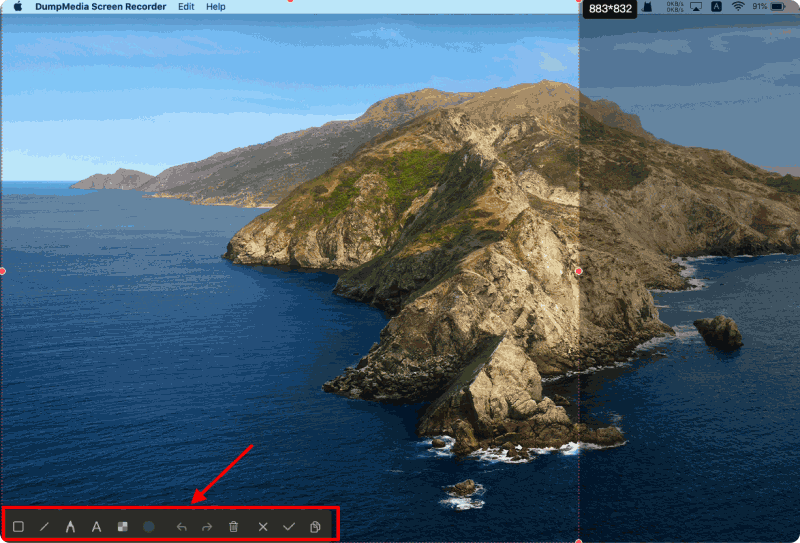
Krok 5. Użyj narzędzi adnotacji na pasku narzędzi, aby edytować zrzuty ekranu. Dostępne narzędzia to linie, okręgi, prostokąty, trójkąty, strzałki, tekst, pędzle i gumki.
Proces ten jest o wiele bardziej efektywny niż wielokrotne stosowanie ręcznych metod tworzenia zrzutów ekranu.
Część 3. Często zadawane pytania
1. Jak szybko zrobić zrzut ekranu na laptopie HP?
Możesz nacisnąć Windows + Shift + S lub PrtScn, aby wykonać szybki zrzut ekranu.
2. Gdzie na komputerze HP zapisywane są zrzuty ekranu?
Zrzuty ekranu wykonane za pomocą Windows + PrtScn są zapisywane w folderze Obrazy > Zrzuty ekranu.
3. Dlaczego mój zrzut ekranu nie działa?
Może to być spowodowane problemami z klawiaturą, wyłączonymi skrótami lub ustawieniami systemowymi.
4. Czy mogę nagrywać ekran na urządzeniu HP?
Tak. Podczas gdy Windows ma ograniczone możliwości, narzędzia takie jak DumpMedia Screen Recorder zapewnia lepsze funkcje nagrywania.
Bezpłatne pobieranie komputerów Mac z serii M firmy Intel na komputery Mac Bezpłatne pobieranie
Część 4. streszczenie
Nauka wykonywania zrzutów ekranu w HP jest prosta dzięki wbudowanej funkcji WinNarzędzia takie jak Print Screen, Narzędzie Wycinania i skróty klawiaturowe są idealne do szybkiego i prostego tworzenia zrzutów ekranu. Jednak wraz ze wzrostem potrzeb, czy to w zakresie nagrywania filmów, tworzenia samouczków, czy przechwytywania dynamicznych treści, te podstawowe narzędzia mogą okazać się niewystarczające. W takich przypadkach warto skorzystać z bardziej zaawansowanego rozwiązania, takiego jak DumpMedia Rejestrator ekranu może znacząco usprawnić Twój przepływ pracy.
Dzięki możliwości robienia zrzutów ekranu i nagrywania ekranu w wysokiej jakości, DumpMedia Zapewnia bardziej elastyczny i wydajny sposób zarządzania zrzutami ekranu. Jeśli chcesz wyjść poza proste zrzuty ekranu, to potężne narzędzie, które warto rozważyć.