


HP 노트북에서 스크린샷 찍는 방법: 5가지 쉬운 방법
궁금하다면 HP에서 스크린샷을 찍는 방법, you're not alone. From capturing important information to saving images or sharing content, knowing how to screenshot on your HP quickly and efficiently can save you time. The good news is that Windows offers several built-in ways to take screenshots on HP devices. In this guide, we’ll walk you through the easiest ways to take screenshots and introduce a more advanced tool if you need more than basic screen capture.
컨텐츠 가이드 Part 1. How to Take a Screenshot on HP (Quick and Easy Methods)Part 2. Best Advanced Screen Capture Tool – DumpMedia 스크린 레코더파트 3. FAQ4 부. 개요
Part 1. How to Take a Screenshot on HP (Quick and Easy Methods)
Here are the most effective ways to take screenshots if you want to learn how to screenshot on HP laptop or desktop.
Method 1. Use the Print Screen Key (PrtScn)
This is the simplest way to capture your entire screen.
단계 :
- Press the PrtScn key on your keyboard
- The screenshot is copied to your clipboard
- Paste it into Paint, Word, or any image editor
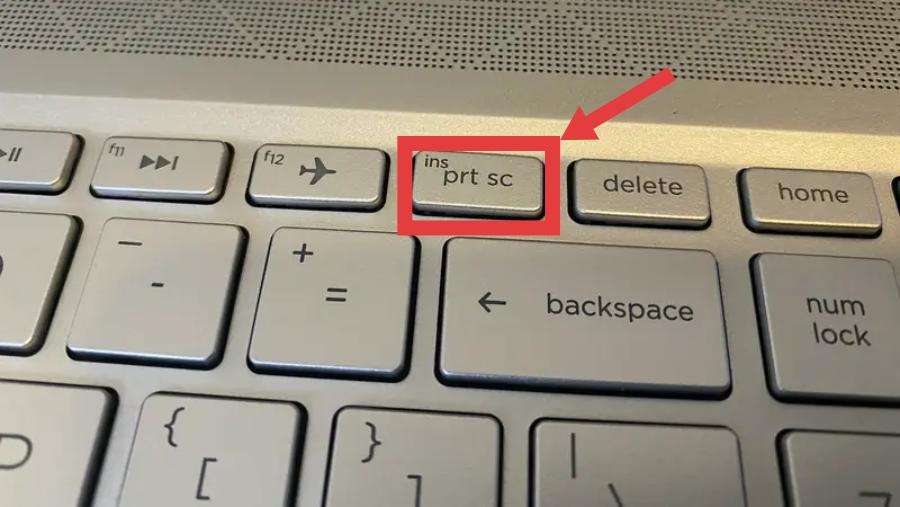
This is one of the fastest ways to learn how to screenshot on HP, but it requires manual saving.
Method 2. Use Alt + Print Screen
If you only want to capture the active window:
- Press Alt + PrtScn
- The active window is copied
- Paste it into an editor
This method is useful when you don’t need the full screen.
방법 3. 사용 Windows + Shift + S (Snipping Tool Shortcut)
This is one of the most flexible ways to screenshot.
- PR 기사 Windows + Shift + S
- Choose from: Rectangular snip/Freeform snip/Window snip/Full-screen snip
- Save or edit the screenshot
If you’re looking for more control when learning how to screenshot on HP, this is one of the best built-in options.
Method 4. Use the Snipping Tool
Windows also provides a built-in app for screenshots.
- Search for Snipping Tool
- Click “New”
- Select the area you want to capture
- 이미지 저장
This method is beginner-friendly and useful for basic editing.
방법 5. 사용 Windows + Print Screen
If you want to save screenshots automatically:
- PR 기사 Windows + PrtScn
- The screen will dim briefly
- Screenshot is saved in the Pictures > Screenshots folder
This is the easiest way to automatically save files when learning how to screenshot on HP.
Why Basic Screenshot Methods Are Not Enough
While the methods above are useful, they have limitations that many users quickly notice. Here are some common issues:
- No ability to record screen videos
- 제한된 편집 기능
- No support for capturing scrolling pages
- Cannot capture dynamic or moving content
- Inefficient for tutorials or presentations
For example, if you're creating a guide, recording gameplay, or capturing a video call, basic screenshot tools simply won’t be enough. This is where many users start looking for more advanced solutions beyond just how to screenshot on HP.
Part 2. Best Advanced Screen Capture Tool – DumpMedia 스크린 레코더
If you need more than just static screenshots, DumpMedia 스크린 레코더 is a powerful tool that combines both screen recording and screenshot features. Instead of relying only on basic system tools, this software gives you full control over how you capture your screen.
무료 다운로드 인텔 맥 M 시리즈 Mac 무료 다운로드
주요 특징 DumpMedia 스크린 레코더
- Capture Screenshots and Record Videos: Unlike basic tools, DumpMedia allows you to take screenshots and record your screen at the same time.
- High-Quality Output: All recordings and screenshots are saved in high resolution, ensuring professional results.
- Flexible Capture Options: You can capture full screen/selected area/specific windows.
- Real-Time Editing Tools: Add annotations, highlights, and notes while recording or capturing.
- Easy to Use Interface: Even beginners can quickly learn how to use it without technical skills.
이용 방법 DumpMedia 스크린 레코더
1 단계 설치 DumpMedia 컴퓨터의 화면 녹화 프로그램.
무료 다운로드 인텔 맥 M 시리즈 Mac 무료 다운로드
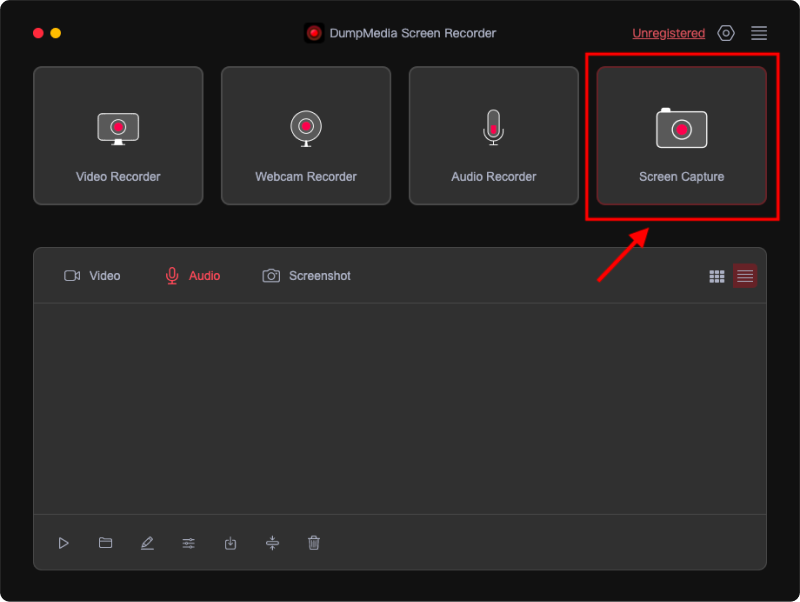
2 단계 프로그램을 열고 화면 캡처 옵션을 선택하세요.
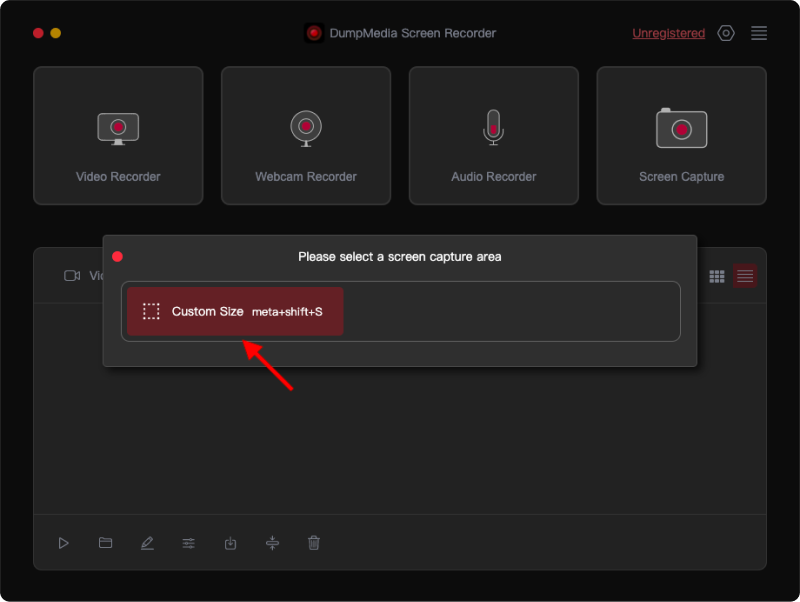
3 단계 Click on the "Custom Size " option to choose a custom size. Hold down the left mouse button and drag to select the desired area. Release the mouse button to reveal a panel with editing tools.
4 단계 체크 표시를 클릭하여 스크린샷을 마무리하면 자동으로 컴퓨터에 저장됩니다. 스크린샷을 클립보드에 복사하고 동시에 저장하려면 복사 버튼을 클릭합니다. 현재 스크린샷을 삭제하고 다른 스크린샷을 찍으려면 취소 버튼을 클릭합니다.
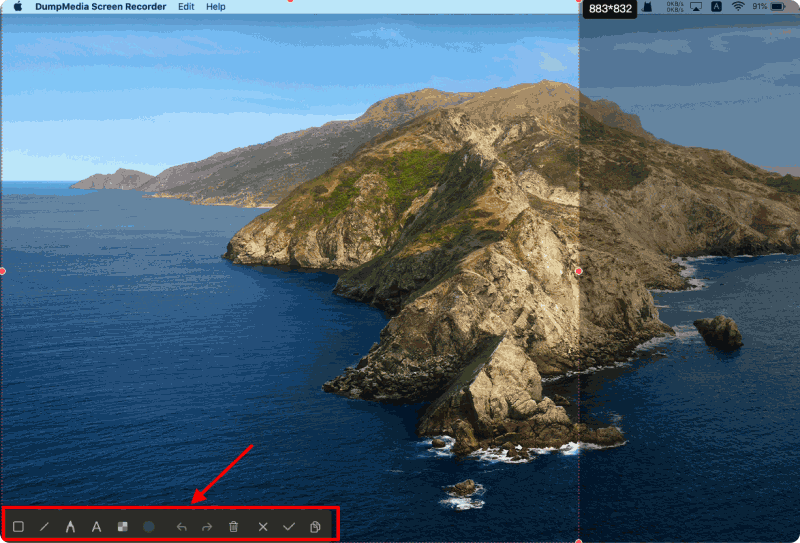
5 단계 툴바의 주석 도구를 사용하여 스크린샷을 편집하세요. 도구에는 선, 원, 사각형, 삼각형, 화살표, 텍스트, 브러시 및 지우개가 포함됩니다.
This process is much more efficient than repeatedly using manual screenshot methods.
파트 3. FAQ
1. How to screenshot on HP laptop quickly?
당신은 누를 수 있습니다. Windows + Shift + S or PrtScn to take a quick screenshot.
2. Where are screenshots saved on HP?
Screenshots taken with Windows + PrtScn are saved in the Pictures > Screenshots folder.
3. Why is my screenshot not working?
It could be due to keyboard issues, disabled shortcuts, or system settings.
4. Can I record my screen on HP?
네. 동안 Windows has limited options, tools like DumpMedia Screen Recorder provide better recording features.
무료 다운로드 인텔 맥 M 시리즈 Mac 무료 다운로드
4 부. 개요
Learning how to screenshot on HP is simple thanks to built-in Windows tools like Print Screen, Snipping Tool, and keyboard shortcuts. These methods are perfect for quick and basic screen captures. However, as your needs grow, whether for recording videos, creating tutorials, or capturing dynamic content, these basic tools may no longer be enough. In such cases, using a more advanced solution like DumpMedia Screen Recorder can significantly improve your workflow.
With its ability to capture both screenshots and screen recordings in high quality, DumpMedia provides a more flexible and efficient way to manage your screen capture needs. If you're looking to go beyond simple screenshots, it’s a powerful tool worth considering.

30% 할인 >>>