


Как использовать DumpMedia Spotify Резервная копия плейлиста
Управление Spotify Создание плейлистов может быть непростой задачей, особенно если вы хотите сохранить резервную копию своих тщательно организованных музыкальных коллекций. DumpMedia Spotify Playlist Backup предоставляет удобный способ резервного копирования ваших плейлистов. Spotify плейлисты, экспорт информации о плейлистах в CSV-файлы и восстановление плейлистов в ваши Spotify счет.
В этом руководстве объясняется, как подключить ваше устройство. Spotify Включает в себя функции создания учетной записи, выбора плейлистов, экспорта резервных копий, восстановления плейлистов, управления историей резервного копирования и настройки папки для сохранения результатов. Также содержит рекомендации по устранению неполадок, которые помогут вам справиться с распространенными проблемами.
Содержание Руководство Часть 1. Установка и регистрация DumpMedia Любой музыкальный конвертерЧасть 2. Как подключить Spotify АккаунтЧасть 3. Как выбрать Spotify плейлистЧасть 4. Распространенные проблемы и устранение неполадокЧасто задаваемые вопросы
Часть 1. Установка и регистрация DumpMedia Любой музыкальный конвертер
Шаг 1: скачать и установить DumpMedia Любой музыкальный конвертер
DumpMedia Программа Any Music Converter поддерживается на Mac. WinВ настоящее время устройства под управлением Windows доступны. Вы можете загрузить установочный пакет со страницы продукта или просто нажав на кнопку загрузки, расположенную здесь.
Бесплатная загрузка Бесплатная загрузка
Шаг 2: запуск DumpMedia Любой музыкальный конвертер
После установки откройте DumpMedia Любой музыкальный конвертер на вашем компьютере. Вы увидите чистый и интуитивно понятный интерфейс, разработанный для упрощения конвертации даже для начинающих пользователей.
Совет: Для наилучшего результата убедитесь, что у вас есть подключение к интернету.
Шаг 3: Зарегистрируйте и активируйте любой музыкальный конвертер
Запуск DumpMedia Любой музыкальный конвертер. Нажмите кнопку «Войти» или значок профиля в левом нижнем углу. Введите адрес электронной почты и пароль. Нажмите «Войти», чтобы завершить регистрацию.
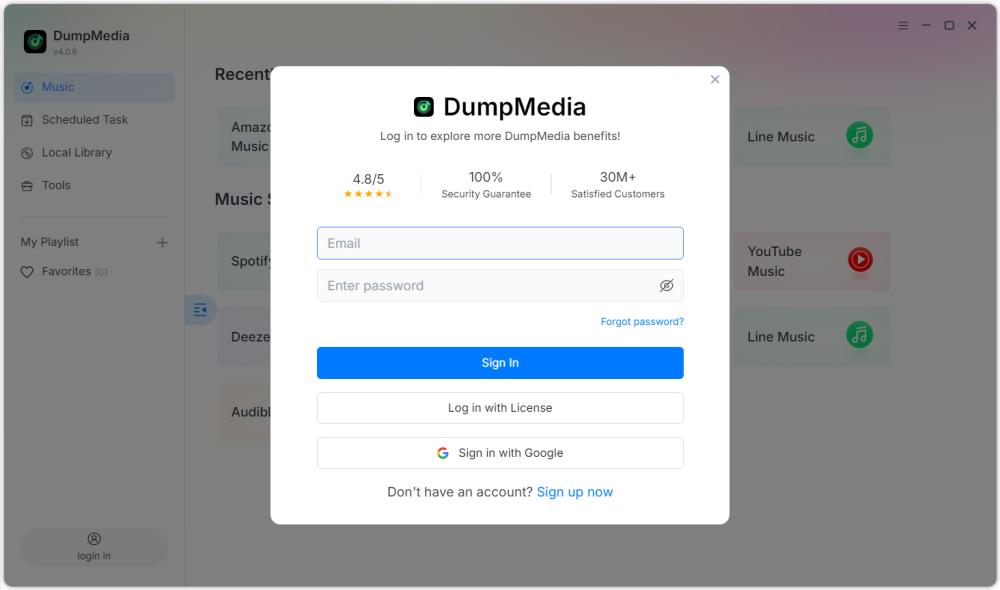
Совет: Разблокировать Spotify Резервное копирование плейлиста посещение страницы продукта и приобрести тарифный план. Выберите тарифный план, который соответствует вашим потребностям, и не стесняйтесь обращаться в нашу службу поддержки клиентов, чтобы узнать об эксклюзивных скидках.
Часть 2. Как подключить Spotify Аккаунт
Перед выбором плейлиста необходимо подключить ваше устройство. Spotify счет к DumpMedia Spotify Резервная копия плейлиста.
Совет: Обратите внимание, что Spotify Функция резервного копирования плейлистов продается как отдельный продукт и не входит ни в один из стандартных тарифных планов Music Converter.
Шаг 1: запуск DumpMedia Spotify Резервная копия плейлиста
Откройте любой музыкальный конвертер. Выберите Инструменты > Spotify Резервная копия плейлиста.
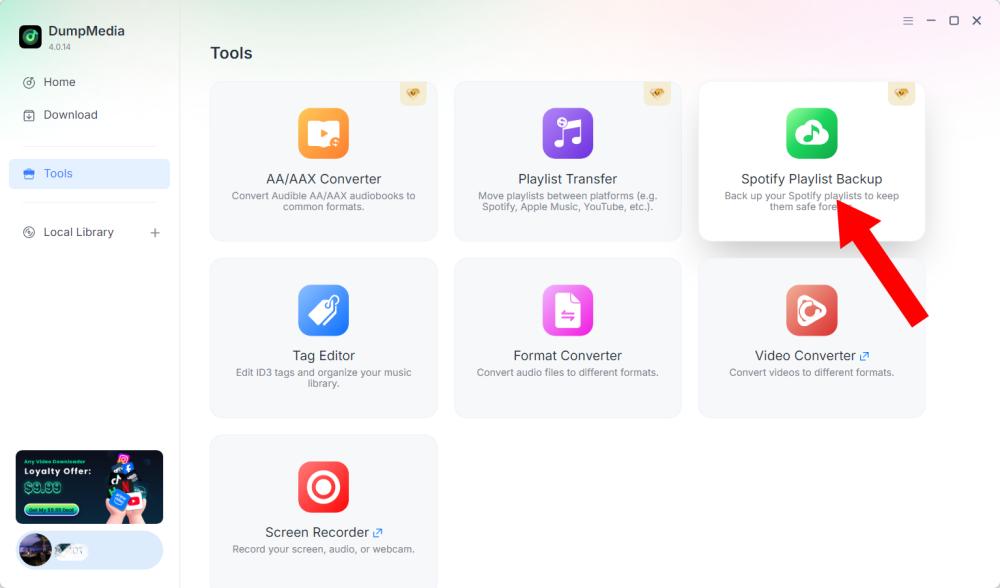
Шаг 2: Нажмите «Подключиться к» Spotify"
Найдите и нажмите «Подключиться к» Spotify Кнопка в интерфейсе программы. Приложение автоматически перенаправит вас на встроенную функцию. Spotify игрок.
Шаг 3: Подключите свой Spotify Аккаунт
Когда Spotify Плеер открывается внутри программы, следуйте инструкциям для подключения. Spotify Учетная запись. Завершите процесс подключения, прежде чем переходить к управлению плейлистами. После того, как ваша учетная запись... Spotify Аккаунт успешно подключен, вы можете получить доступ к доступным плейлистам и выбрать необходимую операцию.
Совет: Если соединение не устанавливается должным образом, проверьте подключение к интернету и убедитесь, что... Spotify Плеер открылся корректно.
Часть 3. Как выбрать Spotify плейлист
После подключения вашего Spotify В учетной записи вы можете выбрать плейлист, который хотите сохранить или восстановить.
Шаг 1: Откройте свои плейлисты
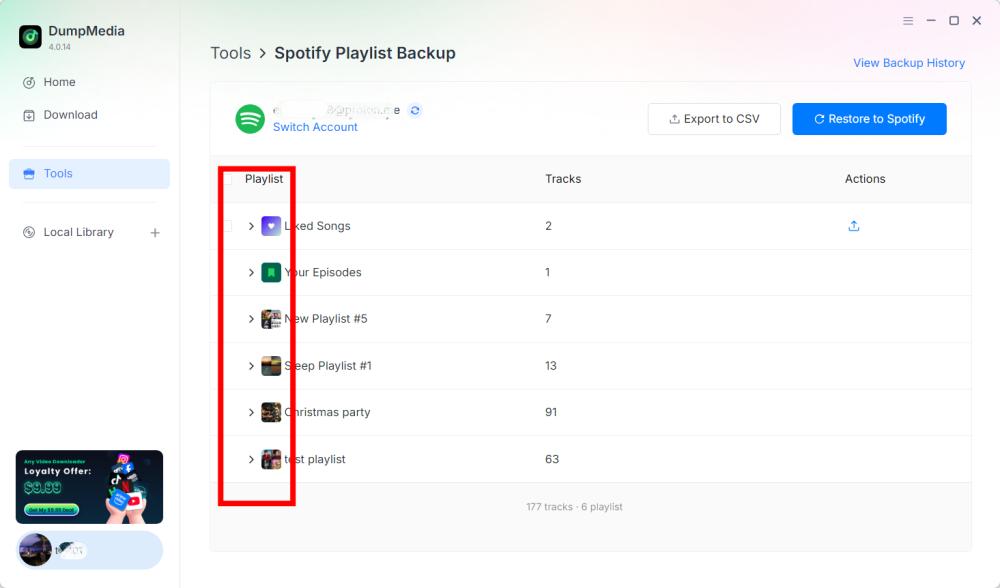
Откройте раздел плейлистов в DumpMedia Spotify Резервное копирование плейлиста после подключения Spotify Учетная запись. В интерфейсе должны отображаться доступные вам плейлисты.
Шаг 2: Выберите плейлист
Тщательно выбирайте плейлисты, особенно если у вас несколько плейлистов с похожими названиями.
Шаг 3: Выберите операцию
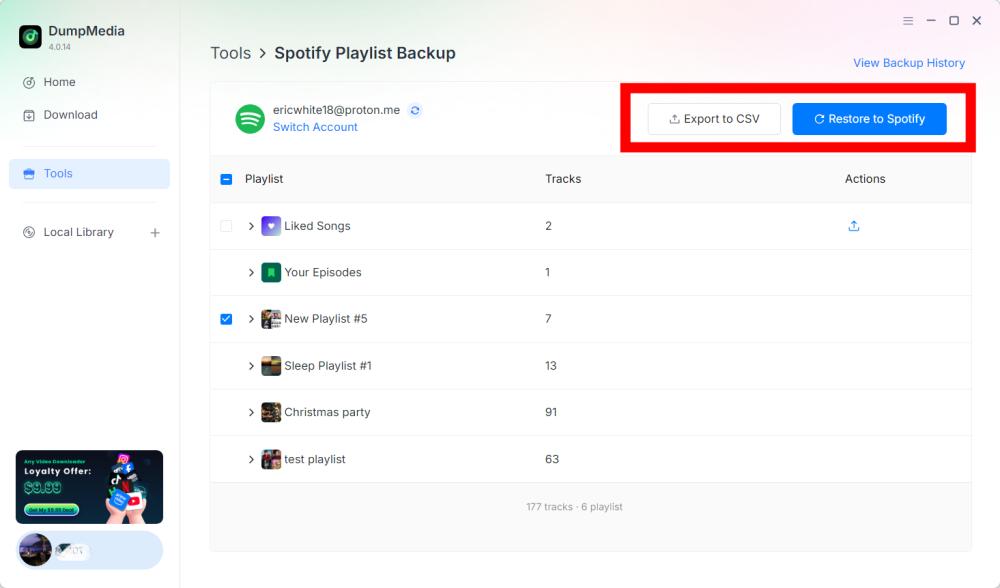
После выбора плейлиста выберите соответствующую операцию в соответствии с вашими потребностями. Доступные операции включают «Экспорт в CSV» и «Восстановление в...». Spotify.
- Экспорт в CSV: Экспорт плейлиста в CSV позволяет сохранить информацию о плейлисте в файле, который можно открыть и просмотреть с помощью табличных редакторов, таких как Microsoft Excel.
- Восстановление Spotify: DumpMedia Spotify Функция резервного копирования плейлистов поддерживает восстановление плейлистов с помощью функции «Восстановить в» Spotify опцию.
Шаг 4. Проверьте экспортированный файл
DumpMedia Spotify Программа Playlist Backup сохраняет файлы резервных копий в папке по умолчанию. Вы можете изменить это местоположение через меню «Настройки». После завершения экспорта найдите созданный CSV-файл. Вы можете открыть файл с помощью совместимого приложения для работы с электронными таблицами, чтобы просмотреть его содержимое.
Важно: Конкретные поля, включенные в CSV-файл, должны быть проверены в соответствии с текущей версией. DumpMedia Spotify Резервная копия плейлиста.
Шаг 5: Проверьте свои Spotify Аккаунт
Если вы выберете «Восстановить в» Spotify, откройте Spotify и проверьте, успешно ли восстановлен плейлист.
Примечание: Результаты восстановления могут зависеть от данных резервной копии. Spotify Подключение учетной записи и текущие возможности восстановления программного обеспечения. Точная обработка недоступных или измененных треков требует подтверждения в документации к продукту.
Шаг 6: Просмотр истории резервного копирования
DumpMedia Spotify В Playlist Backup есть опция «Просмотр истории резервного копирования», которая позволяет просмотреть записи резервных копий. Найдите опцию «Просмотр истории резервного копирования» в правом верхнем углу интерфейса программы. Щелкните по ней, чтобы открыть раздел истории резервного копирования.
Часть 4. Распространенные проблемы и устранение неполадок
Приведенные ниже рекомендации по устранению неполадок касаются общих проблем, которые могут возникнуть при подключении учетной записи, работе со списками воспроизведения или управлении файлами. Они не являются подтвержденными кодами ошибок, специфичными для конкретного продукта, или официальными решениями.
Не удалось подключиться к Spotify
Предлагаемые решения:
- Проверьте подключение к интернету.
- Закрыть и снова открыть DumpMedia Spotify Резервная копия плейлиста.
- Нажмите «Подключиться». Spotify .
- Завершите процесс подключения во встроенной программе. Spotify игрок.
Если проблема сохраняется, запишите точное сообщение об ошибке и свяжитесь с нами. DumpMedia Поддержка (support@dumpmedia.com).
Плейлисты не отображаются
Предлагаемые решения:
- Подтвердите, что Spotify Учетная запись подключена.
- Откройте снова раздел плейлистов.
- Перезапустите программу и попробуйте снова.
- Проверьте, затрагивает ли проблема все плейлисты или только определенный.
Если проблема не исчезнет, предоставьте в службу поддержки подробную информацию о затронутом плейлисте и любые доступные сведения об ошибке.
- Щелкните меню в правом верхнем углу программы и выберите «Отправить отзыв».
- Опишите свою проблему и запишите лицензионный ключ в текстовое поле.
- Наконец, перед отправкой, пожалуйста, поставьте галочку в поле «Прикрепить файл журнала».
Экспорт в CSV не завершается.
Предлагаемые решения:
- Подтвердите, что Spotify Учетная запись подключена.
- Попробуйте экспортировать плейлист еще раз.
- Проверьте папку для сохранения выходных файлов в настройках.
- Убедитесь, что папка назначения доступна.
- По возможности протестируйте экспорт с другим плейлистом.
Если экспорт по-прежнему не удается, сохраните сообщение об ошибке и обратитесь в службу поддержки клиентов.
Восстановление Spotify Не работает
Предлагаемые решения:
- Подключите свой Spotify счет.
- Убедитесь, что вы выбрали правильный плейлист или резервную копию.
- Попробуйте повторить процесс восстановления.
- Открыто Spotify и проверьте, был ли частично восстановлен плейлист.
- Контакты DumpMedia Если проблема сохранится, окажите поддержку.
Не следует предполагать, что многократное восстановление одной и той же резервной копии безопасно в любой ситуации. Перед выполнением дополнительных операций восстановления проверьте полученный плейлист.
Часто задаваемые вопросы
В1. Как мне подключить свой Spotify счет к DumpMedia Spotify Резервная копия плейлиста?
Нажмите «Подключиться». SpotifyПрограмма автоматически откроет встроенные функции. Spotify плеер, к которому вы можете подключить свой Spotify счет.
Вопрос 2. Могу ли я экспортировать? Spotify Плейлисты в CSV?
Да. После подключения вашего Spotify Для создания резервной копии выберите учетную запись и плейлист, затем выберите «Экспорт в CSV».
Вопрос 3. Могу ли я восстановить плейлист? Spotify?
Да. DumpMedia Spotify Резервное копирование плейлистов обеспечивает восстановление Spotify вариант для поддерживаемых операций восстановления.
Вопрос 4. Где хранятся мои резервные файлы?
Резервные копии сохраняются в папке вывода по умолчанию. Вы можете проверить или изменить местоположение, открыв меню в правом верхнем углу, выбрав «Настройки» и найдя пункт «Папка вывода».
Вопрос 5. Как я могу просмотреть предыдущие записи резервных копий?
Чтобы просмотреть доступную историю резервного копирования, нажмите кнопку «Просмотреть историю резервного копирования» в правом верхнем углу программы.
Q6. Что мне делать, если Spotify Не удается подключиться?
Проверьте подключение к интернету и перезапустите программу. Если проблема сохраняется, обратитесь в службу поддержки. DumpMedia Предоставьте подробную информацию об ошибке.
В7. Что делать, если мой плейлист пропал?
Подтвердите, что ваш Spotify Если учетная запись подключена, перезапустите программу и снова проверьте раздел плейлистов. Если плейлист по-прежнему недоступен, обратитесь в службу поддержки.
Вопрос 8. Могу ли я восстановить резервную копию на другой диск? Spotify запись?
Эта функция пока недоступна в текущей версии, но следите за обновлениями.