


Как конвертировать контент с YouTube в Apple Music?
Многие пользователи YouTube Music хотели бы перенести свои любимые песни или плейлисты в Apple Music из-за наличия тщательно подобранных плейлистов, бесшовной интеграции с устройствами Apple и возможности прослушивания в автономном режиме. Однако проблема заключается в том, что YouTube Music и Apple Music не синхронизируются между собой изначально. Это поднимает вопрос: как эффективно перенести музыку с YouTube в Apple Music, не потеряв при этом свои тщательно подобранные плейлисты? В этом руководстве мы рассмотрим лучшие методы переноса музыки с YouTube в Apple Music, полезные советы по переносу плейлистов и ответим на часто задаваемые вопросы.
Содержание Руководство Часть 1. Можно ли напрямую конвертировать музыку с YouTube в музыку Apple Music?Часть 2. Конвертация YouTube Music в Apple Music. Winдоус/макЧасть 3. Часто задаваемые вопросыЧасть 4. Подводя итоги
Часть 1. Можно ли напрямую конвертировать музыку с YouTube в музыку Apple Music?
К сожалению, прямого способа перенести или синхронизировать вашу библиотеку YouTube Music с Apple Music не существует. Обе платформы используют разные экосистемы и защиту DRM, что препятствует простой передаче. Хотя вы можете вручную создавать плейлисты, выполняя поиск песен в Apple Music, этот подход занимает много времени, особенно если у вас сотни треков.
К счастью, использование профессиональных инструментов, таких как DumpMedia С помощью любого музыкального конвертера вы можете преобразовать музыку с YouTube в Apple Music, скачав треки с YouTube Music и импортировав их в Apple Music, сохранив при этом качество песен и метаданные.
Часть 2. Конвертация YouTube Music в Apple Music. Winдоус/мак
Самый надежный способ конвертировать контент с YouTube в Apple Music — использовать настольное программное обеспечение. Один из лучших доступных инструментов — это... DumpMedia Любой музыкальный конвертер, что позволяет пользователям загружать песни и плейлисты YouTube Music, конвертировать их в форматы, совместимые с Apple Music, и даже напрямую передавать плейлисты.
Бесплатная загрузка Бесплатная загрузка
Ниже перечислены основные ключевые особенности:
- Поддержка нескольких платформ: вместо переключения между отдельными приложениями, этот инструмент обеспечивает поддержку нескольких основных потоковых сервисов, таких как... SpotifyApple Music, YouTube Music и другие.
- Универсальные форматы вывода: DumpMedia предоставляет широкий спектр совместимых форматов, чтобы гарантировать работу файлов практически на любом устройстве.MP3 (плееры, смартфоны, автомобильные стереосистемы и т. д.): MP3, M4A, WAV, FLAC, AIFF и AAC.
- Безупречное качество: Поддерживается 100% Сохранение исходного качества звука, как правило, до 320 кбит/с. MP3s.
- Пакетное преобразование: позволяет добавлять целые плейлисты или альбомы в очередь для одновременной обработки.
- Интеллектуальное управление метаданными: Сохранение тегов ID3: Автоматически сохраняет важные метаданные, включая исполнителя, альбом, название, год и обложку альбома.
- Встроенные веб-плееры: DumpMedia Как правило, для каждого сервиса предусмотрен встроенный веб-плеер. Это означает, что вам не нужно иметь... Spotify или установлены настольные приложения Apple Music; вы можете просматривать и выбирать песни непосредственно в приложении. DumpMedia интерфейс.
Как конвертировать контент с YouTube в Apple Music?
Шаг 1. Установите DumpMedia Любой музыкальный конвертер на вашем WinКомпьютер с операционной системой Windows или Mac. Откройте программу и выберите YouTube Music.
Бесплатная загрузка Бесплатная загрузка
Шаг 2. Найдите нужные песни, плейлисты или альбомы непосредственно в Apple Music. Затем перетащите их на кнопку «+» и добавьте в список для конвертации.
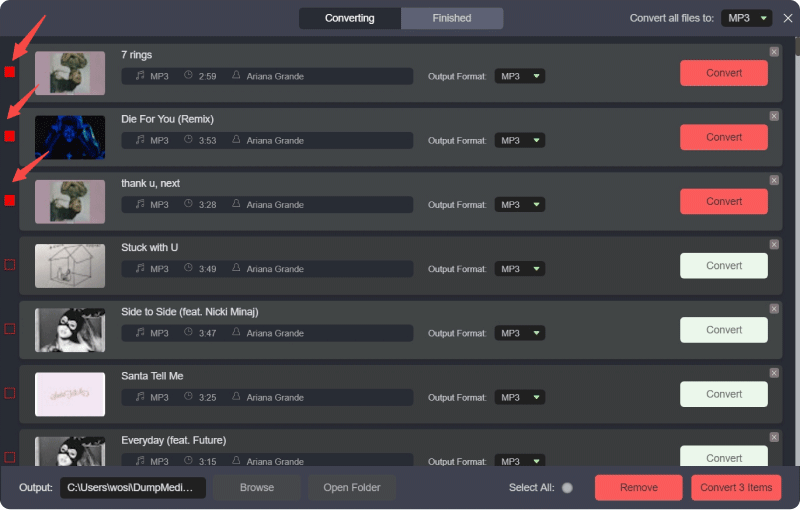
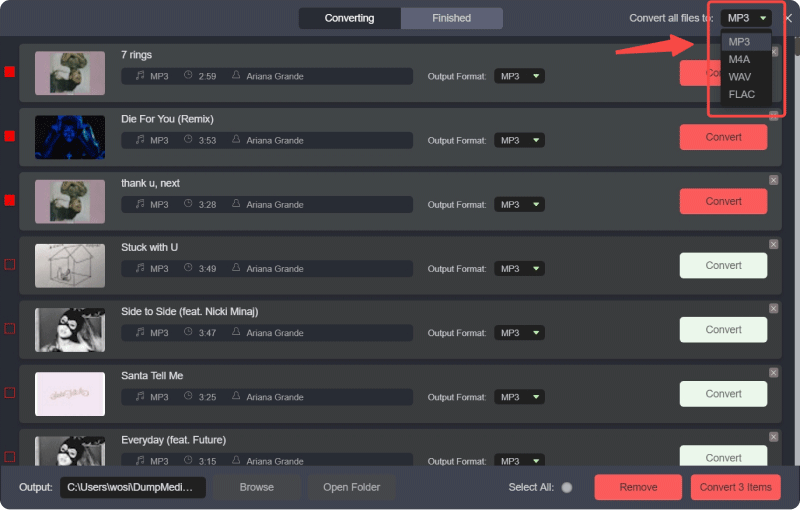
Шаг 3. Нажмите на панель «Формат», чтобы выбрать MP3 как выходной формат. Другие оставшиеся настройки выходных параметров также могут быть изменены по вашему желанию.
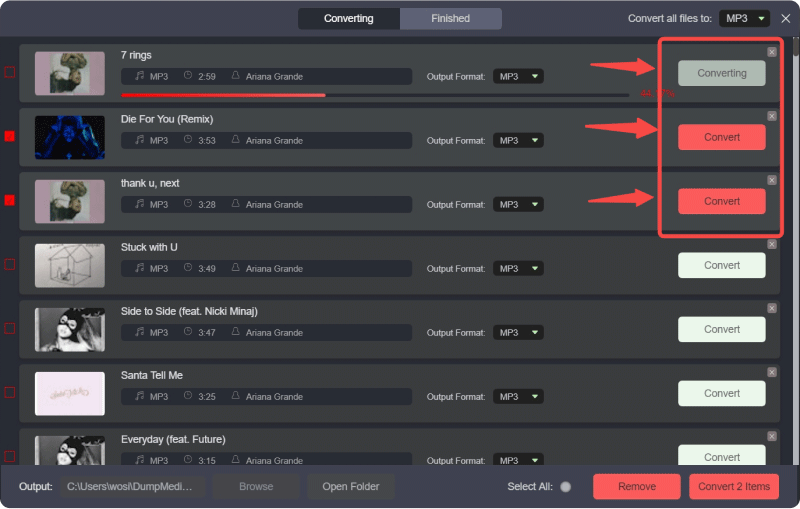
Шаг 4. Затем вы можете нажать кнопку «Преобразовать все», чтобы сохранить файлы локально сразу в одном месте.
Шаг 5. Откройте приложение Apple Music на Winдоус или мак.
Шаг 6. Перейдите в меню «Файл» > «Добавить в библиотеку» (или перетащите файлы в библиотеку).
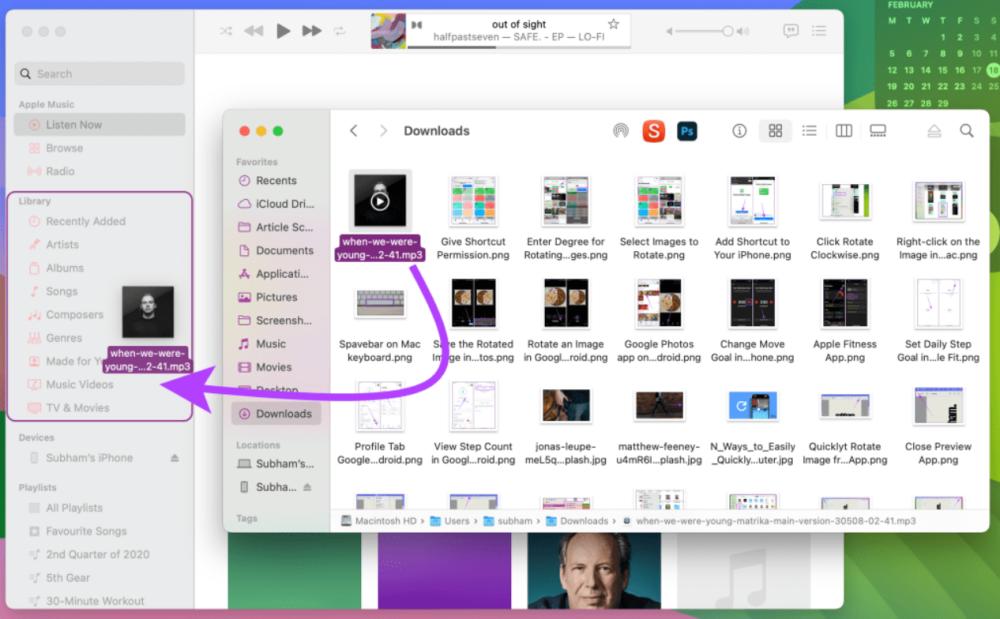
Шаг 7. Дождитесь обработки файлов Apple Music. Ваши треки из YouTube Music теперь являются частью вашей библиотеки Apple Music.
Следуя этим шагам, вы сможете успешно конвертировать музыку с YouTube в Apple Music, не выполняя вручную поиск и загрузку каждой песни по отдельности.
Дополнительный совет: Переносите целые плейлисты с помощью DumpMedia
DumpMedia В Any Music Converter также есть функция переноса плейлистов. Этот инструмент позволяет переносить целые плейлисты из YouTube Music в Apple Music:
Шаг 1. Откройте любой музыкальный конвертер. Выберите Инструменты > Перенос плейлистов.

Шаг 2. Выберите YouTube Music в качестве источника.
Шаг 3. Выберите Apple Music в качестве места назначения.
Шаг 4. Выберите, что вы хотите перенести. Мы поддерживаем ваши любимые песни, исполнителей, альбомы и ваши собственные плейлисты.
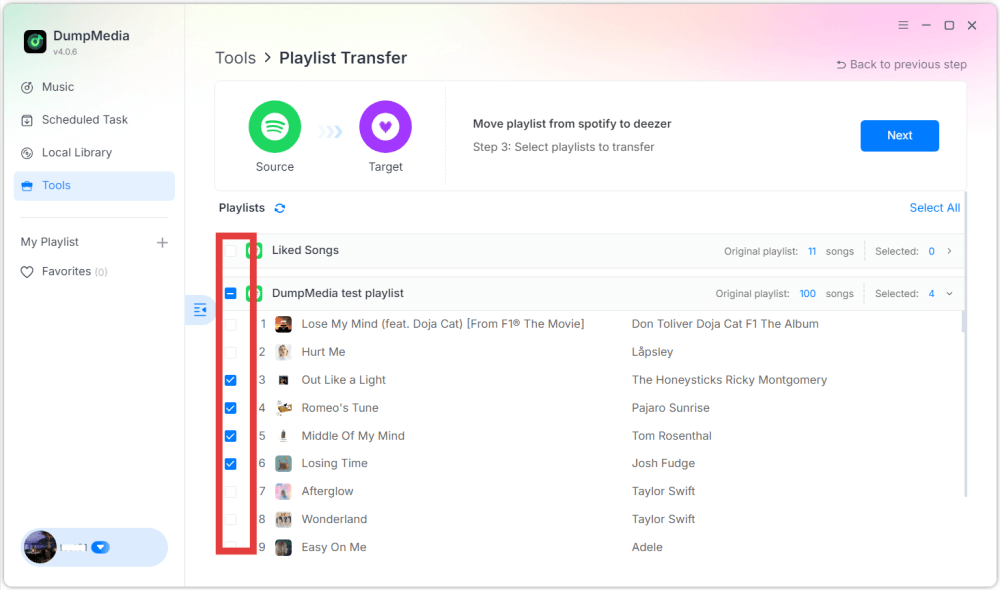
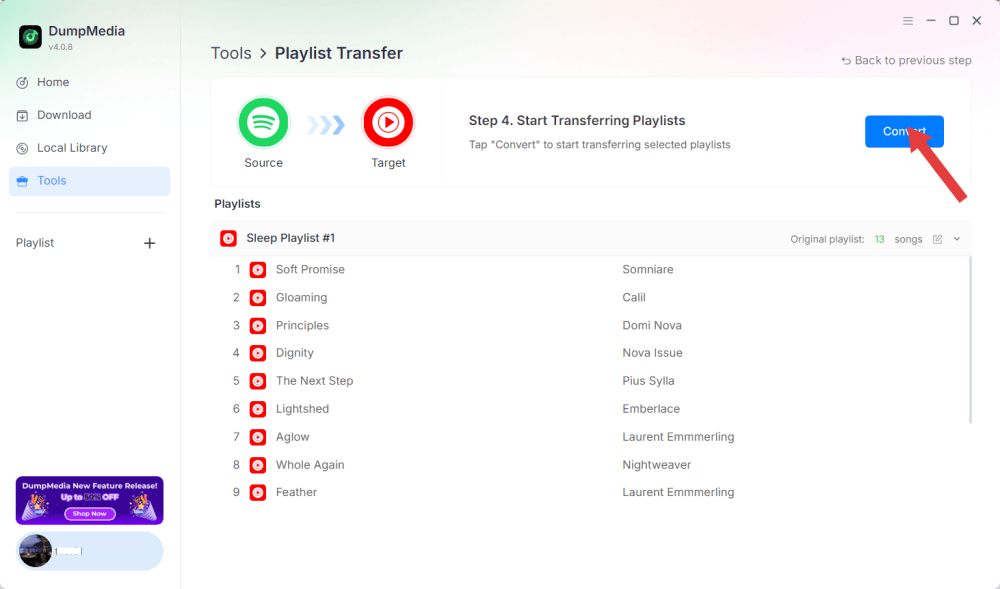
Шаг 5. Нажмите «Конвертировать», чтобы начать перевод.
Шаг 6. Перенос завершен. Нажмите «Перейти в Apple Music». Ваши плейлисты перенесены в новый сервис, и вы можете начать слушать новые плейлисты в Apple Music.
Часть 3. Часто задаваемые вопросы
1. Можно ли бесплатно конвертировать контент с YouTube в Apple Music?
Да, используя такие инструменты, как DumpMedia С помощью любого музыкального конвертера вы можете скачивать треки с YouTube Music и импортировать их в Apple Music. DumpMedia Предлагается бесплатная пробная версия, для полного набора функций может потребоваться платная лицензия.
2. Будет ли качество звука сохранено в процессе конвертации?
DumpMedia Позволяет выбирать выходные форматы и битрейт, обеспечивая высокое качество звука загружаемых файлов.
3. Можно ли перенести целые плейлисты?
Да. Используя функцию переноса плейлистов в DumpMediaС помощью этой программы вы можете перенести целые плейлисты YouTube Music в Apple Music, не теряя при этом порядок песен и метаданные.
4. Безопасно ли использовать DumpMedia Для скачивания музыки с YouTube?
Да. DumpMedia Работает локально на вашем компьютере, поэтому ваши данные и учетные записи остаются в безопасности. Не мешает работе серверов Apple Music или YouTube Music.
Часть 4. Подводя итоги
Хотя YouTube Music и Apple Music изначально не интегрированы, вы все равно можете эффективно конвертировать музыку из YouTube в Apple Music, используя... DumpMedia Любой музыкальный конвертер. Скачивая треки, загружая их в Apple Music или используя функцию переноса плейлистов, вы можете упорядочить все свои любимые песни в своей библиотеке Apple Music.