


Istruzioni per l’uso: DumpMedia Spotify Backup della playlist
Gestire il tuo Spotify Creare playlist può essere complicato quando si desidera conservare una copia di backup delle proprie collezioni musicali, accuratamente organizzate. DumpMedia Spotify Playlist Backup offre un modo pratico per eseguire il backup della tua playlist. Spotify playlist, esporta le informazioni della playlist in file CSV e ripristina le playlist nel tuo Spotify conto.
Questa guida spiega come collegare il tuo Spotify Consente di gestire l'account, selezionare le playlist, esportare i file di backup, ripristinare le playlist, gestire la cronologia dei backup e personalizzare la cartella di output. Include anche suggerimenti per la risoluzione dei problemi più comuni.
Guida ai contenuti Parte 1. Installa e registra DumpMedia Qualsiasi convertitore di musicaParte 2. Come collegare il tuo Spotify AccountParte 3. Come selezionare un Spotify PlaylistParte 4. Problemi comuni e risoluzione dei problemiDomande frequenti
Parte 1. Installa e registra DumpMedia Qualsiasi convertitore di musica
Passo 1: download e installazione DumpMedia Qualsiasi convertitore di musica
DumpMedia Qualsiasi convertitore musicale è supportato su Mac e Windispositivi Dows attualmente. È possibile scaricare il pacchetto di installazione dalla pagina del prodotto o semplicemente cliccando sul pulsante di download fornito qui.
Download gratuito Download gratuito
Passo 2: Lancio DumpMedia Qualsiasi convertitore di musica
Dopo l'installazione, apri DumpMedia Qualsiasi Music Converter sul tuo computer. Vedrai un'interfaccia pulita e intuitiva, progettata per semplificare la conversione, anche per gli utenti alle prime armi.
Suggerimento: per un'esperienza ottimale, assicurati di essere connesso a Internet.
Passaggio 3: Registra e attiva Any Music Converter
Lancio DumpMedia Any Music Converter. Fai clic sul pulsante "Accedi" o sull'icona del profilo nell'angolo in basso a sinistra. Inserisci l'indirizzo email e la password. Fai clic su "Accedi" per completare la registrazione.
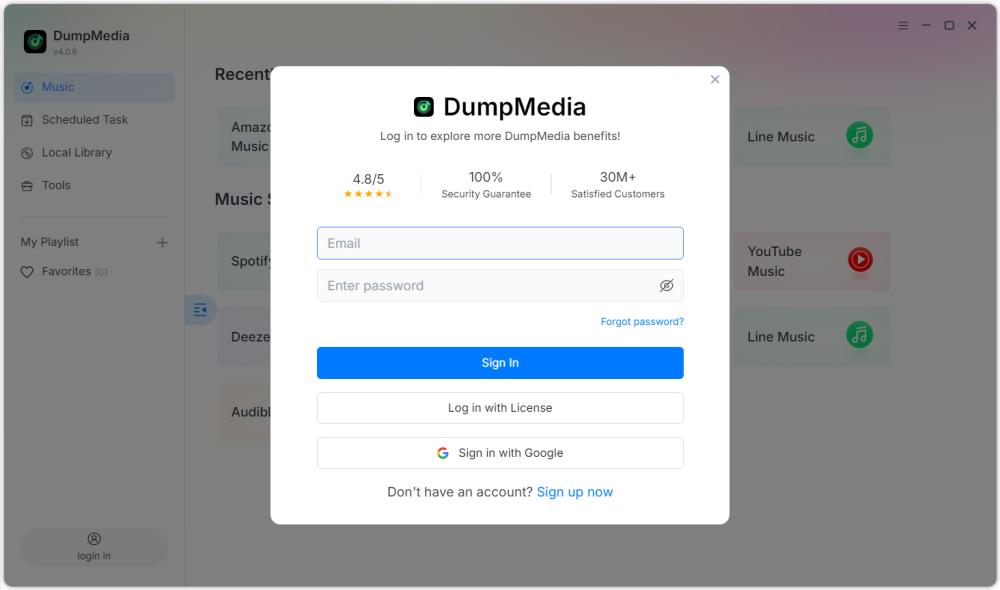
Suggerimento: Sblocca Spotify Backup della playlist per visitando la pagina del prodotto e acquista il piano. Scegli un piano di abbonamento adatto alle tue esigenze e non esitare a contattare il nostro servizio clienti per informazioni su sconti esclusivi.
Parte 2. Come collegare il tuo Spotify Account
Prima di selezionare una playlist, è necessario collegare il tuo Spotify conto a DumpMedia Spotify Backup della playlist.
Suggerimento: si prega di notare che Spotify Playlist Backup è venduto come prodotto a sé stante e non è incluso in alcun piano di abbonamento standard di Music Converter.
Passo 1: Lancio DumpMedia Spotify Backup della playlist
Apri Any Music Converter. Seleziona Strumenti > Spotify Backup della playlist.
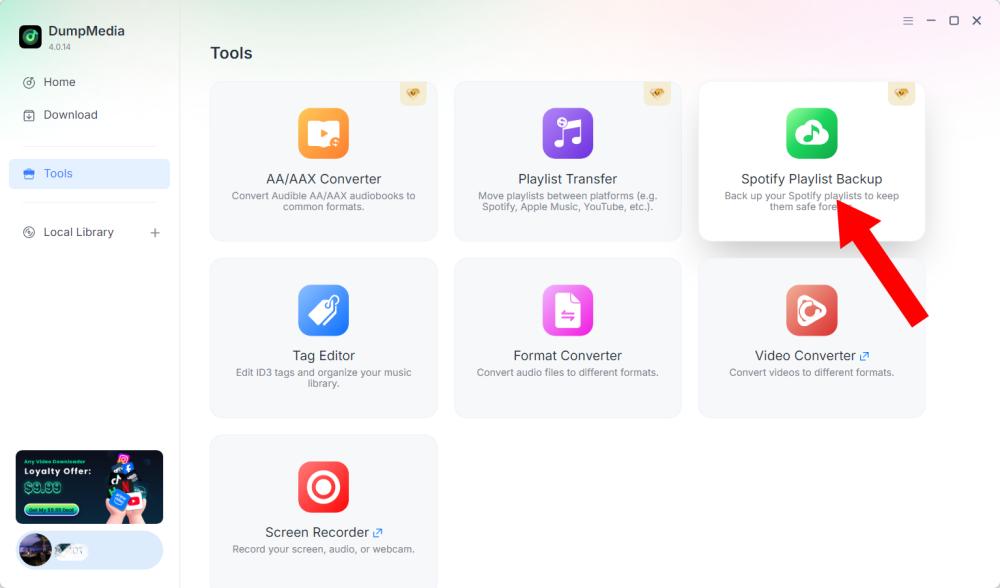
Passaggio 2: fare clic su "Connetti a Spotify"
Trova e fai clic su Connetti a Spotify pulsante nell'interfaccia del software. L'applicazione ti reindirizzerà automaticamente al pulsante integrato Spotify giocatore.
Passaggio 3: collega il tuo Spotify Account
Quando il Spotify il lettore si apre all'interno del software, segui le istruzioni disponibili per connettere il tuo Spotify account. Completa il processo di connessione prima di procedere alla gestione delle playlist. Una volta che il tuo Spotify L'account è stato connesso correttamente, ora puoi accedere alle tue playlist disponibili e selezionare l'operazione desiderata.
Suggerimento: se la connessione non procede come previsto, controlla la tua connessione Internet e conferma che Spotify Il lettore si è aperto correttamente.
Parte 3. Come selezionare un Spotify Playlist
Dopo aver collegato il tuo Spotify Nel tuo account, puoi selezionare la playlist di cui desideri eseguire il backup o il ripristino.
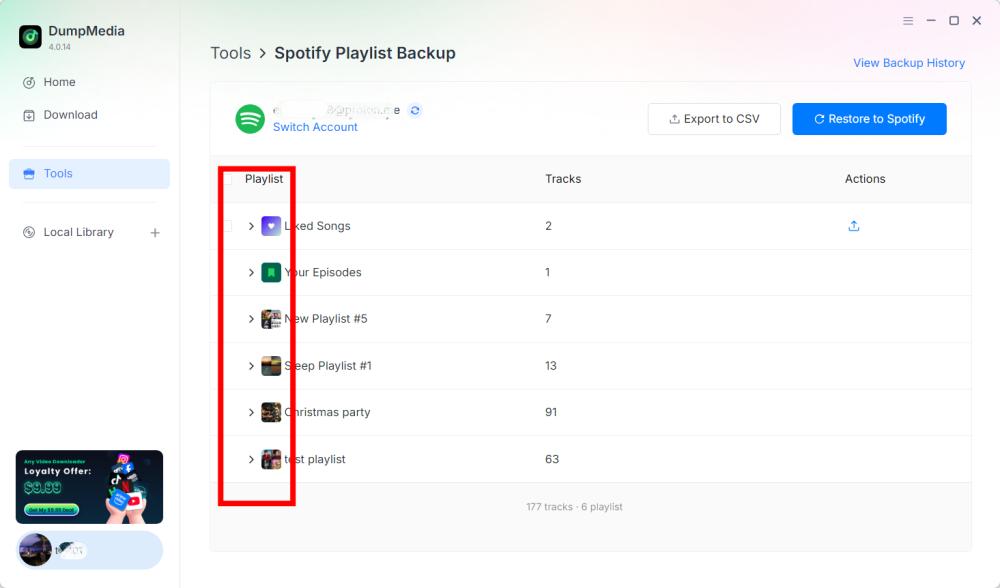
Passaggio 1: Accedi alle tue playlist
Apri la sezione playlist in DumpMedia Spotify Backup della playlist dopo aver collegato il tuo Spotify account. Le tue playlist disponibili dovrebbero essere visualizzate nell'interfaccia.
Passaggio 2: Scegli una playlist
Scegliete la playlist con attenzione, soprattutto se avete più playlist con nomi simili.
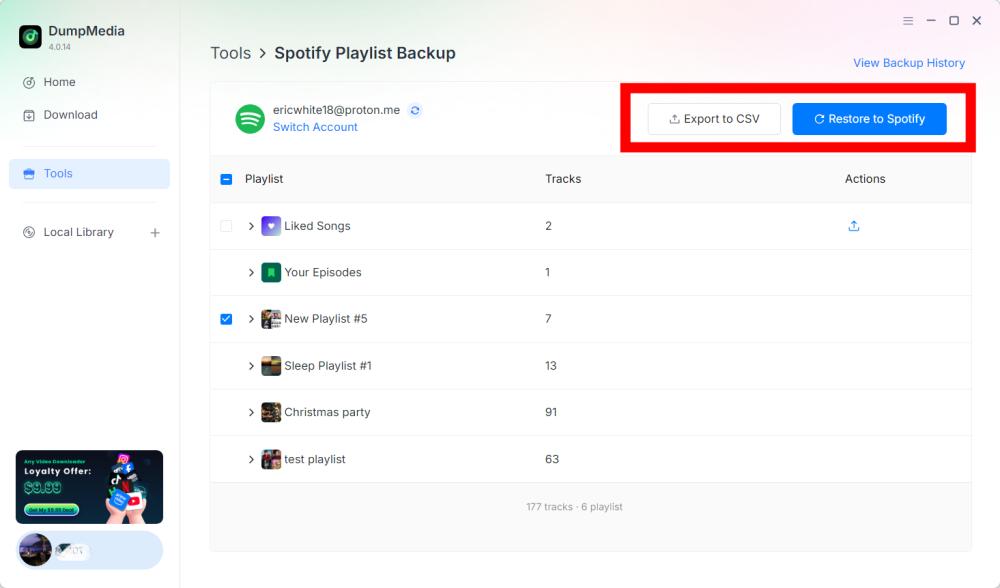
Passaggio 3: Selezionare un'operazione
Dopo aver selezionato una playlist, scegli l'operazione corrispondente in base alle tue esigenze. Le operazioni disponibili includono Esporta in CSV e Ripristina in Spotify.
- Esporta in CSV: l'esportazione di una playlist in formato CSV consente di salvare le informazioni della playlist in un file che può essere aperto e visualizzato utilizzando applicazioni per fogli di calcolo come Microsoft Excel.
- Ripristina per Spotify: DumpMedia Spotify Playlist Backup supporta il ripristino delle playlist tramite Ripristina su Spotify opzione.
Passaggio 4: Verifica del file esportato
DumpMedia Spotify Playlist Backup salva i file di backup nella cartella predefinita. È possibile modificare questa posizione tramite il menu Preferenze. Al termine dell'esportazione, individuare il file CSV generato. È possibile aprire il file utilizzando un'applicazione per fogli di calcolo compatibile per visualizzarne il contenuto.
Importante: i campi specifici inclusi nel file CSV devono essere confermati in base alla versione corrente di DumpMedia Spotify Backup della playlist.
Passo 5: Controlla il tuo Spotify Account
Se scegli Ripristina su Spotify, Aperto Spotify e verificare che la playlist sia stata ripristinata correttamente.
Nota: i risultati del ripristino possono dipendere dai dati di backup, Spotify connessione all'account e le attuali funzionalità di ripristino del software. La gestione esatta dei brani non disponibili o modificati richiede conferma dalla documentazione del prodotto.
Passaggio 6: Visualizza la cronologia dei backup
DumpMedia Spotify Playlist Backup include un'opzione "Visualizza cronologia backup" che consente di esaminare i record di backup. Trova "Visualizza cronologia backup" nell'angolo in alto a destra dell'interfaccia del software. Fai clic sull'opzione per aprire la sezione della cronologia dei backup.
Parte 4. Problemi comuni e risoluzione dei problemi
I seguenti suggerimenti per la risoluzione dei problemi riguardano problematiche generali che possono verificarsi durante la connessione all'account, la gestione delle playlist o la gestione dei file. Non si tratta di codici di errore specifici del prodotto né di soluzioni ufficiali.
Impossibile connettersi a Spotify
Soluzioni suggerite:
- Controlla la tua connessione Internet.
- Chiudi e riapri DumpMedia Spotify Backup della playlist.
- Fai clic su Connetti a Spotify nuovamente.
- Completare il processo di connessione nell'integrato Spotify giocatore.
Se il problema persiste, registra il messaggio di errore esatto e contatta DumpMedia Supporto (support@dumpmedia.com).
Le playlist non vengono visualizzate.
Soluzioni suggerite:
- Conferma che il Spotify L'account è connesso.
- Riapri la sezione delle playlist.
- Riavvia il software e riprova.
- Verifica se il problema riguarda tutte le playlist o solo una playlist specifica.
Se il problema persiste, fornisci al supporto i dettagli della playlist interessata e qualsiasi informazione di errore disponibile.
- Fai clic sul menu in alto a destra del programma e seleziona "Invia feedback".
- Descrivi il problema e inserisci il tuo codice di licenza nella casella di testo.
- Infine, prima di inviare, spuntate la casella "Allega il file di registro".
L'esportazione in CSV non viene completata.
Soluzioni suggerite:
- Conferma che il Spotify L'account è connesso.
- Prova a esportare nuovamente la playlist.
- Verifica la cartella di output configurata nelle Preferenze.
- Verifica che la cartella di destinazione sia accessibile.
- Se possibile, prova l'esportazione con un'altra playlist.
Se l'esportazione continua a non riuscire, salva il messaggio di errore e contatta l'assistenza clienti.
Ripristina per Spotify Non funziona
Soluzioni suggerite:
- Ricollega il tuo Spotify conto.
- Verifica di aver selezionato la playlist o il disco di backup corretto.
- Prova a ripetere la procedura di ripristino.
- Apri Spotify e verificare se la playlist è stata parzialmente ripristinata.
- Contatti DumpMedia Se il problema persiste, contattateci.
Non dare per scontato che ripristinare ripetutamente lo stesso backup sia sicuro in ogni situazione. Controlla la playlist risultante prima di tentare ulteriori operazioni di ripristino.
Domande frequenti
Q1. Come collego il mio Spotify conto a DumpMedia Spotify Backup della playlist?
Fai clic su Connetti a Spotify. Il software aprirà automaticamente l'integrato Spotify giocatore, dove puoi collegare il tuo Spotify conto.
D2. Posso esportare? Spotify convertire le playlist in file CSV?
Sì. Dopo aver collegato il tuo Spotify Dopo aver creato l'account e selezionato una playlist, scegli Esporta in CSV per creare un file di backup.
Q3. Posso ripristinare una playlist su Spotify?
Sì. Le serrature scorrevoli portatili e i catenacci a superficie possono essere usati per mettere in sicurezza una porta a scomparsa dall'esterno. Alcuni kit con catena di sicurezza consentono anche il bloccaggio esterno con chiave o manopola girevole. DumpMedia Spotify Playlist Backup fornisce un ripristino a Spotify opzione per operazioni di ripristino supportate.
D4. Dove vengono salvati i miei file di backup?
I file di backup vengono salvati nella cartella di output predefinita. È possibile verificare o modificare la posizione aprendo il menu in alto a destra, selezionando Preferenze e individuando Cartella di output.
D5. Come posso visualizzare i backup precedenti?
Fai clic su Visualizza cronologia backup nell'angolo in alto a destra del software per visualizzare la cronologia dei backup disponibili.
Q6. Cosa devo fare se Spotify Impossibile connettersi?
Verifica la tua connessione a Internet e riavvia il software. Se il problema persiste, contatta DumpMedia Fornire assistenza con i dettagli dell'errore.
D7. Cosa devo fare se la mia playlist non è presente?
Conferma che il tuo Spotify Se l'account è connesso, riavvia il software e controlla nuovamente la sezione playlist. Se la playlist risulta ancora non disponibile, contatta l'assistenza.
D8. Posso ripristinare un backup su un altro Spotify account?
Questa funzionalità non è ancora disponibile nella versione attuale, ma vi invitiamo a rimanere sintonizzati per i futuri aggiornamenti.