


Converti iTunes in MP3Metodi migliori e guida ad Apple Music
Se stai cercando modi per converti iTunes in MP3, non sei solo. Molti utenti vogliono salvare la propria musica in un formato più flessibile come MP3 così possono riprodurlo su qualsiasi dispositivo senza restrizioni. Tuttavia, non è sempre semplice. Il processo dipende dal fatto che la tua musica provenga dalla tua libreria iTunes locale o da un abbonamento ad Apple Music. In questa guida, ti illustreremo i metodi migliori per convertire iTunes e Apple Music in MP3.
Guida ai contenuti Parte 1. È possibile convertire la musica di iTunes in MP3?Parte 2. Convertire iTunes Music in MP3 con iTunesParte 3. Il miglior strumento per convertire Apple Music in MP3Parte 4. Domande frequentiParte 5. Sommario
Parte 1. È possibile convertire la musica di iTunes in MP3?
Prima di iniziare, è importante capire che in iTunes esistono due tipi di musica:
1. Musica locale di iTunes (file senza DRM)
Se hai importato brani da CD o scaricato MP3 file in iTunes, questi sono file non protetti da DRM. Puoi facilmente convertire iTunes in MP3 Utilizzo degli strumenti integrati senza alcuna restrizione.
2. Brani di Apple Music (protetti da DRM)
Se la tua musica proviene da un abbonamento Apple Music, le cose sono diverse. Queste canzoni sono protette da DRM (gestione dei diritti digitali), che impedisce la conversione diretta. Ciò significa che non è possibile convertire direttamente i brani di Apple Music utilizzando iTunes. Avrai bisogno di uno strumento specializzato come DumpMedia Convertitore di musica Apple.
Comprendere questa differenza è fondamentale quando si tenta di convertire iTunes in MP3, poiché determina quale metodo dovresti utilizzare.
Parte 2. Convertire iTunes Music in MP3 con iTunes
Se le tue canzoni non sono protette da DRM, puoi usare iTunes stesso per convertire iTunes in MP3 gratuitamente.
Passaggi per convertire iTunes in MP3:
Passaggio 1. Avvia iTunes sul tuo computer.
Passo 2: Vai a Modifica > Preferenze > Importa impostazioni, seleziona MP3 Codificatore.
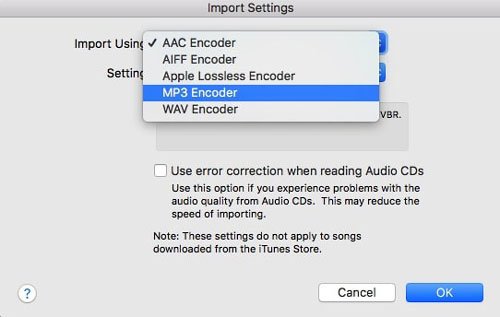
Passaggio 3. Scegli i brani che desideri convertire.
Passo 4: Fai clic su File > Converti > crea MP3 Versione. Dopo pochi secondi, il tuo MP3 I file appariranno nella tua libreria.
Limiti
Sebbene questo metodo gratuito funzioni bene, presenta alcune limitazioni:
- Funziona solo con file non protetti da DRM.
- Impossibile convertire i brani di Apple Music
- Flessibilità di formato limitata
Se stai cercando di convertire iTunes in MP3 Per i brani di Apple Music, questo metodo non funziona. È qui che entrano in gioco gli strumenti professionali.
Parte 3. Il miglior strumento per convertire Apple Music in MP3
Che dire dei brani di Apple Music? Quando iTunes non riesce a convertire i brani di Apple Music, DumpMedia Apple Music Converter diventa la soluzione ideale. Mentre DumpMedia Non è possibile importare o convertire direttamente file iTunes locali, ma è possibile scaricare brani in streaming da Apple Music protetti da DRM.
Download gratuito Download gratuito
Caratteristiche principali di DumpMedia Apple Music Converter
- Converti Apple Music in MP3: Condivide convertire i brani di Apple Music in MP3 formato per l'utilizzo offline.
- Scarica brani senza DRM: Aggirare il DRM* ti permette di ascoltare la tua musica senza restrizioni.
- Output di alta qualità: Mantenere la qualità audio originale dopo la conversione.
- Conversione batch: Converti più brani, album o playlist contemporaneamente.
- Conserva i metadati e i tag ID3: Conserva i titoli delle canzoni, gli artisti, gli album e le illustrazioni.
- Gioca ovunque: Una volta convertiti, i tuoi file possono essere riprodotti su MP3 lettori, smartphone, sistemi audio per auto e altro ancora.
- Nota: DumpMedia Apple Music Converter non supporta più l'utilizzo con iTunes. Tuttavia, puoi trascinare e rilasciare i brani iTunes memorizzati localmente in "Strumenti > Convertitore di formato" per convertirne il formato.
Come convertire Apple Music in MP3 utilizzando DumpMedia
Ecco come convertire i brani di Apple Music in MP3 formattazione passo dopo passo:
Passaggio 1. Scarica e installa il software sul tuo computer. Accedi al lettore Apple Music integrato nel programma.
Download gratuito Download gratuito
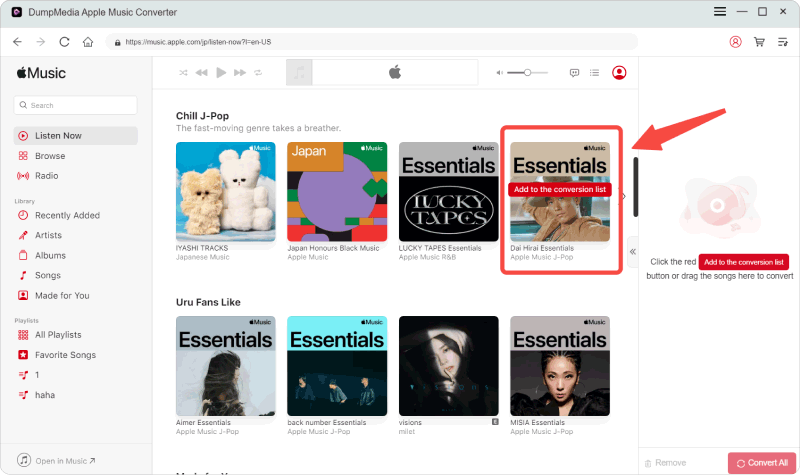
Passaggio 2. Seleziona i brani che desideri convertire.
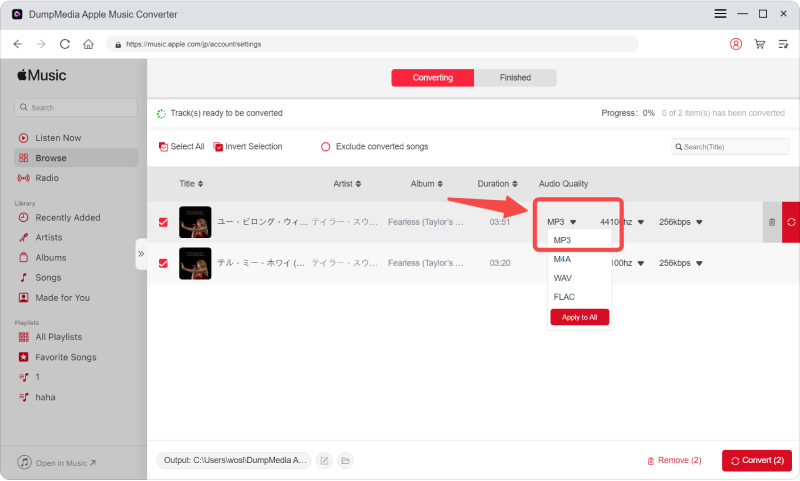
Passo 3: Impostato MP3 come formato di output desiderato.
Passaggio 4. Fare clic sul pulsante Converti e attendere il completamento del processo.
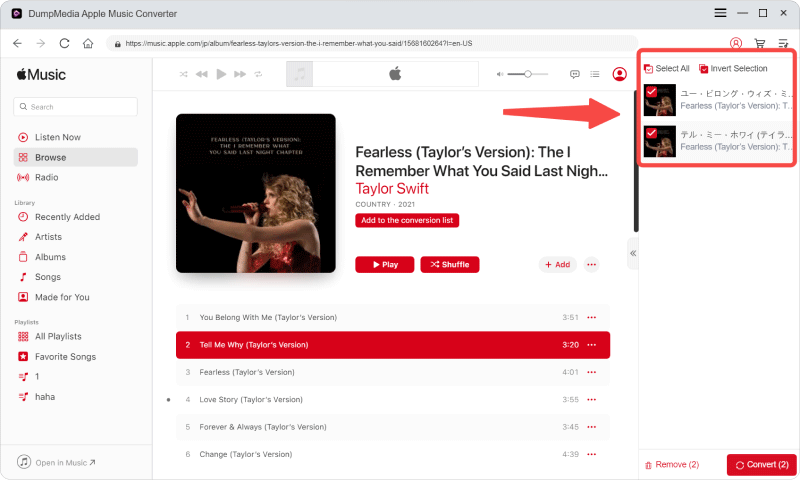
Dopo la conversione, i file saranno disponibili per la riproduzione offline senza restrizioni.
Parte 4. Domande frequenti
Posso convertire iTunes in MP3 gratuito?
Sì, puoi usare iTunes stesso per convertire gratuitamente i file non protetti da DRM.
Perché non riesco a convertire alcuni brani di iTunes?
Perché provengono da Apple Music e sono protetti da DRM.
Può DumpMedia Come convertire i file di iTunes?
No. DumpMedia Apple Music Converter non converte direttamente i file iTunes locali. È progettato per i contenuti di Apple Music.
Qual è il modo migliore per convertire Apple Music in MP3?
Utilizzando uno strumento dedicato come DumpMedia Apple Music Converter è il metodo più efficace.
Parte 5. Sommario
Tentativo di convertire iTunes in MP3 La conversione può essere semplice o complessa a seconda della provenienza della musica. Se i brani sono archiviati localmente in iTunes e non sono protetti, è possibile utilizzare iTunes stesso per completare la conversione gratuitamente.
Tuttavia, se la tua musica proviene da un abbonamento ad Apple Music, la protezione DRM impedirà la conversione diretta. In questi casi, l'utilizzo di uno strumento professionale diventa essenziale. DumpMedia Apple Music Converter non converte direttamente i file iTunes locali, è specificamente progettato per gestire i brani di Apple Music, consentendo di convertirli in MP3 Formato di alta qualità e senza restrizioni di riproduzione. Questo ti offre la flessibilità di ascoltare la tua musica offline su qualsiasi dispositivo.
Download gratuito Download gratuito
*DumpMedia Questo strumento funziona decrittografando e scaricando i brani di Apple Music in file privi di DRM, consentendo di ottenere una copia pulita e senza restrizioni della propria libreria per qualsiasi dispositivo. La sua funzionalità non include la rimozione del DRM dai file audio locali.