


Come convertire YouTube in Apple Music?
Molte persone che amano YouTube Music potrebbero voler spostare le loro canzoni o playlist preferite su Apple Music per le sue playlist curate, la perfetta integrazione con i dispositivi Apple e le funzionalità di ascolto offline. Tuttavia, la sfida è che YouTube Music e Apple Music non si sincronizzano nativamente tra loro. Questo solleva la domanda: come puoi convertire YouTube in Apple Music in modo efficiente senza perdere le tue playlist selezionate? Questa guida esplorerà i metodi migliori per convertire YouTube Music in Apple Music, fornirà suggerimenti utili per il trasferimento delle playlist e risponderà alle domande più frequenti.
Guida ai contenuti Parte 1. Posso convertire direttamente la musica di YouTube in Apple Music?Parte 2. Converti la musica di YouTube in Apple Music su Windows/MacParte 3. Domande frequentiParte 4. Per riassumere tutto
Parte 1. Posso convertire direttamente la musica di YouTube in Apple Music?
Purtroppo, non esiste un modo diretto per trasferire o sincronizzare la libreria di YouTube Music con Apple Music. Entrambe le piattaforme utilizzano ecosistemi e protezioni DRM diversi, che impediscono trasferimenti semplici. Sebbene sia possibile ricreare manualmente le playlist cercando i brani su Apple Music, questo approccio richiede molto tempo, soprattutto se si hanno centinaia di tracce.
Fortunatamente, utilizzando strumenti professionali come DumpMedia Con Any Music Converter puoi convertire YouTube in Apple Music scaricando le tracce di YouTube Music e importandole in Apple Music, preservando la qualità del brano e i metadati.
Parte 2. Converti la musica di YouTube in Apple Music su Windows/Mac
Il metodo più affidabile per convertire YouTube in Apple Music è utilizzare un software desktop. Uno dei migliori strumenti disponibili è DumpMedia Qualsiasi convertitore di musica, che consente agli utenti di scaricare brani e playlist di YouTube Music, convertirli in formati compatibili con Apple Music e persino trasferire direttamente le playlist.
Di seguito sono riportate le principali caratteristiche principali:
- Supporto multipiattaforma: invece di passare da un'app all'altra, questo strumento integra il supporto per diversi importanti servizi di streaming, come Spotify, Apple Music, YouTube Music e altro ancora.
- Formati di output versatili: DumpMedia fornisce un'ampia gamma di formati compatibili per garantire che i file funzionino su quasi tutti i dispositivi (MP3 lettori, smartphone, autoradio, ecc.): MP3, M4A, WAV, FLAC, AIFF e AAC.
- Qualità senza perdita: supporta 100% mantenimento della qualità audio originale, in genere fino a 320 kbps per MP3s.
- Conversione batch: consente di aggiungere intere playlist o album a una coda per l'elaborazione simultanea.
- Gestione intelligente dei metadati: conservazione dei tag ID3: conserva automaticamente i metadati essenziali, tra cui artista, album, titolo, anno e copertina dell'album.
- Lettori Web integrati: DumpMedia in genere dispone di un lettore web incorporato per ogni servizio. Ciò significa che non è necessario disporre di Spotify o le app desktop Apple Music installate; puoi sfogliare e selezionare i brani direttamente all'interno DumpMedia interfaccia.
Come convertire YouTube in Apple Music?
Passo 1: Installazione DumpMedia Qualsiasi convertitore musicale sul tuo Wincomputer Windows o Mac. Apri il programma e seleziona YouTube Music.
Passo 2: Cerca direttamente i brani, le playlist o gli album che desideri spostare su Apple Music. Trascinali sul pulsante "+" e aggiungili all'elenco di conversione.
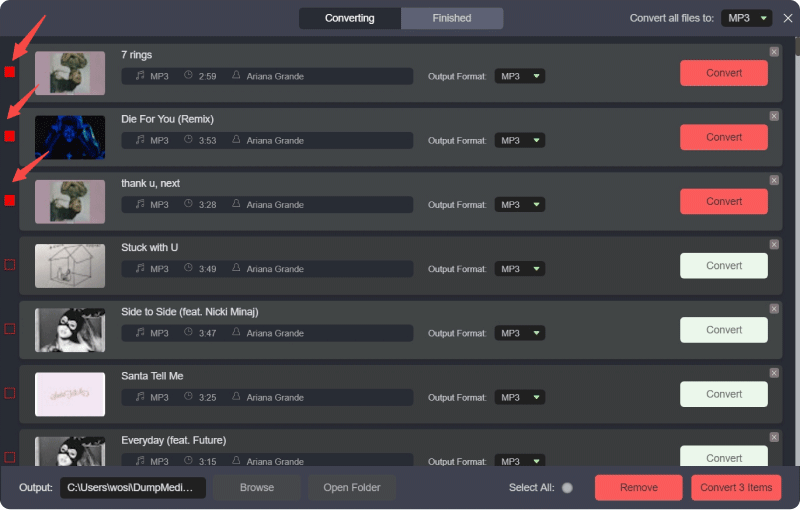
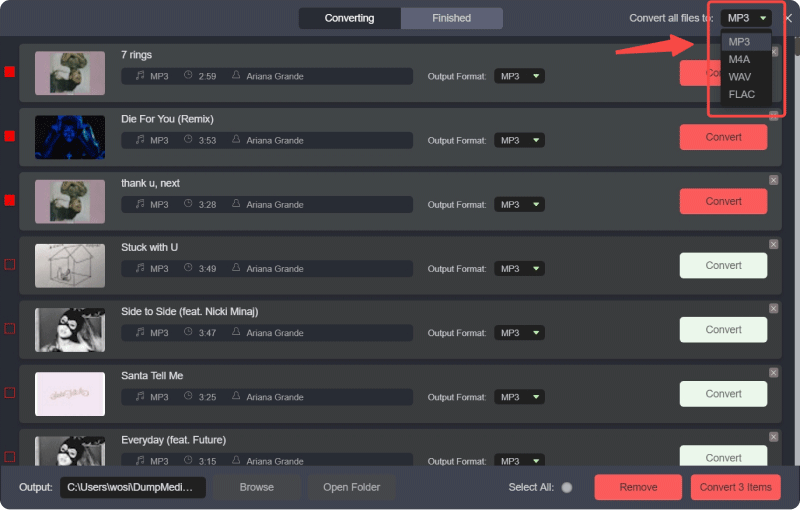
Passo 3: Fare clic sul pannello Formato per scegliere MP3 come formato di output. Anche le altre impostazioni dei parametri di output rimanenti possono essere modificate a piacere.
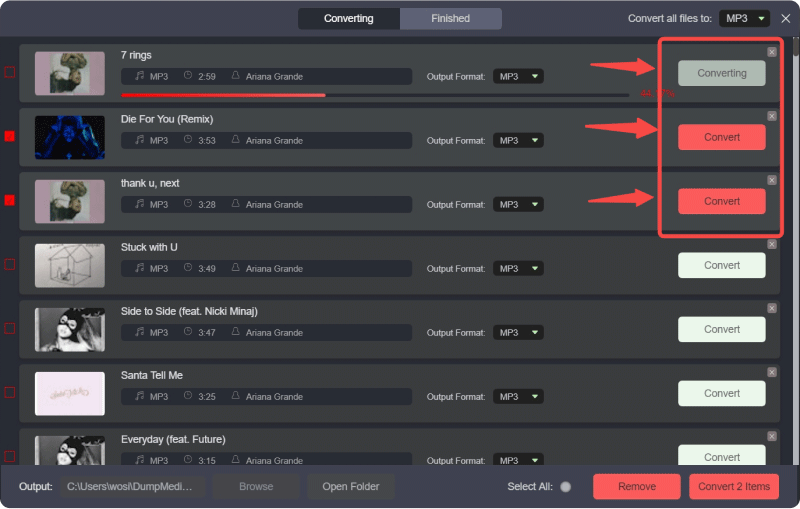
Passo 4: Quindi, puoi premere il pulsante "Converti tutto" per salvare i file localmente in blocco.
Passo 5: Apri l'app Apple Music su WinDows o Mac.
Passo 6: Vai su File > Aggiungi alla libreria (oppure trascina e rilascia i file nella libreria).
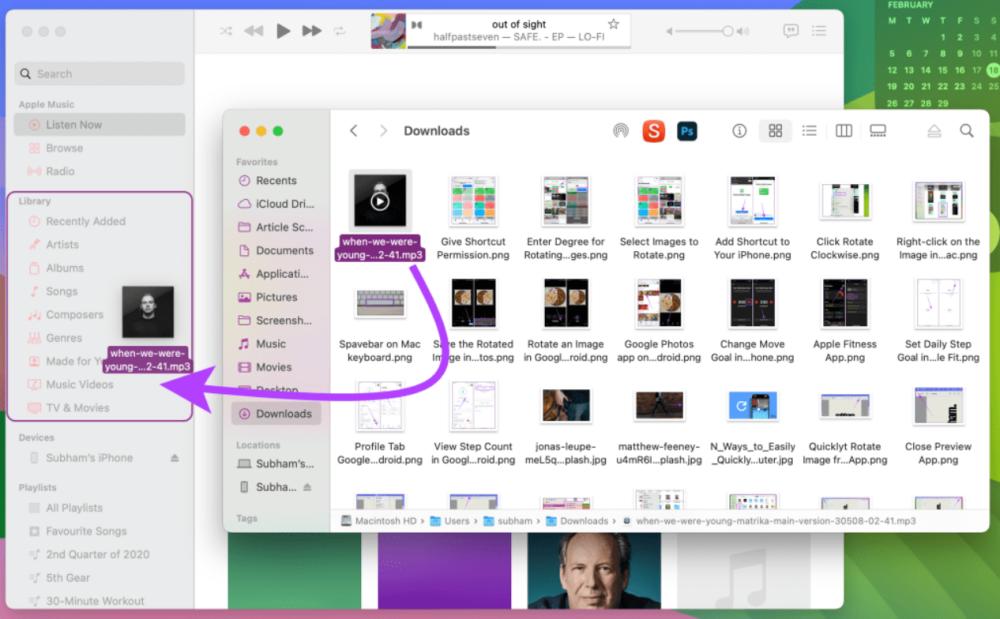
Passo 7: Attendi che Apple Music elabori i file. Le tue tracce di YouTube Music ora fanno parte della tua libreria Apple Music.
Seguendo questi passaggi, puoi convertire con successo YouTube in Apple Music senza dover cercare e scaricare manualmente ogni brano singolarmente.
Suggerimento aggiuntivo: trasferisci intere playlist con DumpMedia
DumpMedia Any Music Converter include anche la funzionalità di trasferimento delle playlist. Questo strumento consente di trasferire intere playlist da YouTube Music ad Apple Music:
Passo 1: Apri Any Music Converter. Scegli Strumenti > Trasferimento playlist.

Passo 2: Seleziona YouTube Music come sorgente.
Passo 3: Seleziona Apple Music come destinazione.
Passo 4: Seleziona cosa trasferire: supportiamo i tuoi brani, artisti, album preferiti e le tue playlist curate.
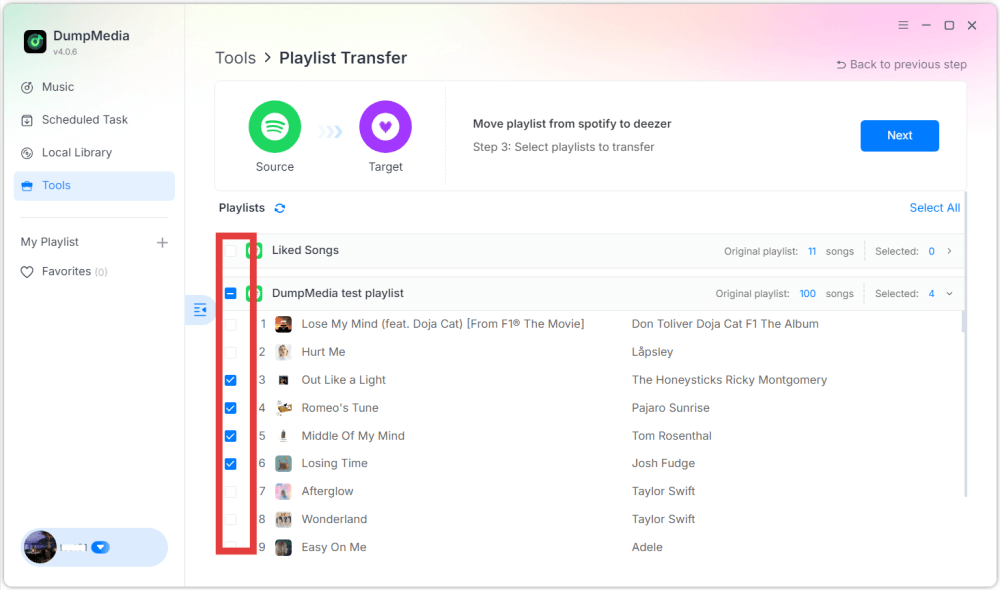
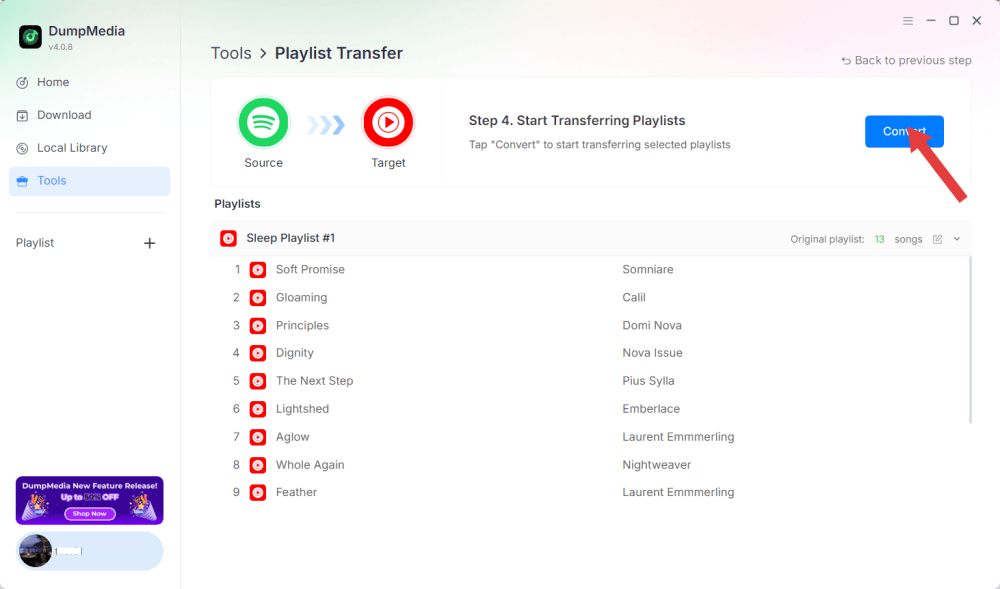
Passo 5: Fare clic su Converti per avviare il trasferimento.
Passo 6: Il trasferimento è completato. Fai clic su "Vai ad Apple Music". Le tue playlist sono state spostate su un nuovo servizio e puoi iniziare ad ascoltare una nuova playlist su Apple Music.
Parte 3. Domande frequenti
1. Posso convertire YouTube in Apple Music gratuitamente?
Sì, utilizzando strumenti come DumpMedia Con Any Music Converter puoi scaricare le tracce musicali di YouTube e importarle in Apple Music. Mentre DumpMedia offre una prova gratuita, per usufruire di tutte le funzionalità potrebbe essere necessaria una licenza a pagamento.
2. La qualità del brano verrà preservata durante la conversione?
DumpMedia consente di selezionare i formati di output e i bitrate, garantendo che i file scaricati mantengano un'elevata qualità audio.
3. Posso trasferire intere playlist?
Sì. Utilizzando la funzione di trasferimento della playlist in DumpMedia, puoi spostare playlist complete di YouTube Music su Apple Music senza perdere l'ordine dei brani o i metadati.
4. È sicuro da usare DumpMedia per scaricare musica da YouTube?
Sì. Le serrature scorrevoli portatili e i catenacci a superficie possono essere usati per mettere in sicurezza una porta a scomparsa dall'esterno. Alcuni kit con catena di sicurezza consentono anche il bloccaggio esterno con chiave o manopola girevole. DumpMedia Opera localmente sul tuo computer, quindi i tuoi dati e account rimangono al sicuro. Non interferisce con i server di Apple Music o YouTube Music.
Parte 4. Per riassumere tutto
Sebbene YouTube Music e Apple Music non siano integrati in modo nativo, puoi comunque convertire YouTube in Apple Music in modo efficiente utilizzando DumpMedia Any Music Converter. Scaricando i brani, caricandoli su Apple Music o utilizzando la funzione di trasferimento delle playlist, puoi organizzare tutti i tuoi brani preferiti nella tua libreria Apple Music.

Sconto del 30% >>>