


Spotify Non risponde? Risolvete il problema nel 2026
Molti utenti si imbattono nel frustrante problema in cui Spotify non risponde mentre si tenta di riprodurre musica, aprire playlist o utilizzare la modalità offline. A volte il Spotify App si blocca completamente, si arresta in modo anomalo o smette di funzionare durante la riproduzione. Spotify I problemi delle app sono estremamente comuni. In questa guida spiegheremo perché Spotify smette improvvisamente di funzionare, come risolvere il problema comune Spotify Problemi con l'app e come godersi una riproduzione musicale offline più stabile.
Guida ai contenuti Parte 1. Perché è Spotify L'applicazione non risponde?Parte 2. Come risolvere Spotify L'applicazione non risponde?Parte 3. Il modo migliore per evitare Spotify Problemi di riproduzioneParte 4. Domande frequentiParte 5. Conclusione
Parte 1. Perché è Spotify L'applicazione non risponde?
Ci sono molte ragioni per cui Spotify Non risponde durante la riproduzione musicale o l'utilizzo dell'app.
Scarsa connessione Internet
Spotify si basa fortemente su un accesso Internet stabile per lo streaming e la verifica dell'account. Le connessioni di rete deboli possono causare Spotify bloccare o smettere di rispondere.
corrotto Spotify Cache
File temporanei memorizzati all'interno Spotify Nel tempo, i file possono corrompersi, causando arresti anomali dell'app e problemi di riproduzione.
Antiquato Spotify App
Più vecchio Spotify le versioni potrebbero contenere bug che attivano il "Spotify errore "non risponde".
Spotify Problemi del server
A volte Spotify Le interruzioni dei server influiscono sulla riproduzione degli utenti e sulle prestazioni delle app a livello globale.
Conflitti del software in background
Anche i conflitti con il software antivirus, le impostazioni del firewall o l'accelerazione hardware possono causare Spotify per smettere di rispondere.
Problemi di compatibilità del dispositivo
I sistemi operativi più vecchi o i dispositivi non supportati potrebbero avere difficoltà a eseguire l'ultima versione Spotify l'app funziona senza intoppi.
Queste sono alcune delle cause più comuni alla base del "Spotify problema "non risponde".
Parte 2. Come risolvere Spotify L'applicazione non risponde?
If Spotify Se l'applicazione non risponde sul tuo dispositivo, prova le seguenti soluzioni.
Correzione 1. Riavvia Spotify
Completamente vicino Spotify e riapri l'app. Questa semplice soluzione spesso risolve i problemi di riproduzione temporanei.
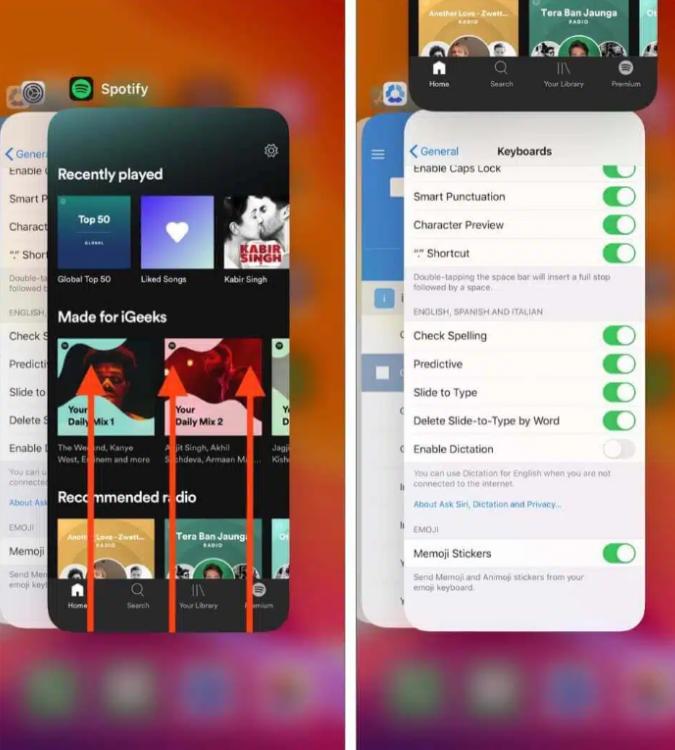
Su iOS (iPhone/iPad): Scorri verso l'alto dal bordo inferiore dello schermo e fermati al centro (oppure fai doppio clic sul pulsante Home sui dispositivi meno recenti). Trova il Spotify Visualizza l'anteprima della scheda e trascinala completamente verso l'alto, fuori dallo schermo.
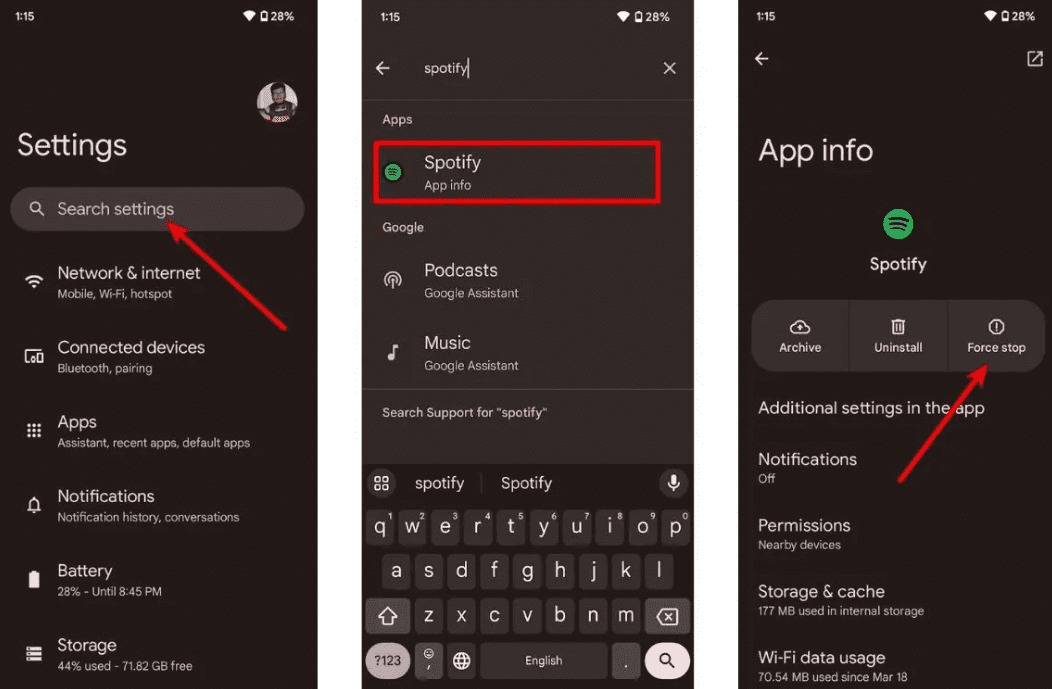
Su Android: Vai su Impostazioni > App > Spotify e tocca Forza arresto. Questo interrompe tutte le attività in background bloccate. Apri Spotify dal cassetto delle app.
Su macOS: Clicchi Spotify nella barra dei menu in alto e seleziona Esci Spotifyoppure, semplicemente, fai clic sulla finestra e premi Comando (⌘) + Q.
On Winribassi (10/11): Fai clic su File nell'angolo in alto a sinistra della Spotify Apri la finestra e seleziona Esci (premendo la "X" nell'angolo in alto a destra spesso la finestra viene semplicemente ridotta a icona nella barra delle applicazioni anziché essere chiusa).
Correzione 2. Controlla la tua connessione Internet
Passa dalla connessione Wi-Fi alla connessione dati mobile per testare la stabilità della connessione.
Correzione 3. Cancella Spotify Cache
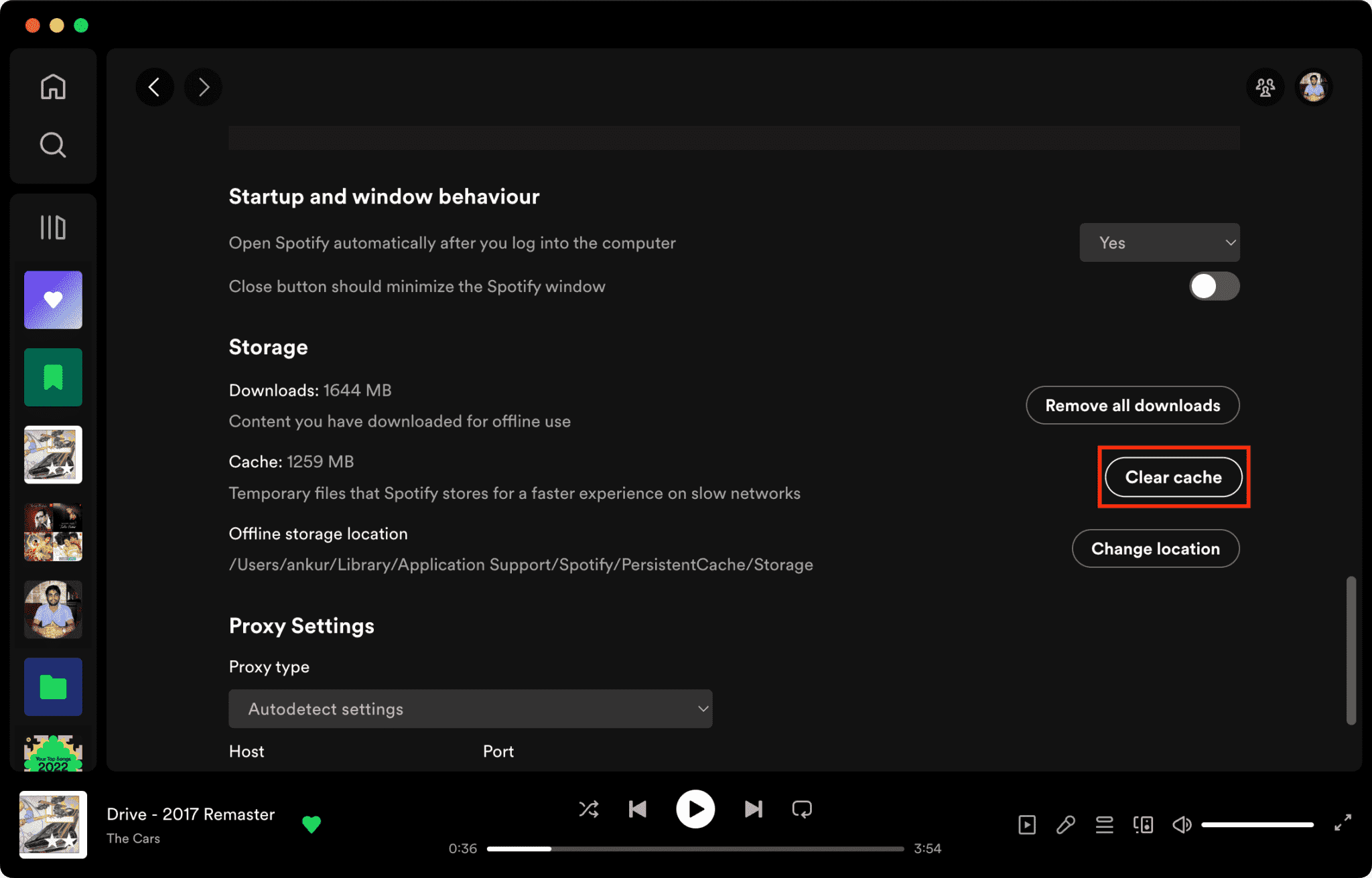
I file di cache danneggiati sono una delle principali ragioni per cui Spotify non risponde.
Come cancellare Spotify Cache su Mac/Windows/iPhone/Android >>>>
Correzione 4. Aggiornamento Spotify App
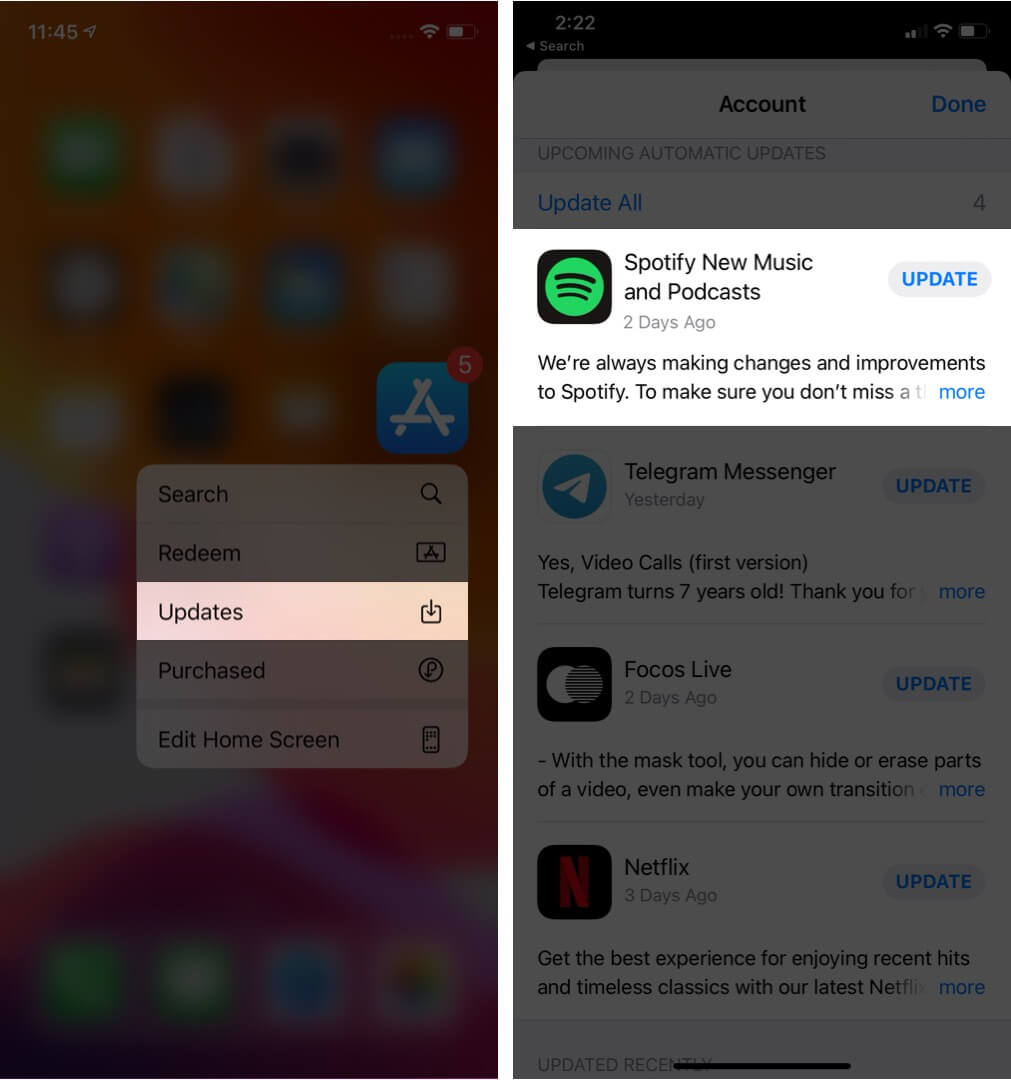
Installazione dell'ultima versione Spotify Questa versione potrebbe correggere bug software noti.
Correzione 5. Riavvia il dispositivo
Riavviare il computer o il telefono può aggiornare le risorse di sistema.
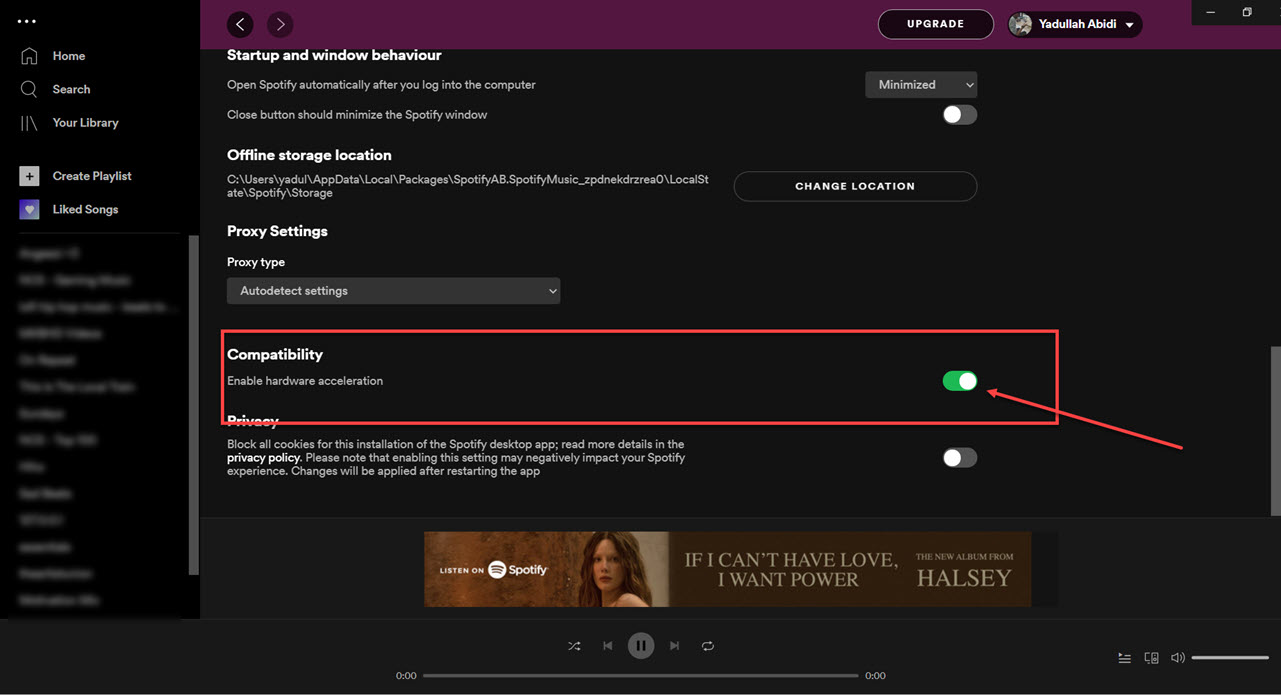
Correzione 6. Disattiva l'accelerazione hardware
È possibile disabilitare l'accelerazione hardware. A volte questo risolve i problemi di blocco.
Correzione 7. Controllare Spotify Stato del server
Global Spotify Le interruzioni occasionali influiscono sui servizi di riproduzione e di accesso.
Parte 3. Il modo migliore per evitare Spotify Problemi di riproduzione
Molti utenti presumono di aver scaricato Spotify Le canzoni funzioneranno sempre offline, ma le canzoni scaricate rimangono protette da DRM, il che significa che la musica funziona solo all'interno dell'app di streaming. I download non possono essere trasferiti liberamente. Se riscontri frequentemente il "Spotify non risponde al problema, uno strumento popolare è DumpMedia Spotify Music ConverterQuesto software consente agli utenti di convertire Spotify musica in formati audio locali per una riproduzione offline più flessibile. Anche se il Spotify L'app non funziona sul tuo dispositivo, puoi PLAY Spotify canzoni offline su un altro lettore musicale immediatamente.
Download gratuito Download gratuito
🏆Caratteristiche principali di DumpMedia Spotify Music Converter
- Scaricare Spotify musica per MP3, WAV, FLAC e AAC
- Rimuovere Spotify Protezione DRM*
- Mantieni la qualità audio originale
- Download in blocco di playlist e album
- Velocità di conversione veloce
- Conserva i metadati del brano e i tag ID3
- Supporta la riproduzione offline su qualsiasi dispositivo.
Per gli utenti frustrati da Spotify Instabilità dell'app, la riproduzione di musica locale risulta spesso molto più affidabile.
convertire Spotify a MP3 Passo dopo Passo per La
Passo 1: Scarica e installa DumpMedia Spotify Music Converter sul tuo Mac/PC. Avvialo e vedrai l'interfaccia. Usa il tuo Spotify Account Premium/Gratuito per accedere.
Download gratuito Download gratuito
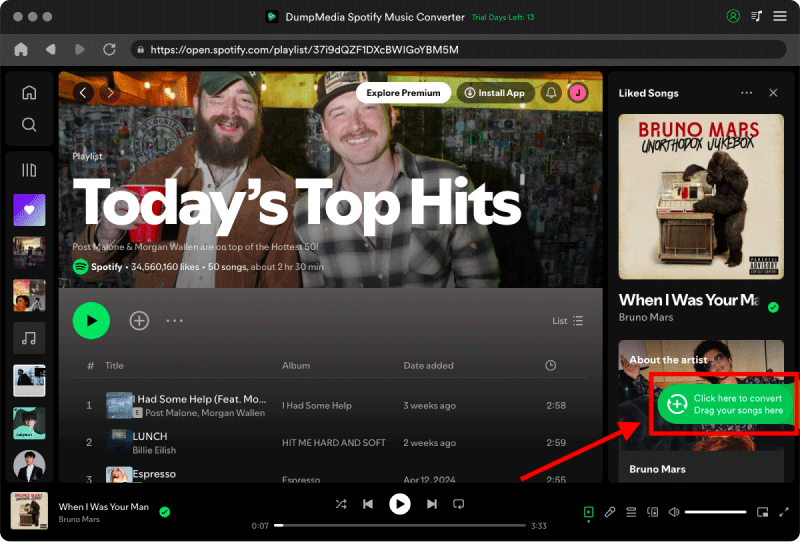
Passaggio 2. Trova la playlist, l'album o il brano specifico che desideri convertire. Puoi trascinare un singolo brano sull'icona "+" sul lato destro dello schermo. In alternativa, apri un'intera playlist/album e fai clic sull'icona "Aggiungi alla conversione" per caricare l'intero elenco nel convertitore.
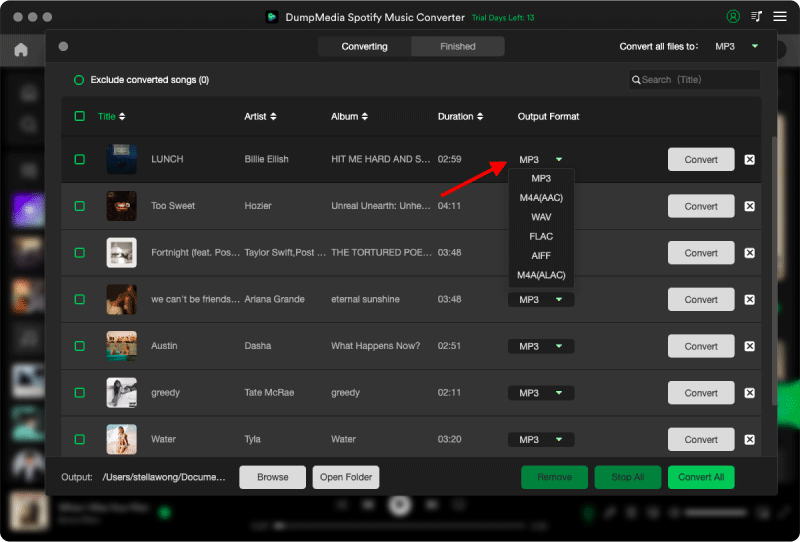
Passo 3: Seleziona MP3 (massima compatibilità). È inoltre possibile modificare il bitrate o la frequenza di campionamento. Per un equilibrio ottimale, si consiglia di scegliere 320 kbps.
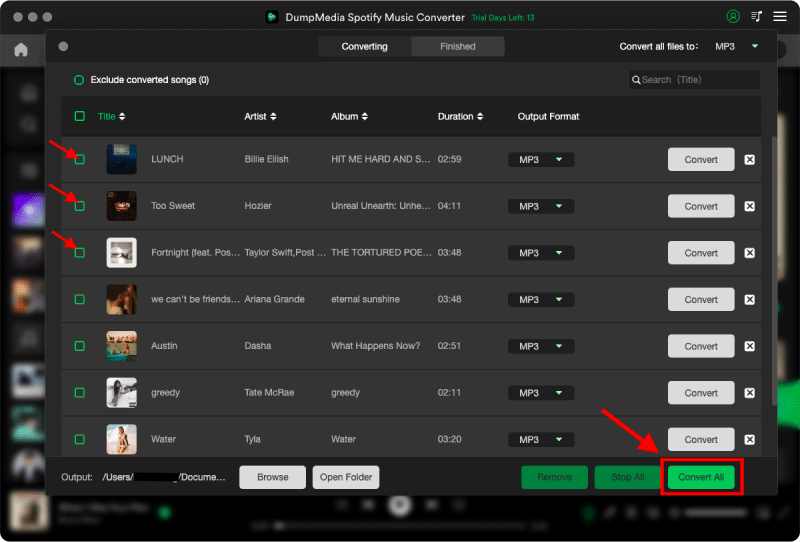
Passo 4: Una volta completate le impostazioni, gli utenti possono procedere con la conversione facendo clic sull'icona "Converti". Quindi DumpMedia verrà scaricato Spotify canzoni per MP3 in pochi secondi grazie alla sua velocità superveloce.
Parte 4. Domande frequenti
Perché è Spotify Non risponde?
Spotify Il servizio potrebbe smettere di rispondere a causa di problemi di connessione a Internet, file di cache danneggiati, software obsoleto o problemi del server.
Perché Spotify continuare a congelare?
Spotify I problemi di blocco del sistema sono spesso correlati al danneggiamento della cache o a conflitti di accelerazione hardware.
Perché è Spotify Si blocca sul mio telefono?
Mobile Spotify I crash possono essere causati da spazio di archiviazione insufficiente, versioni obsolete delle app o conflitti software.
Perché è Spotify La modalità offline non funziona?
La riproduzione offline dipende ancora da Spotify autorizzazione e stabilità dell'applicazione.
Is DumpMedia Spotify Music Converter sicuro?
Sì. È progettato per Spotify Conversione musicale e gestione della riproduzione locale.
Nota: le piattaforme di streaming hanno le proprie regole e i propri sistemi di monitoraggio. Come strumento di terze parti, DumpMedia Spotify Music Converter è inoltre soggetto alle loro restrizioni, che potrebbero influire sull'utilizzo in determinati casi. Spotify può intraprendere azioni se rileva attività che violano i suoi Termini di servizio; ciò è interamente a sua discrezione Spotifyla discrezione.
Parte 5. Conclusione
Il "Spotify Il problema "non risponde" può essere causato da instabilità di Internet, file di cache danneggiati, software obsoleto o Spotify problemi dell'app. Sebbene molte soluzioni temporanee possano aiutare a ripristinare la riproduzione, Spotify Lo streaming dipende ancora in larga misura dalla stabilità dell'app e dalla verifica online. Per gli utenti che desiderano un ascolto offline più stabile, DumpMedia Spotify Music Converter fornisce un modo pratico per convertire Spotify canzoni in locale MP3 file per una riproduzione flessibile su diversi dispositivi.
Download gratuito Download gratuito
*DumpMedia funziona decrittando e scaricando Spotify converte i brani in file senza DRM, consentendoti di ottenere una copia pulita e illimitata della tua libreria per qualsiasi dispositivo. La sua funzionalità non include la rimozione del DRM dai file audio locali.