


Come copiare il CD dell'audiolibro MP3 (Free Methods and Better Alternative)
Ripping an audiobook CD to MP3 is still possible, but it’s no longer the most convenient way to enjoy audiobooks. Many users today find themselves dealing with multiple discs, missing metadata, and outdated hardware just to convert their audiobook collections. In this guide, you’ll learn how to rip audiobook CD to MP3 step by step, along with the common problems you may encounter. More importantly, we’ll show you a better, modern alternative that lets you enjoy audiobooks without relying on CDs at all.
Guida ai contenuti Part 1. Can You Rip an Audiobook CD to MP3?Part 2. Rip an Audiobook CD to MP3 Using iTunes/Apple MusicPart 3. Rip an Audiobook CD to MP3 utilizzando WinLettore multimediale DowsPart 4. Common Problems When Ripping Audiobook CDsPart 5. How to Download Audible Books as MP3 (Best Solution)Parte 6. Conclusione
Part 1. Can You Rip an Audiobook CD to MP3?
Yes, you can still rip audiobook CD to MP3 files using standard media software. However, you’ll need a computer with a CD/DVD drive, CD ripping software, and enough time to process multiple discs.
While the process itself hasn't changed much, the technology around it has become outdated. Many modern laptops no longer include disc drives, making CD-based workflows less practical than before.
Part 2. Rip an Audiobook CD to MP3 Using iTunes/Apple Music
How to rip audiobook CD to MP3? Here are the best ways to do it on WinDows e Mac.
Passo 1: Apri iTunes/Music > Settings (or Preferences) > General > Import Settings. Set Import Using to MP3 Encoder. Check: "Use error correction when reading Audio CDs" (helps with scratched library CDs).
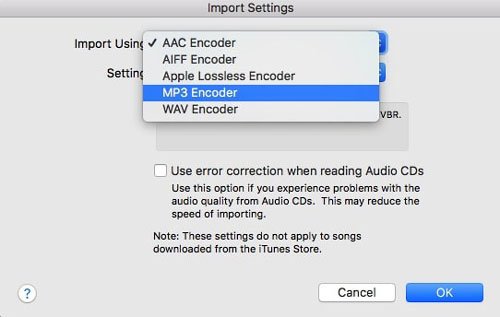
Passo 2: Insert the CD. When the list of tracks appears, highlight all tracks (Ctrl+A or Cmd+A).
Passo 3: Click the Options (three dots) or the Gear icon and select Join CD Tracks.
Passo 4: Click Import CD. Repeat for each disc. The software will convert each track into MP3 formato.
Ripping an audiobook CD to MP3 using iTunes is straightforward, but for audiobooks specifically, you want to pay attention to chapter organization and file concatenation so you don't end up with 100 tiny files for a single book.
Part 3. Rip an Audiobook CD to MP3 utilizzando WinLettore multimediale Dows
Se sei su Windows 10 or 11, you can use the Windows Media Player Legacy to to rip audiobook CD to MP3.
Passo 1: Apri Windows Media Player. Go to Rip settings > Format and select MP3.
Passo 2: Go to Rip settings > Audio Quality and choose 192 Kbps.
Passo 3: Insert your CD and click Rip CD.
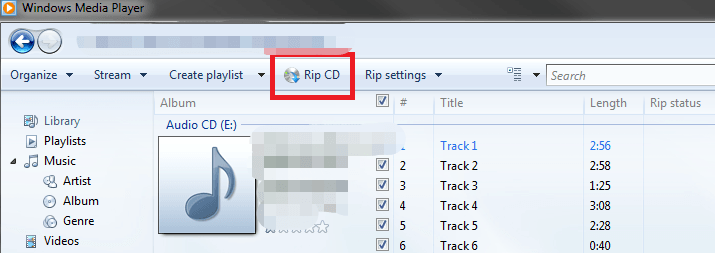
This is one of the simplest free methods available. However, Windows Media Player does not have a "Join Tracks" feature, so you will get multiple files per CD. It requires manual file management.
Part 4. Common Problems When Ripping Audiobook CDs
While ripping CDs is a reliable way to digitize your library, the process often presents several frustrating hurdles:
- High Time Commitment: Audiobooks frequently span 10 or more discs, turning a simple task into a slow, repetitive chore.
- Fragmented Output: Many ripping tools export each track as a separate file, leaving you with hundreds of tiny clips instead of a seamless book.
- Metadata Gaps: Automated databases often fail to recognize older or niche audiobooks, forcing you to manually input titles, authors, and chapter markers.
- Hardware Scarcity: Most modern laptops and desktops no longer include internal optical drives, requiring the additional expense and clutter of an external CD drive.
Part 5. How to Download Audible Books as MP3 (Best Solution)
Because of playing limitations, many users are moving away from CDs and choosing digital audiobook platforms instead. Digital audiobooks offer instant access (no physical discs) and compatibility with multiple devices. However, there’s one challenge: most platforms (like Audible) use DRM protection, which limits how and where you can play your audiobooks.
If you want the flexibility of MP3 without dealing with CDs, the most efficient approach is to convert digital audiobooks into MP3 formato. Qui è dove DumpMedia Convertitore udibile diventa utile.
Perché Scegliere La DumpMedia Convertitore acustico?
- ✅ Rimuovi la protezione DRM* Questo strumento rimuove il DRM, consentendoti di avere il pieno controllo dei tuoi file.
- ✅ Converti audio in MP3 Facilmente: Puoi scaricare rapidamente i libri Audible per MP3 e altri formati come M4A o FLAC.
- ✅ Conversione ad alta velocità: Converti interi audiolibri in pochi minuti.
- ✅ Qualità senza perdite: Nessuna perdita di qualità durante la conversione.
- ✅ Funziona su più dispositivi: Play your audiobooks onffline anywhere after conversion.
Instead of ripping CDs, you can build a fully digital audiobook library that works on any device.
Istruzioni per l’uso: DumpMedia Convertitore Audible (Guida completa) >>>
Parte 6. Conclusione
Copia di CD di audiolibri in MP3 is still possible in 2026, but it’s increasingly outdated and inefficient. While tools like iTunes and Windows Media Player can get the job done, they require time, effort, and hardware that many users no longer have.
If you’re looking for a faster, more flexible solution, switching to digital audiobooks and using DumpMedia Audible Converter is the smarter choice. No need for CD drives, faster processing (no disc swapping), and true offline listening. These make DumpMedia a modern replacement for traditional CD workflows.
*DumpMedia Il programma funziona decrittografando e scaricando i tuoi audiolibri in file privi di DRM, permettendoti di ottenere una copia pulita e senza restrizioni della tua libreria per qualsiasi dispositivo.

Sconto del 30% >>>