


Apple Music non è disponibile nella tua regione? Risolveremo il problema entro il 2026.
Molti utenti di Apple Music si imbattono nel fastidioso messaggio: " Apple Music non disponibile nella tua regione ". Restrizioni regionali, accordi di licenza, protezione DRM e problemi di verifica dell'account spesso impediscono la riproduzione normale dei brani di Apple Music. In questa guida, spiegheremo perché Apple Music visualizza il messaggio "non disponibile nel tuo Paese", come risolvere il problema su iPhone, Mac e PC e il modo migliore per continuare ad ascoltare i brani di Apple Music offline senza limitazioni regionali.
Indice dei contenuti Parte 1. Perché Apple Music dice "Non disponibile nella tua regione"? Parte 2. Come risolvere il problema di Apple Music non disponibile nel tuo Paese? Parte 3. Il modo migliore per poter ascoltare Apple Music ovunque Parte 4. Domande frequenti Parte 5. Riepilogo
Parte 1. Perché Apple Music visualizza il messaggio "Non disponibile nella tua regione"?
Gli utenti spesso cercano "Apple Music non disponibile nella tua regione" nelle seguenti situazioni.
- Brani di Apple Music visualizzati in grigio
- I brani compaiono nelle playlist ma non possono essere riprodotti.
- Brani scaricati improvvisamente non disponibili
- I brani offline smettono di funzionare dopo la verifica dell'abbonamento o della regione.
- Problemi con Apple Music durante i viaggi
- Problemi con il cambio di Paese dell'ID Apple
- Apple Music non funziona su iPhone o Mac
Esistono diversi motivi per cui gli utenti visualizzano l'errore "Apple Music non disponibile nella tua regione".
Restrizioni di licenza
Apple Music concede in licenza i brani in modo diverso a seconda del paese e della regione. Alcuni brani potrebbero essere disponibili in un paese ma non in un altro a causa di accordi sul copyright. Questa è una delle cause più comuni del problema "Apple Music non disponibile nel tuo paese".
Impostazioni regionali dell'ID Apple
Se la regione del tuo ID Apple cambia, alcuni brani potrebbero scomparire. Molti utenti riscontrano il messaggio "Apple Music non disponibile nel tuo Paese" dopo essersi trasferiti all'estero o aver modificato le impostazioni di pagamento.
Protezione DRM
I brani di Apple Music sono protetti da DRM (Digital Rights Management) , che richiede la verifica dell'account e l'autorizzazione regionale. A causa delle restrizioni DRM, la riproduzione offline potrebbe non funzionare.
Problemi di verifica dell'abbonamento
Apple Music verifica periodicamente online lo stato dell'abbonamento. In caso di esito negativo della verifica, gli utenti potrebbero perdere improvvisamente l'accesso ai brani scaricati.
Brani rimossi dal catalogo locale
A volte le etichette discografiche rimuovono i brani da specifici cataloghi regionali, rendendoli non disponibili anche se in precedenza erano riproducibili.
Parte 2. Come risolvere il problema di Apple Music non disponibile nel tuo Paese?
Se continui a visualizzare il messaggio "Apple Music non disponibile nella tua regione", i seguenti metodi potrebbero aiutarti a risolvere il problema.
Verifica la regione del tuo ID Apple
Le impostazioni regionali errate sono una delle principali cause per cui Apple Music non è disponibile nella tua regione. Apri le impostazioni dell'ID Apple e verifica che il Paese o la regione corrispondano alla tua posizione attuale e al metodo di pagamento.
Aggiorna le informazioni di pagamento
I metodi di pagamento scaduti o non supportati possono influire sulla verifica dell'account e sull'accesso regionale.
Risincronizza la libreria di Apple Music
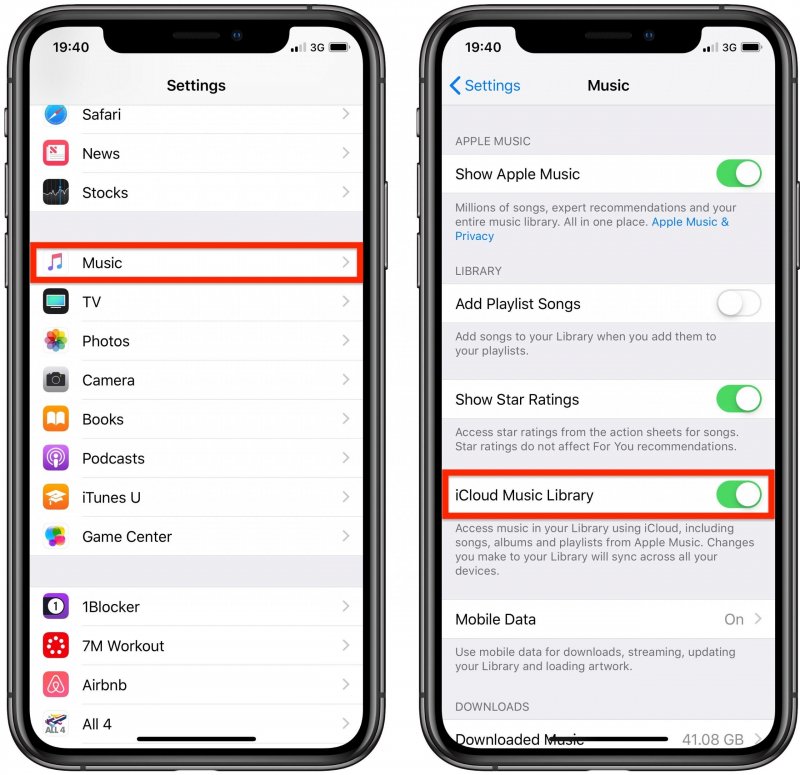
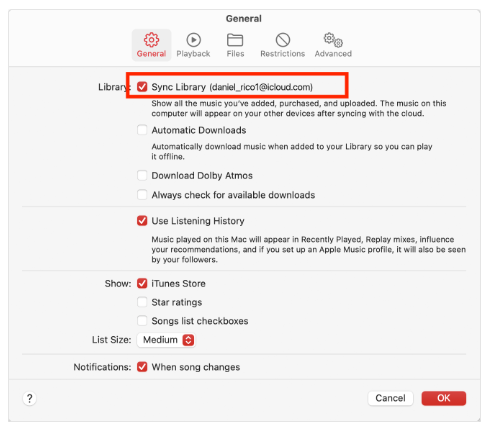
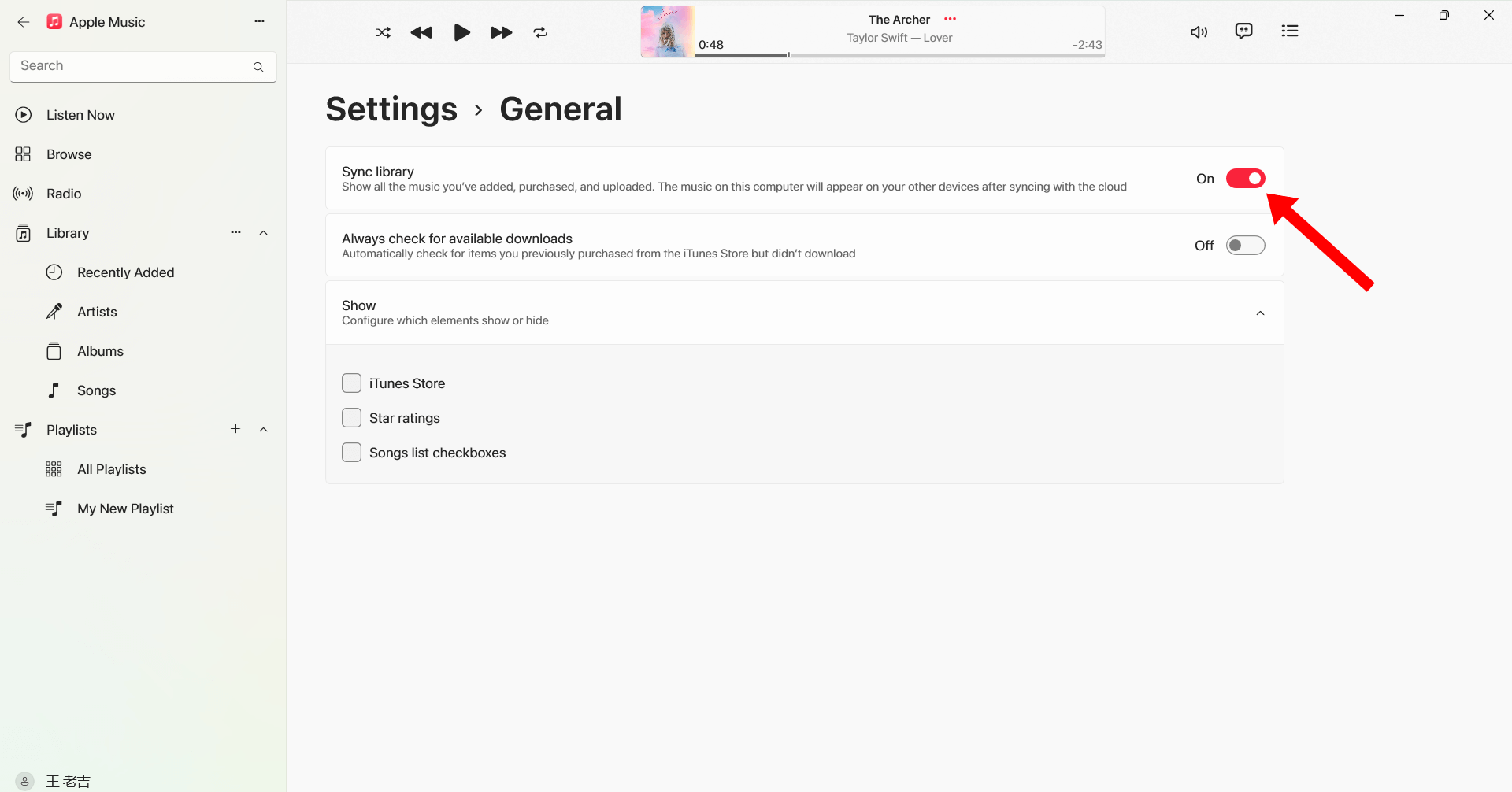
Disattiva e riattiva la sincronizzazione della libreria per aggiornare le informazioni sulla disponibilità dei brani.
Per iOS (iPhone): Apri Impostazioni > App > Musica. Disattiva la sincronizzazione della libreria. Attendi 30 secondi, quindi riattiva la sincronizzazione della libreria. Apri l'app Musica; dovresti vedere una barra di avanzamento in alto con la scritta "Caricamento libreria musicale".
Per Android: Apri l'app Apple Music. Tocca il menu con i tre puntini (⋮) in alto a destra e seleziona Impostazioni. Trova Sincronizza libreria e disattivalo, quindi riattivalo.
Per macOS (Tahoe / 2026): vai su Musica > Impostazioni > Generali e deseleziona Sincronizza libreria, fai clic su OK, quindi torna indietro e riseleziona l'opzione.
Per Winribassi (10/11): Apri l'app Apple Music. Fai clic sul tuo nome/icona del profilo in fondo alla barra laterale. Vai su Impostazioni > Generali. Disattiva e riattiva la sincronizzazione della libreria.
Disconnettiti e accedi di nuovo
Effettuare nuovamente l'accesso al proprio ID Apple potrebbe aggiornare l'autorizzazione ad Apple Music e risolvere i problemi di riproduzione legati alla regione.
Scarica nuovamente i brani
Alcuni brani scaricati potrebbero risultare danneggiati o perdere l'autorizzazione. Scaricare nuovamente i brani potrebbe ripristinare la riproduzione.
Aggiorna iOS o macOS
Le versioni precedenti del sistema potrebbero causare problemi di compatibilità con Apple Music.

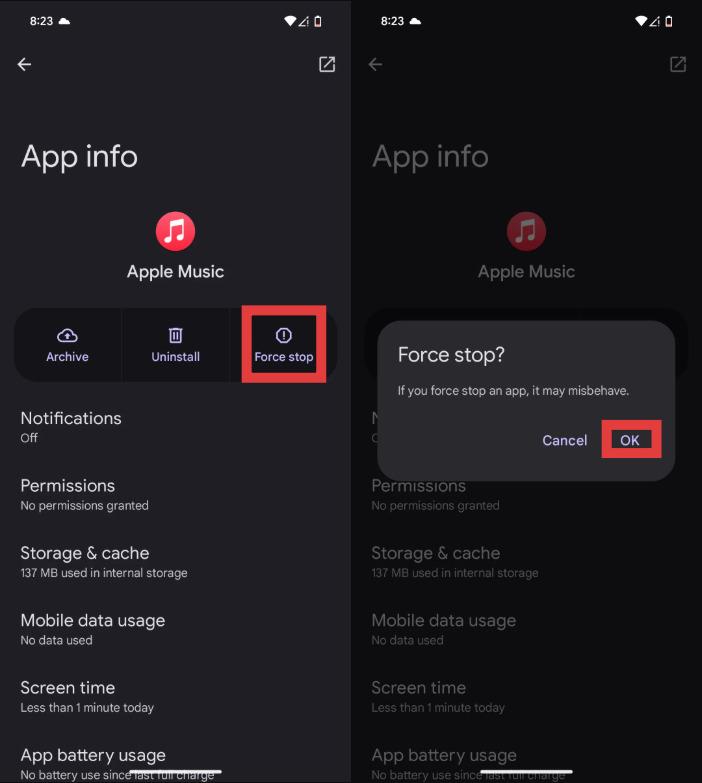
Riavvia Apple Music App
Anche alcuni bug temporanei possono causare la visualizzazione del messaggio "Apple Music non disponibile nella tua regione".
Se queste soluzioni non funzionano, il problema potrebbe essere legato a restrizioni DRM e limitazioni di licenza regionali che esulano dal tuo controllo.
Parte 3. Il modo migliore per poter ascoltare Apple Music ovunque
Per evitare problemi ricorrenti con il messaggio "Apple Music non disponibile nella tua regione", molti utenti convertire i brani di Apple Music in locale MP3 fileUno dei migliori strumenti per questo è DumpMedia Apple Music ConverterQuesto convertitore professionale per Apple Music consente agli utenti di salvare i brani localmente per una riproduzione offline stabile, senza dipendere da autorizzazioni regionali.
Download gratuito Download gratuito
🏆Perché scegliere DumpMedia Apple Music Converter
- Rimuovi la protezione DRM di Apple Music*
- Mantieni la qualità audio originale
- Download in blocco di playlist e album
- Velocità di conversione veloce
- Conserva i metadati del brano e i tag ID3
- Supporta la riproduzione offline su qualsiasi dispositivo.
Per gli utenti che riscontrano ripetutamente il messaggio "Apple Music non disponibile nella tua regione", local MP3 La riproduzione offre una soluzione più affidabile a lungo termine.
Come convertire Apple Music in MP3 per la riproduzione offline
Passo 1: Scarica e installa DumpMedia Installa Apple Music Converter sul tuo Mac/PC. Avvialo e visualizzerai l'interfaccia. Accedi utilizzando il tuo account Apple Music.
Download gratuito Download gratuito
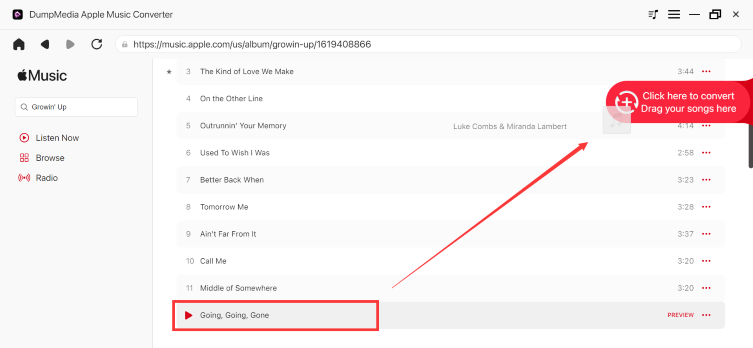
Passaggio 2. Trova la playlist, l'album o il brano specifico che desideri convertire. Puoi trascinare un singolo brano sull'icona "+" sul lato destro dello schermo. In alternativa, apri un'intera playlist/album e fai clic sull'icona "Aggiungi alla conversione" per caricare l'intero elenco nel convertitore.
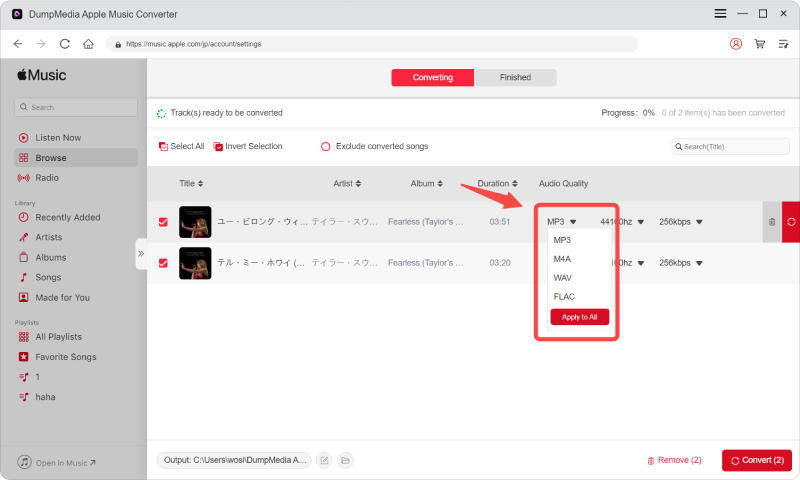
Passo 3: Seleziona MP3 (massima compatibilità). È inoltre possibile modificare il bitrate o la frequenza di campionamento. Per un equilibrio ottimale, si consiglia di scegliere 320 kbps.
Passo 4: Una volta completate le impostazioni, gli utenti possono procedere con la conversione facendo clic sull'icona "Converti". Quindi DumpMedia convertirà i brani di Apple Music in MP3 in pochi secondi grazie alla sua velocità superveloce.
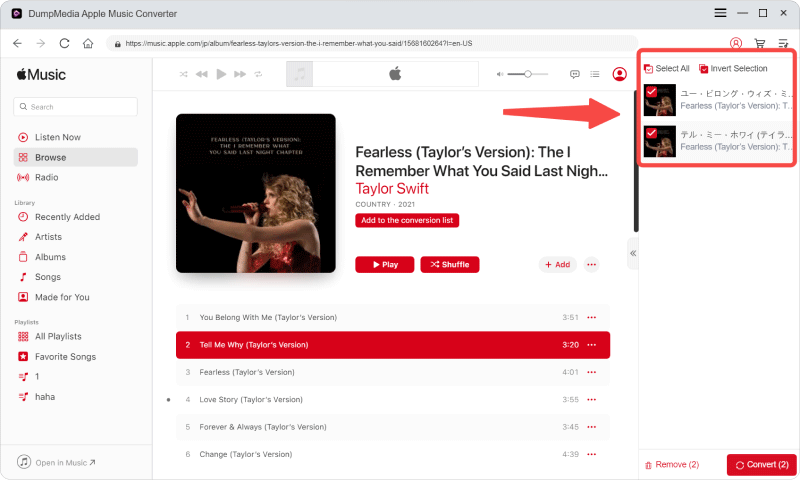
Dopo la conversione, i tuoi brani potranno essere riprodotti offline senza la necessità di verificare la regione con Apple Music.
Parte 4. Domande frequenti
Perché Apple Music indica che il servizio non è disponibile nella tua regione?
Ciò accade solitamente a causa di restrizioni di licenza, impostazioni regionali dell'ID Apple o problemi di autorizzazione DRM.
Come posso risolvere il problema di Apple Music non disponibile nella mia regione?
Puoi provare ad aggiornare le impostazioni regionali dell'ID Apple, a risincronizzare la libreria, a scaricare nuovamente i brani o a riavviare l'app.
Perché i miei brani di Apple Music sono visualizzati in grigio?
I brani visualizzati in grigio spesso indicano problemi di licenza regionale o di sincronizzazione.
Posso ascoltare Apple Music mentre viaggio all'estero?
Sì, ma alcune canzoni potrebbero non essere più disponibili a causa di restrizioni regionali sul diritto d'autore.
Come faccio a conservare in modo permanente i brani di Apple Music?
Molti utenti usano DumpMedia Apple Music Converter per convertire i brani in formato locale MP3 file per la riproduzione offline permanente.
Is DumpMedia Apple Music Converter è sicuro?
Sì. È progettato per la conversione in Apple Music e la gestione della riproduzione offline.
Parte 5. Sommario
L'errore "Apple Music non disponibile nella tua regione" è solitamente causato da restrizioni di licenza, protezione DRM, impostazioni regionali dell'ID Apple o problemi di verifica dell'abbonamento. Per gli utenti che desiderano un ascolto offline stabile senza restrizioni regionali, DumpMedia Apple Music Converter offre un modo pratico per convertire Apple Music in musica locale permanente MP3 file. Eliminando la dipendenza dalle app e le restrizioni di streaming, gli utenti possono ascoltare Apple Music più liberamente su diversi dispositivi e in diverse posizioni.
Download gratuito Download gratuito
*DumpMedia Questo strumento funziona decrittografando e scaricando i brani di Apple Music in file privi di DRM, consentendo di ottenere una copia pulita e senza restrizioni della propria libreria per qualsiasi dispositivo. La sua funzionalità non include la rimozione del DRM dai file audio locali.