


Comment télécharger de la musique sur Samsung à partir de YouTube
YouTube Music est un service de streaming musical développé par YouTube, une filiale de Google. Il fournit aux utilisateurs une interface dédiée au streaming musical, permettant aux utilisateurs de parcourir les chansons et les vidéos musicales sur YouTube en fonction des genres, des listes de lecture et des recommandations. Les utilisateurs de YouTube Premium peuvent télécharger des chansons de YouTube Music en local pour une écoute hors ligne, tandis que les utilisateurs gratuits ne peuvent pas utiliser cette fonctionnalité.
Pour les utilisateurs de téléphones mobiles Samsung, l'utilisation de l'application Samsung Music facilite l'accès et la gestion des bibliothèques musicales. L'application Samsung Music prend en charge la lecture de formats audio purs tels que MP3, WMA, AAC et FLAC, et les utilisateurs peuvent facilement ajouter de la musique à l'application pour une lecture hors ligne.
Si vous êtes un utilisateur de YouTube Music et que vous souhaitez savoir comment télécharger des chansons depuis YouTube Music sur des téléphones Samsung et les ajouter à l'application Samsung Music, vous êtes au bon endroit.
Cet article va vous montrer comment télécharger de la musique sur Samsung depuis YouTubeQue vous soyez un utilisateur YouTube Premium ou un utilisateur gratuit, vous pouvez facilement le faire en suivant les étapes décrites dans cet article.
Guide des matières Partie 1. La meilleure façon de télécharger de la musique à partir de YouTubePartie 2. Comment transférer de la musique téléchargée vers Samsung depuis YouTubePartie 3. FAQ sur le téléchargement de musique sur Samsung à partir de YouTubePartie 4. Résumé
Partie 1. La meilleure façon de télécharger de la musique à partir de YouTube
Télécharger de la musique sur un Samsung à partir de YouTube peut s'avérer délicat en raison de la protection DRM des chansons de YouTube Music. Ce verrou numérique lie la musique à des appareils spécifiques, ce qui rend difficile l'écoute hors ligne sur d'autres appareils.
Cependant, il existe des convertisseurs de musique tiers qui peuvent contourner cette restriction, et l'une des meilleures options est DumpMedia Convertisseur de musique YouTubeCet outil puissant offre des vitesses de téléchargement jusqu'à 10 fois plus rapides que d'habitude et prend en charge les formats audio populaires tels que MP3, WAV, FLAC, et M4A, garantissant la compatibilité avec presque tous les appareils et lecteurs multimédias.
Téléchargement gratuit Téléchargement gratuit
Le meilleur, c'est sa facilité d'utilisation, même pour ceux qui ne sont pas férus de technologie. DumpMedia YouTube Music Converter dispose d'une interface conviviale et fournit des instructions étape par étape, ce qui le rend facile à maîtriser. Si vous rencontrez des problèmes, DumpMedia L'équipe d'assistance offre une assistance rapide et amicale pour vous aider.
Voici un guide étape par étape pour vous aider à télécharger YouTube Music en utilisant DumpMedia Convertisseur de musique YouTube :
Étape 1 : Installer et se connecter
- Commencez par installer DumpMedia YouTube Music Converter sur votre ordinateur.
- Une fois installée, ouvrez l'application et connectez-vous à votre compte YouTube Music.
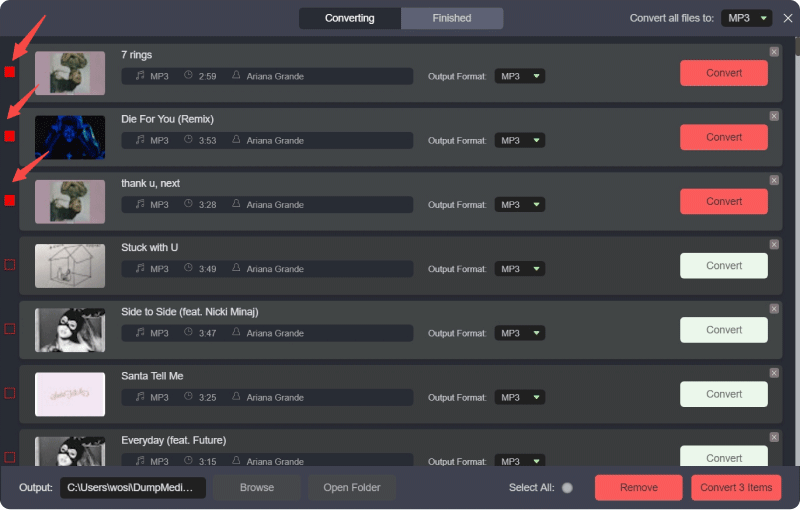
- Cliquez sur l'icône rouge pour ajouter les chansons que vous souhaitez télécharger.
Étape 2 : Sélectionnez les chansons
- Parcourez votre bibliothèque musicale YouTube et sélectionnez les chansons ou les listes de lecture que vous souhaitez télécharger.
- Ajoutez-les à la liste de téléchargement du convertisseur.
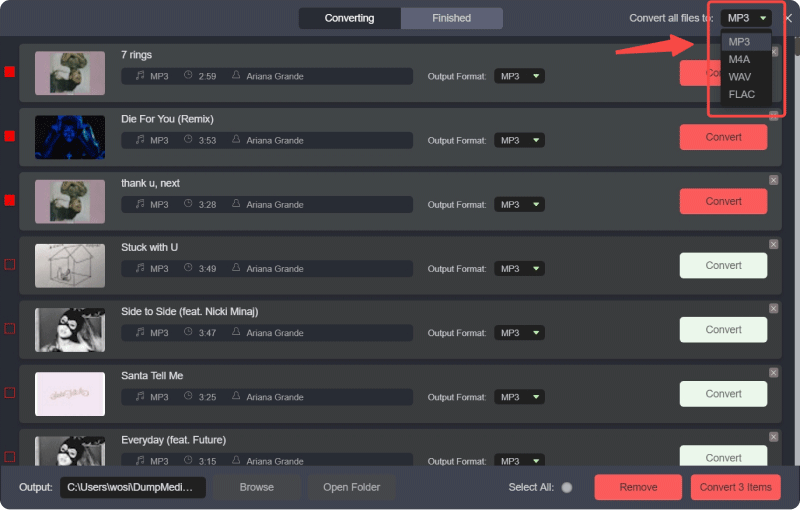
Étape 3 : Choisissez le format de sortie et la destination
- Sélectionnez votre format de sortie préféré parmi les options disponibles, telles que MP3, WAV, FLAC ou M4A.
- Spécifiez le dossier de destination sur votre ordinateur où vous souhaitez que les fichiers convertis soient enregistrés.
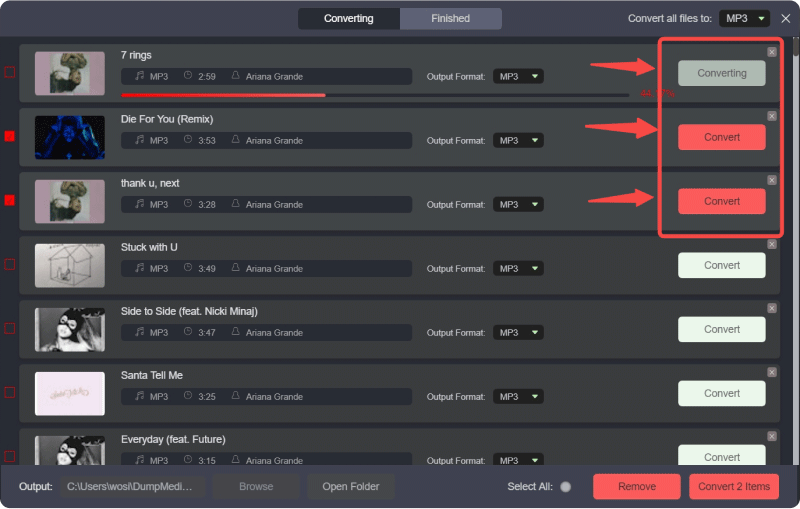
Étape 4 : Convertir et télécharger
- Cliquez sur le bouton "Convertir" pour lancer le processus de conversion.
- Le logiciel convertira votre musique YouTube en fichiers de haute qualité à une vitesse fulgurante.
- Une fois la conversion terminée, vous pouvez trouver les fichiers convertis dans le dossier de sortie désigné.
L'utilisation de DumpMedia YouTube Music Converter simplifie le processus de téléchargement et de conversion de YouTube Music, vous permettant de profiter de vos chansons préférées hors ligne sur votre appareil Samsung sans aucun problème.
Partie 2. Comment transférer de la musique téléchargée vers Samsung depuis YouTube
Une fois que vous avez téléchargé les pistes YouTube Music, vous pouvez transférer les fichiers téléchargés vers Samsung à l'aide d'un câble USB. Si vous êtes un utilisateur Mac, vous devez télécharger et installer Android File Manager avant d'ajouter de la musique sur Samsung.
Voici le guide étape par étape sur le transfert de musique de YouTube Music vers Samsung :
Étape 1 : Utilisez une connexion USB pour relier votre téléphone ou tablette Samsung à votre PC. Veillez à utiliser un câble prenant en charge une connexion MTP si l'ancien ne fonctionne pas.
Étape 2 : Une fois que votre ordinateur a détecté votre appareil, ouvrez le dossier de l'application Samsung Music. Il s'agit du dossier dans lequel vous placerez les fichiers YouTube Music.
Étape 3 : Faites glisser et déposez les fichiers YouTube Music dans le dossier de l'application Samsung Music.
Une fois le transfert terminé, éjectez votre appareil Samsung en toute sécurité. Ouvrez l'application Samsung Music, qui recherchera automatiquement les chansons YouTube Music nouvellement ajoutées. Ces chansons apparaîtront dans la bibliothèque musicale Samsung, ce qui vous permettra de les écouter sur votre appareil à l'aide de l'application Samsung Music.
Partie 3. FAQ sur le téléchargement de musique sur Samsung à partir de YouTube
Q1 : Puis-je télécharger de la musique de YouTube directement sur mon appareil Samsung ?
A1 : YouTube n'autorise pas le téléchargement direct de musique en raison de restrictions de droits d'auteur. Cependant, vous pouvez utiliser un outil tiers comme DumpMedia YouTube Music Converter pour télécharger de la musique YouTube, puis la transférer sur votre appareil Samsung.
Q2 : Dans quels formats la musique téléchargée doit-elle être pour que l'application Samsung Music la reconnaisse ?
A2 : L'application Samsung Music prend en charge divers formats audio, notamment MP3, WMA, AAC et FLAC. Assurez-vous que les fichiers musicaux téléchargés sont dans l'un de ces formats pour assurer la compatibilité.
Q3. Puis-je organiser la musique téléchargée dans des listes de lecture dans l'application Samsung Music ?
A3 : Oui, vous pouvez créer et organiser des listes de lecture dans le Samsung Musique application. Après avoir ajouté votre musique téléchargée, accédez à la section playlist de l'application et créez de nouvelles playlists ou ajoutez des chansons à celles existantes.
Q4 : Puis-je synchroniser ma bibliothèque musicale YouTube avec l'application Samsung Music ?
A4 : La synchronisation directe entre YouTube Music et l'application Samsung Music n'est pas prise en charge. Vous devez télécharger manuellement la musique et la transférer sur votre appareil Samsung.
Q5 : Comment puis-je supprimer la musique téléchargée de mon appareil Samsung ?
A5 : Utilisez l'application Samsung Music ou une application de gestion de fichiers pour localiser et supprimer les fichiers musicaux. Cela libérera de l'espace sur votre appareil.
Partie 4. Résumé
Le téléchargement de musique de YouTube sur votre appareil Samsung peut être réalisé efficacement avec des outils tiers tels que DumpMedia YouTube Music Converter. Ce logiciel contourne les restrictions DRM, vous permettant de télécharger et de convertir de la musique YouTube dans des formats tels que MP3, WAV, FLAC et M4A, qui sont compatibles avec l'application Samsung Music.
Après avoir téléchargé et converti la musique, transférez les fichiers sur votre appareil Samsung à l'aide d'un câble USB. Placez les fichiers musicaux dans le dossier de l'application Samsung Music et l'application analysera et ajoutera automatiquement les nouveaux morceaux à votre bibliothèque. Cela vous permet de profiter de vos chansons YouTube préférées hors ligne sur votre appareil Samsung.

30% de réduction >>>