


Comment transférer de la musique YouTube vers Spotify: Guide complet
Si vous utilisez YouTube Music mais envisagez de passer à SpotifyL'une des principales préoccupations est de savoir comment transférer ses listes de lecture sans perdre sa collection musicale. Recréer manuellement des listes de lecture peut prendre beaucoup de temps, surtout si vous avez passé des années à les constituer. Heureusement, plusieurs outils et méthodes permettent de… transférer YouTube Music vers Spotify Ce guide vous propose des méthodes pratiques pour migrer efficacement votre bibliothèque musicale à l'aide de logiciels et d'outils en ligne.
Guide des matières Partie 1. Aperçu : YouTube Music vs. SpotifyPartie 2. Convertir YouTube Music en Spotify on Windows/MacPartie 3. Transférer la playlist YouTube Music vers Spotify En lignePartie 4. FAQPartie 5. Conclusion
Partie 1. Aperçu : YouTube Music vs. Spotify
Avant d'apprendre comment transférer YouTube Music vers SpotifyIl est donc utile de comprendre les différences entre les deux plateformes de streaming. Bien que les deux services donnent accès à de vastes catalogues musicaux, ils privilégient des expériences utilisateur légèrement différentes.
Qualité audio
Une différence majeure réside dans la qualité audio. Spotify YouTube Music propose des options de streaming de haute qualité et continue de développer des fonctionnalités audio avancées pour ses utilisateurs premium. La plateforme offre également une bonne qualité de streaming, mais sa force réside davantage dans la diversité de son contenu que dans ses fonctionnalités purement audio. Grâce à son intégration avec YouTube, les utilisateurs peuvent facilement accéder à des performances en direct, des remixes, des reprises et des contenus non officiels qui ne figurent pas forcément dans les catalogues musicaux traditionnels.
Tarifs et plans d'abonnement
Les deux plateformes proposent des formules gratuites et premium. SpotifyL'offre gratuite de YouTube inclut des publicités et certaines restrictions de lecture, tandis que la version gratuite de YouTube Music inclut également des publicités et limite la lecture en arrière-plan sur les appareils mobiles. Les abonnements Premium suppriment ces restrictions et offrent des fonctionnalités supplémentaires telles que le téléchargement hors ligne et l'écoute sans publicité.
- Lisez notre comparatif détaillé pour découvrir la différence entre Spotify Gratuit vs Premium.
Découverte et recommandation de musique
Spotify YouTube Music est surtout connu pour ses playlists algorithmiques, comme Discover Weekly et Daily Mixes, qui aident les utilisateurs à découvrir de nouveaux morceaux en fonction de leurs habitudes d'écoute. De son côté, YouTube Music tire parti du système de recommandation de YouTube et de son vaste catalogue vidéo, proposant un mélange de titres officiels et de contenus vidéo.
Compatibilité des appareils et intégration à l'écosystème
Spotify YouTube Music s'intègre à une large gamme d'appareils, notamment les enceintes connectées, les consoles de jeux et les systèmes audio embarqués. YouTube Music s'intègre étroitement avec Google services et appareils Android. En raison de ces différences, certains utilisateurs décident de transférer YouTube Music vers Spotify afin de tirer profit de SpotifyL'écosystème de et les outils de découverte de playlists de [nom de l'entreprise].
Partie 2. Convertir YouTube Music en Spotify on Windows/Mac
L'une des méthodes les plus fiables pour transférer YouTube Music vers Spotify utilise un logiciel de bureau qui vous permet de télécharger des morceaux de YouTube Music et de les importer sur SpotifyUne solution efficace pour ce processus est… DumpMedia N'importe quel convertisseur de musique, qui fonctionne sur les deux Windows et macOS.
Téléchargement gratuit Téléchargement gratuit
Cet outil permet aux utilisateurs de télécharger des chansons ou des playlists depuis YouTube Music et de les convertir en formats audio courants compatibles avec SpotifyAprès avoir téléchargé les fichiers, ils peuvent être ajoutés à Spotifyla bibliothèque locale de [nom de la bibliothèque].
Des fonctionnalités encore plus étonnantes DumpMedia
- ⭐Intégration avec le lecteur web YouTube Music
- ⭐Fonctionne pour les utilisateurs de YouTube Music Premium et gratuits
- ⭐Convertir la musique en MP3/AAC/WAV/FLAC/ALAC/AIFF
- ⭐Offrez une vitesse de conversion jusqu'à 35 fois plus rapide
- ⭐Vous permet de personnaliser les paramètres de sortie
- ⭐Conserver toutes les informations de métadonnées
- ⭐100% Propre. Aucun risque à utiliser
Convertir la musique YouTube en Spotify au DumpMedia
Étape 1 : Téléchargez et installez DumpMedia N'importe quel convertisseur de musique sur votre Mac/Windes douves.
Téléchargement gratuit Téléchargement gratuit
Étape 2. Lancez l'application ; l'interface s'affiche. Connectez-vous avec votre compte YouTube Music Premium ou gratuit. Parcourez le catalogue YouTube Music pour télécharger des morceaux et les écouter hors ligne. Glissez-déposez-les simplement dans la liste de conversion (bouton « + ») pour ajouter tous les morceaux et lancer la conversion.
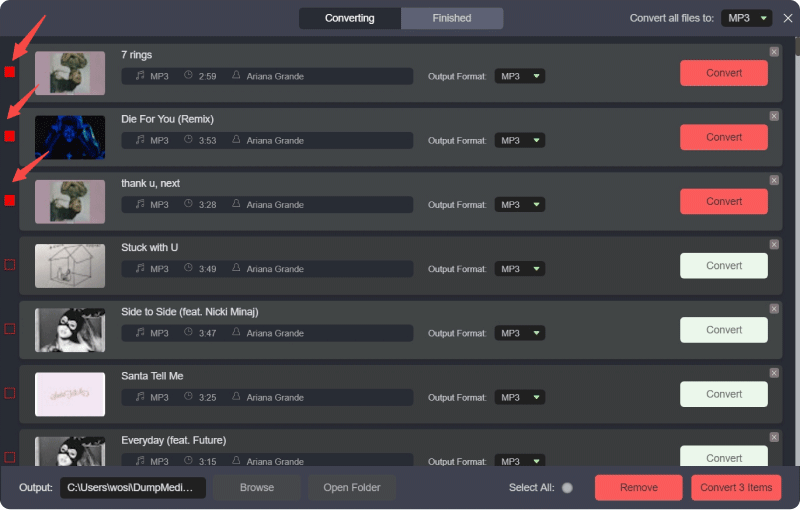
Étape 3 : Sur l'interface de conversion, vous pouvez choisir le format de sortie comme MP3, et définissez la fréquence d'échantillonnage ou le débit binaire dans Préférences. Choisissez également un dossier dans lequel les fichiers musicaux seront enregistrés.
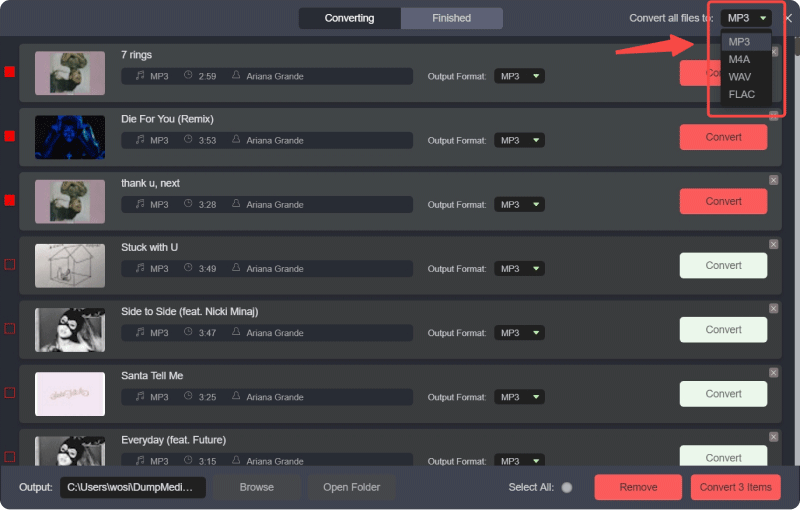
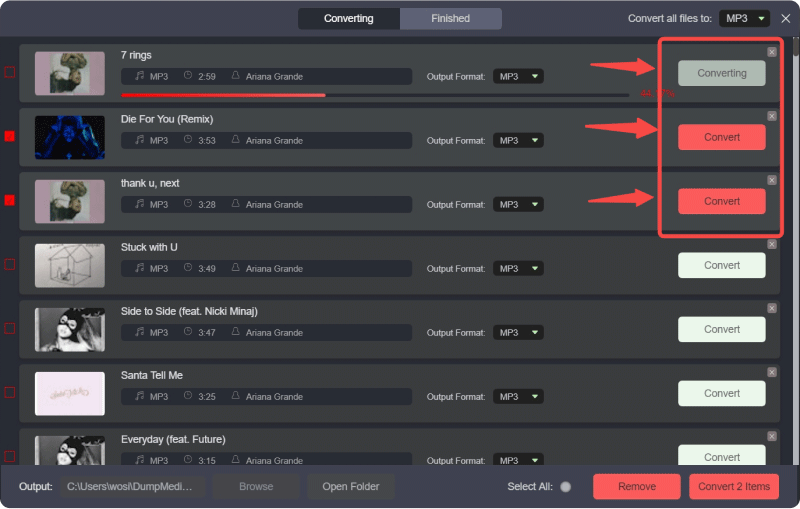
Étape 4 : Pour terminer, cliquez sur le bouton « Tout convertir » pour lancer la conversion de tous les morceaux de YouTube Music en MP3 en ligne.
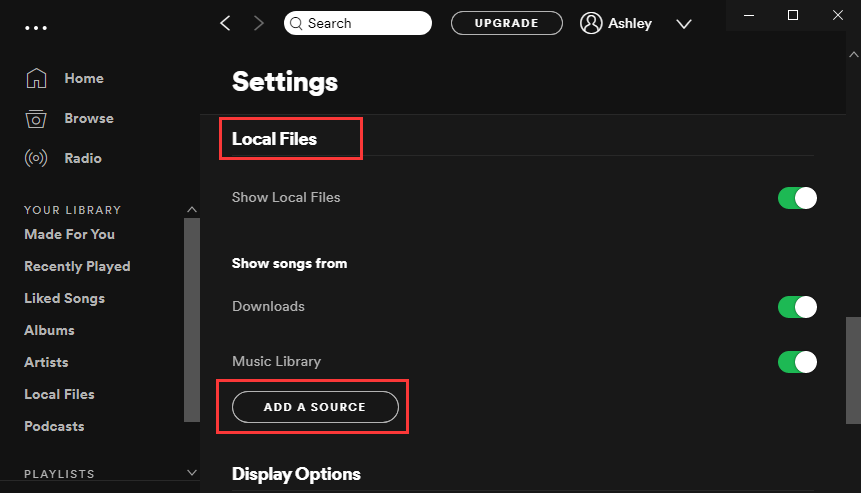
Étape 5 : Ouvrez Spotify Sur votre ordinateur, accédez au menu Paramètres. Activez l'option Fichiers locaux. Spotify peut détecter la musique stockée sur votre appareil. Choisissez ensuite le dossier où elle se trouve. DumpMedia J'ai enregistré les pistes téléchargées.
Étape 6 : Spotify L'application analysera le dossier et ajoutera ces morceaux à votre bibliothèque locale. Une fois les titres ajoutés, vous pourrez créer une nouvelle liste de lecture et les inclure comme n'importe quel autre morceau. Spotify Chansons.
Cette méthode vous permet de transférer avec succès YouTube Music vers Spotify tout en gardant le contrôle de vos fichiers musicaux.
Astuce supplémentaire : Fonction de transfert de listes de lecture
DumpMedia Any Music Converter inclut également une fonction de transfert de playlists conçue pour simplifier la migration. Au lieu de télécharger et d'ajouter chaque morceau individuellement, cette fonction recrée automatiquement les playlists entre les plateformes.
En connectant vos comptes et en sélectionnant la liste de lecture que vous souhaitez migrer, DumpMedia peut reconstruire la structure de la liste de lecture sur SpotifyPour les utilisateurs possédant d'importantes bibliothèques musicales, c'est l'un des moyens les plus efficaces de transférer YouTube Music vers Spotify sans passer des heures à organiser les chansons manuellement.

Partie 3. Transférer la playlist YouTube Music vers Spotify En ligne
Si vous préférez ne pas installer de logiciel sur votre ordinateur, une autre façon de transférer YouTube Music vers Spotify Il est possible d'utiliser un outil de migration de listes de lecture en ligne. TuneMyMusic est un service populaire qui permet aux utilisateurs de transférer des listes de lecture entre différentes plateformes de streaming via un navigateur web.
Guide étape par étape
Étape 1. Pour commencer, ouvrez le site web TuneMyMusic et cliquez sur l'option permettant de lancer un nouveau transfert. Sélectionnez YouTube Music comme plateforme source et connectez-vous à votre compte afin que l'outil puisse accéder à vos playlists.
Étape 2 : Une fois vos playlists chargées, choisissez celle que vous souhaitez déplacer. Le service analysera la liste des titres et préparera les morceaux pour la correspondance avec Spotifyle catalogue.
Étape 3 : Ensuite, sélectionnez Spotify en tant que plateforme de destination et autoriser la connexion.
Étape 4 : Après confirmation du transfert, TuneMyMusic recherchera automatiquement les morceaux correspondants sur Spotify et recréez la playlist.
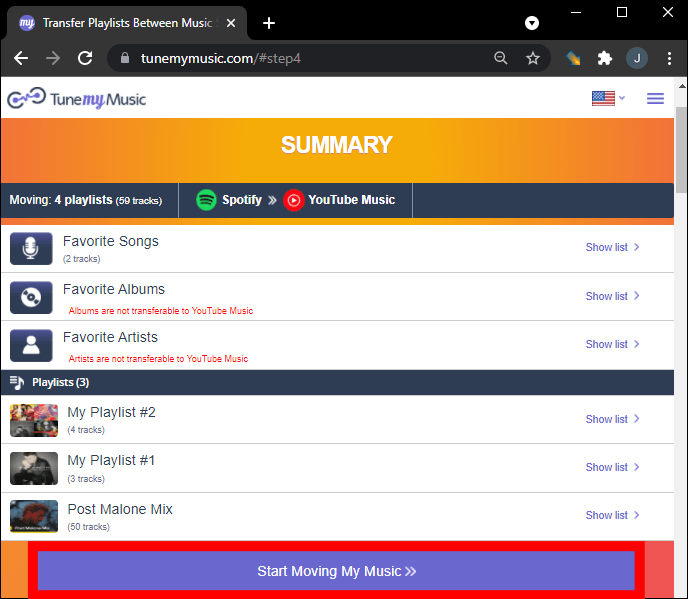
Étape 5 : Une fois le processus terminé, vous pourrez ouvrir Spotify et retrouvez la nouvelle playlist dans votre bibliothèque.
Des outils en ligne comme TuneMyMusic offrent une solution pratique aux utilisateurs qui souhaitent transférer leur musique YouTube vers Spotify Rapidement, sans installer de logiciel sur votre ordinateur. Cependant, les versions gratuites peuvent présenter des limitations concernant la taille des listes de lecture ou le nombre de transferts.
Partie 4. FAQ
Puis-je transférer YouTube Music vers Spotify directement?
Non. Les services de streaming n'autorisent généralement pas le transfert direct de listes de lecture entre les plateformes. Vous avez besoin d'outils tiers tels que… DumpMedia ou TuneMyMusic pour finaliser le processus.
Toutes les chansons seront-elles transférées avec succès ?
La plupart des chansons seront transférées correctement car les deux plateformes possèdent de vastes catalogues musicaux. Cependant, il arrive que certains titres ne soient pas disponibles sur [plateforme manquante]. Spotify, ce qui signifie qu'ils ne peuvent pas être appariés lors du transfert.
Est-il possible de transférer des listes de lecture entières ?
Oui. De nombreux outils prennent en charge la migration complète des listes de lecture. DumpMediaLa fonction de transfert de playlists de [nom de l'application] et les services en ligne comme TuneMyMusic peuvent tous deux recréer des playlists sur [nom de l'application]. Spotify.
L'utilisation d'outils de transfert de listes de lecture est-elle sûre ?
Les outils réputés utilisent des systèmes d'authentification sécurisés pour se connecter à vos comptes de streaming. Choisissez toujours des services de confiance lorsque vous tentez de transférer YouTube Music vers Spotify.
Partie 5. Conclusion
Changer de plateforme de streaming musical ne signifie pas que vous devez perdre vos playlists préférées. Avec les bons outils, il est tout à fait possible de transférer YouTube Music vers une autre plateforme. Spotify sans reconstruire manuellement votre bibliothèque musicale.
Logiciel de bureau comme DumpMedia Any Music Converter offre une solution performante en permettant aux utilisateurs de télécharger des chansons depuis YouTube Music et de les importer sur Spotify sous forme de fichiers locaux. Sa fonction de transfert de listes de lecture simplifie encore davantage le processus pour les grandes collections musicales. Par ailleurs, des services en ligne tels que TuneMyMusic offrent une alternative pratique via navigateur pour migrer rapidement les listes de lecture.