


Comment transférer Spotify Musique sur YouTube : Guide complet pour tous les appareils
Transférer ses playlists entre les plateformes de streaming est un besoin courant, notamment lorsqu'on change d'application ou qu'on consolide sa bibliothèque musicale. Si vous souhaitez transférer Spotify musique sur YouTubeLa bonne nouvelle, c'est que les outils de transfert modernes rendent le processus fluide sur le web, les ordinateurs et les appareils mobiles. Ce guide vous accompagnera pas à pas à travers chaque méthode. Avec la prise en charge de Spotify Grâce à YouTube, disponible sur tous les principaux appareils, vous pouvez transférer vos listes de lecture sans effort et garder votre musique accessible où que vous l'écoutiez.
Guide des matières Partie 1. Transfert Spotify Playlist sur YouTube en lignePartie 2. Transfert Spotify Playlist sur YouTube Windows/MacPartie 3. Transfert Spotify Ajouter une playlist à YouTube sur iOSPartie 4. Transfert Spotify Playlist sur YouTube sur AndroidPartie 5. FAQPartie 6. Pour tout résumer
Partie 1. Transfert Spotify Playlist sur YouTube en ligne
Si vous souhaitez le moyen le plus rapide de transférer Spotify Pour ajouter de la musique à YouTube sans installer de logiciel, un outil de synchronisation de playlists en ligne est la solution la plus pratique. TuneMyMusic, un service web permettant la migration directe des playlists entre les principales plateformes de streaming, est une solution très répandue.
Comment fonctionne TuneMyMusic en ligne :
- Ouvrez TuneMyMusic dans votre navigateur.
- Choisissez Spotify en tant que plateforme source et connectez-vous.
- Sélectionnez la liste de lecture que vous souhaitez déplacer.
- Choisissez YouTube comme destination.
- Confirmez la liste des pistes et lancez le transfert.
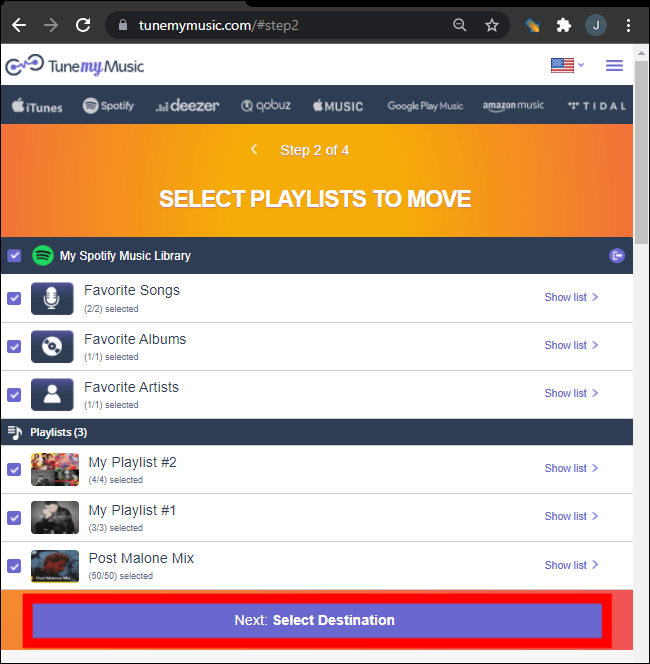
Cette méthode est rapide, compatible avec toutes les plateformes et ne nécessite aucune installation locale. Elle est idéale pour les utilisateurs qui souhaitent transférer leur musique Spotify sur YouTube le plus facilement possible.
Partie 2. Transfert Spotify Playlist sur YouTube Windows/Mac
Pour les utilisateurs d'ordinateurs de bureau qui recherchent plus de contrôle, une stabilité de conversion plus élevée et une gestion automatisée des listes de lecture, DumpMedia N'importe quel convertisseur de musique propose un module dédié au transfert de playlists. Il est particulièrement avantageux pour les utilisateurs qui effectuent régulièrement des transferts. Spotify Musique à diffuser sur YouTube en masse ou pour ceux qui ont besoin d'une configuration de listes de lecture prévisible et répétable.
Téléchargement gratuit Téléchargement gratuit
Principaux avantages de la fonction de transfert de liste de lecture :
- Prise en charge de la migration en masse des listes de lecture
- Gère les métadonnées, les illustrations de couverture et l'ordre des pistes.
- Fournit une logique de correspondance robuste pour minimiser les pistes mal appariées
- Fonctionne sur les deux Windows et macOS
Comment l'utiliser:
Étape 1. Ouvrez Any Music Converter. Choisissez Outils > Transfert de playlist.

Étape 2 : Sélectionner Spotify comme source.
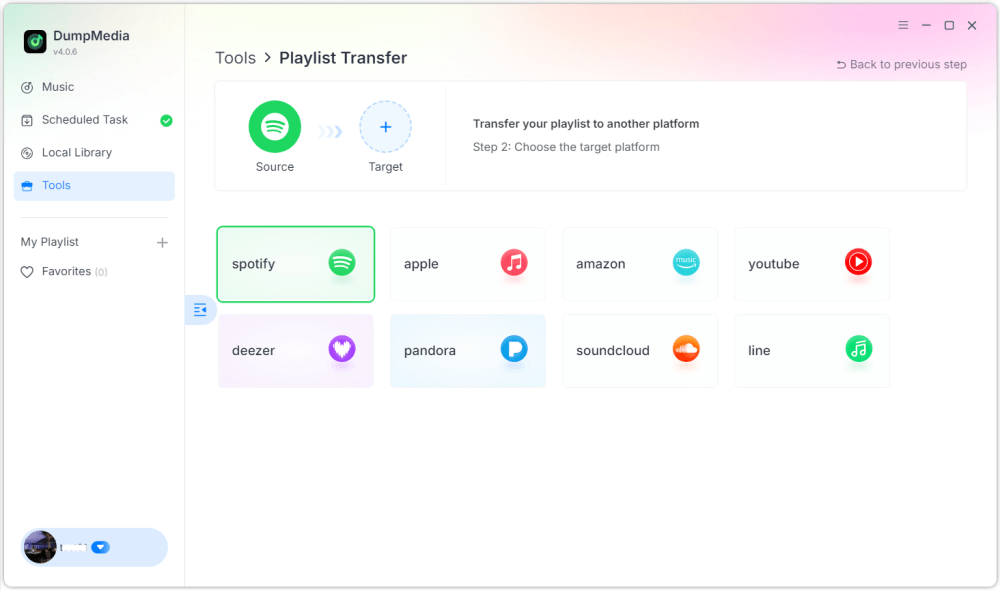
Étape 3. Sélectionnez YouTube Music comme destination.
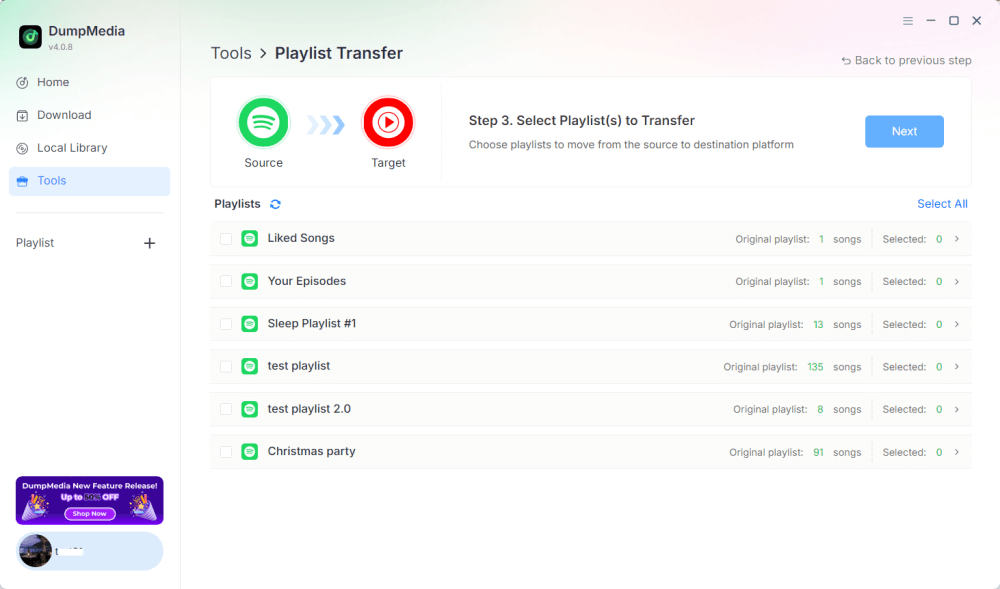
Étape 4. Sélectionnez les éléments à transférer : nous prenons en charge vos chansons, artistes, albums préférés et vos listes de lecture personnalisées.
Étape 5. Cliquez sur Convertir pour démarrer le transfert.
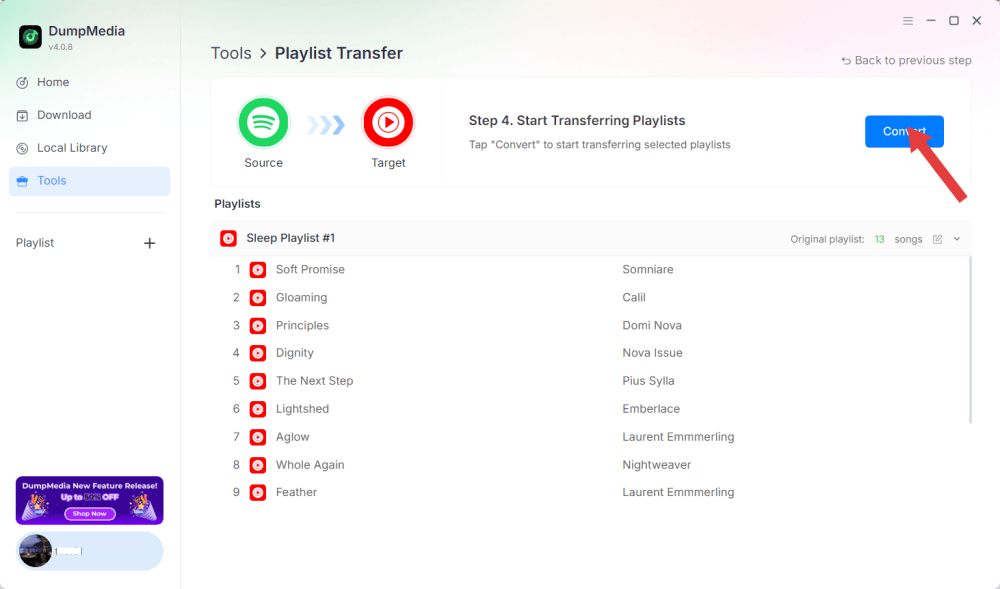
Étape 6. Le transfert est terminé. Cliquez sur « Accéder à YouTube Music ». Vos playlists ont été transférées vers un nouveau service et vous pouvez désormais profiter de vos nouvelles playlists sur YouTube Music.
Comme toutes les opérations s'effectuent localement, cette solution est plus stable que les outils basés sur un navigateur, idéale pour les utilisateurs qui ont fréquemment besoin de transférer de la musique Spotify vers YouTube pour plusieurs listes de lecture ou de grandes bibliothèques.
Partie 3. Transfert Spotify Ajouter une playlist à YouTube sur iOS
Si vous utilisez un iPhone ou un iPad et souhaitez transférer votre musique Spotify vers YouTube, un outil de migration optimisé pour mobile comme SongShift est une solution éprouvée. Conçu spécifiquement pour l'écosystème Apple, il offre une interface intuitive pour la création de playlists.
Comment fonctionne SongShift :
- Installez SongShift depuis l'App Store.
- Connectez votre Spotify compte.
- Connectez votre compte YouTube.
- Créez une nouvelle tâche Shift et choisissez le Spotify La playlist comme source.
- Définissez YouTube comme destination et vérifiez que le morceau correspond.
- Effectuez le transfert.
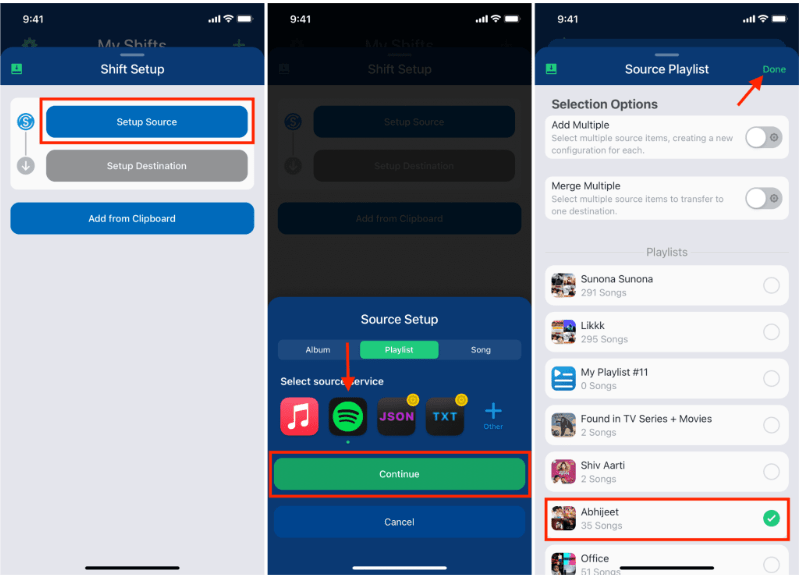
La force de SongShift réside dans ses interactions avec l'interface utilisateur native d'iOS, facilitant ainsi la tâche de transfert. Spotify Musique sur YouTube fluide pour les utilisateurs qui travaillent principalement sur des appareils mobiles.
Partie 4. Transfert Spotify Playlist sur YouTube sur Android
Sur les appareils Android, le moyen le plus simple de transférer Spotify La diffusion de musique sur YouTube se fait via Soundiiz Mobile Web, qui fonctionne parfaitement dans les navigateurs mobiles et prend en charge les interfaces compatibles avec Android.
Étapes pour le site web mobile Soundiiz :
- Ouvrez le site web Soundiiz dans votre navigateur Android.
- Connectez-vous à votre Spotify compte.
- Sélectionnez la playlist que vous souhaitez déplacer.
- Sélectionnez YouTube comme service cible.
- Confirmez et lancez la synchronisation.
Ce processus est pratique pour les utilisateurs qui ne souhaitent pas installer d'applications supplémentaires mais qui ont besoin d'une méthode simple pour transférer leurs données. Spotify Écouter de la musique sur YouTube en déplacement.
Partie 5. FAQ
1. L'ordre de la liste de lecture restera-t-il le même après le transfert ? Spotify De la musique sur YouTube ?
La plupart des outils tentent de maintenir l'ordre, mais la préservation exacte dépend de la disponibilité des pistes et de la précision de leur reconnaissance.
2. Sont tous Spotify Des morceaux disponibles sur YouTube ?
Pas toujours. Des différences de droits d'auteur, des restrictions régionales et des chansons indisponibles peuvent entraîner des lacunes.
3. Ces outils nécessitent-ils un accès à mes comptes ?
Oui. Ils ont besoin d'une autorisation pour lire votre Spotify Créez des playlists et ajoutez-les à votre bibliothèque YouTube. Les outils fiables utilisent l'authentification sécurisée OAuth.
4. Combien de temps faut-il pour effectuer le transfert ? Spotify Des playlists sur YouTube ?
Cela dépend de la taille de la liste de lecture : les petites listes se terminent en quelques secondes ; les grandes bibliothèques peuvent prendre plusieurs minutes.
Partie 6. Pour tout résumer
Trouver la meilleure méthode de transfert Spotify Le transfert de musique vers YouTube dépend de votre flux de travail et de votre appareil. Avec le bon outil, vous pouvez facilement transférer vos fichiers. Spotify Créer des playlists sur YouTube et assurer une continuité musicale entre les plateformes.