


Comment transférer Apple Music vers YouTube Music : Guide complet
De nombreux utilisateurs ayant initialement constitué leur bibliothèque musicale sur Apple Music finissent par se tourner vers YouTube Music, séduits par ses puissantes fonctionnalités de découverte musicale, son intégration avec les vidéos YouTube et sa compatibilité parfaite avec les services Google. Cependant, un problème fréquent lors de ce changement de service est celui du transfert de sa musique Apple Music vers YouTube Music sans avoir à recréer manuellement chaque playlist.
Heureusement, plusieurs outils permettent d'automatiser ce processus. Ce guide vous présente les méthodes les plus efficaces pour transférer vos morceaux Apple Music vers YouTube Music. À la fin de votre lecture, vous saurez exactement comment transférer vos playlists rapidement et facilement.
Guide des matières Méthode 1. Transférer les playlists Apple Music vers YouTube Music avec DumpMediaMéthode 2. Transférer les playlists Apple Music vers YouTube Music avec TuneMyMusicComparaison entre DumpMedia et TuneMyMusicRésumé
Méthode 1. Transférer les playlists Apple Music vers YouTube Music avec DumpMedia
L'un des moyens les plus fiables de transférer Apple Music vers YouTube Music consiste à utiliser un logiciel de bureau offrant des fonctionnalités avancées de migration de playlists. Une solution recommandée est : DumpMedia N'importe quel convertisseur de musique, qui comprend une fonction dédiée au transfert de listes de lecture, conçue pour déplacer des listes de lecture entre les plateformes musicales.
DumpMedia Any Music Converter est un logiciel professionnel pour ordinateur conçu pour gérer les bibliothèques musicales, convertir les formats audio et transférer les listes de lecture entre les services de streaming. Sa fonction intégrée de transfert de listes de lecture permet de transférer efficacement les morceaux d'Apple Music vers YouTube Music tout en préservant la structure des listes et les métadonnées des titres.
Téléchargement gratuit Téléchargement gratuit
Les principales caractéristiques de DumpMedia N'importe quel convertisseur de musique
- Fonction de transfert de playlists : L’outil dédié au transfert de playlists permet aux utilisateurs de migrer des playlists entières au lieu de déplacer les morceaux individuellement.
- Migration par lots de listes de lecture : les utilisateurs peuvent déplacer plusieurs listes de lecture simultanément, ce qui permet de gagner un temps considérable lors de la gestion de grandes bibliothèques musicales.
- Correspondance intelligente des morceaux : le logiciel associe automatiquement les morceaux entre Apple Music et YouTube Music, garantissant ainsi que les titres corrects apparaissent dans la playlist de destination.
- Préservation des métadonnées : les informations importantes telles que le nom de l’artiste, les informations sur l’album et les titres des morceaux restent intactes après le transfert.
- Performances stables sur ordinateur : comme le logiciel s’exécute localement sur votre ordinateur, le processus est plus stable que les outils basés sur un navigateur.
Procédure étape par étape pour transférer Apple Music vers YouTube Music
Étape 1 : Tout d'abord, téléchargez DumpMedia Utilisez n'importe quel convertisseur musical disponible sur le site officiel. Installez le programme sur votre appareil. WinSur un ordinateur Windows ou Mac, lancez l'application. Ouvrez-la et choisissez Outils > Transfert de playlist.

Étape 2. Sélectionnez Apple Music comme source. Sélectionnez ensuite YouTube Music comme plateforme cible.
Étape 3. Trouvez les playlists que vous souhaitez transférer d'Apple Music vers YouTube Music, et sélectionnez toutes les playlists que vous souhaitez déplacer.
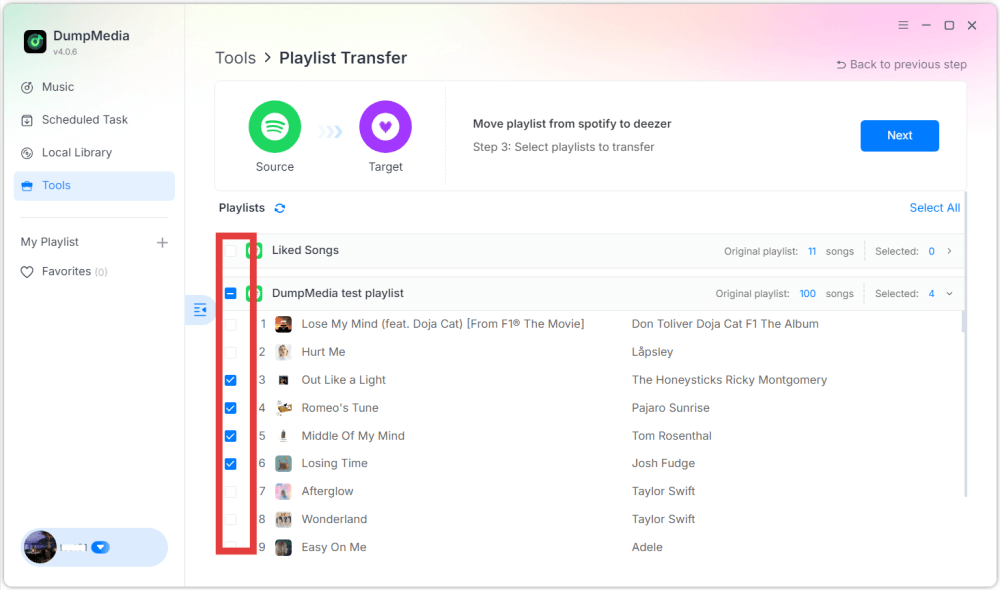
Étape 4 : Cliquez sur le bouton Convertir pour lancer la migration de la liste de lecture. DumpMedia La playlist sera automatiquement recréée sur YouTube Music.
Étape 5. Le transfert est terminé. Cliquez sur « Accéder à YouTube Music ». Vos playlists ont été transférées vers le nouveau service et vous pouvez désormais profiter de votre nouvelle plateforme de streaming musical.
Méthode 2. Transférer les playlists Apple Music vers YouTube Music avec TuneMyMusic
Une autre méthode pratique pour transférer Apple Music vers YouTube Music consiste à utiliser un service de migration de playlists en ligne. TuneMyMusic est un outil très répandu. Ce service web permet de transférer des playlists entre différentes plateformes de streaming sans installer de logiciel. Il prend en charge de nombreux services musicaux et offre une interface intuitive.
Fonctionnalités clés
- Fonctionne directement dans un navigateur web
- Prend en charge plusieurs plates-formes de streaming
- Flux de travail simple étape par étape
- Aucune installation requise
Grâce à sa simplicité, TuneMyMusic est souvent utilisé pour transférer rapidement des listes de lecture.
Étapes pour transférer Apple Music vers YouTube Music avec TuneMyMusic
Étape 1. Rendez-vous sur le site web de TuneMyMusic et cliquez sur « Commencer » pour lancer le transfert. Sélectionnez Apple Music comme plateforme source et connectez-vous à votre compte. Le service vous demandera l’autorisation d’accéder à vos playlists.
Étape 2. Choisissez la playlist que vous souhaitez migrer. Vous pouvez soit importer des playlists directement depuis votre compte, soit coller un lien de playlist.
Étape 3. Ensuite, sélectionnez YouTube Music comme plateforme de destination et connectez-vous pour autoriser la connexion.
Étape 4. Cliquez sur « Commencer à transférer ma musique ». TuneMyMusic associera automatiquement les morceaux entre Apple Music et YouTube Music.
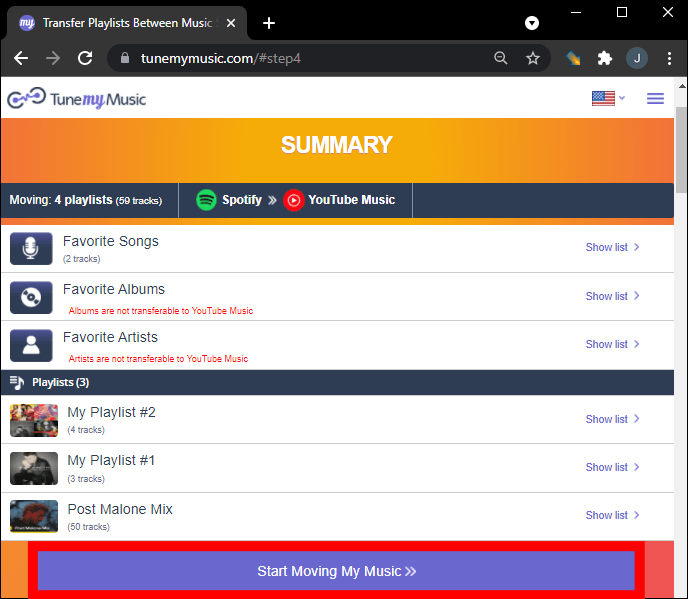
Étape 5. Une fois le processus terminé, ouvrez YouTube Music et vérifiez que votre playlist a bien été recréée.
Cette méthode offre un moyen simple de transférer Apple Music vers YouTube Music sans installer de programmes supplémentaires.
Comparaison entre DumpMedia et TuneMyMusic
Ces deux outils permettent de transférer Apple Music vers YouTube Music, mais ils répondent à des besoins légèrement différents. Voici un tableau comparatif pour vous aider à choisir la solution la plus adaptée.
Plateforme et accessibilité
DumpMedia TuneMyMusic est idéal pour les utilisateurs d'ordinateurs de bureau qui souhaitent plus de contrôle, tandis que TuneMyMusic est plus pratique pour les transferts rapides sur n'importe quel appareil.
Stabilité du transfert de playlist
DumpMedia Le transfert s'effectue localement sur votre ordinateur. Ainsi, il est moins sensible aux fluctuations de votre connexion Internet et gère plus efficacement les playlists volumineuses lors du transfert d'Apple Music vers YouTube Music.
TuneMyMusic dépend entièrement d'une connexion internet car il fonctionne dans un navigateur web. En cas d'instabilité de la connexion, le processus de transfert peut être ralenti, voire interrompu.
Migration par lots des listes de lecture
DumpMedia Il est plus adapté aux grandes collections musicales et aux migrations fréquentes de listes de lecture. TuneMyMusic permet également de transférer des listes de lecture, mais le nombre de listes ou de morceaux transférables simultanément peut être limité dans la version gratuite.
Précision du transfert et préservation des métadonnées
DumpMedia Utilise des algorithmes de correspondance avancés pour identifier les morceaux correspondants sur différentes plateformes. Lors du transfert d'Apple Music vers YouTube Music, elle préserve également les métadonnées importantes telles que les titres des chansons, les artistes et l'ordre des playlists.
TuneMyMusic tente également d'associer automatiquement les morceaux, mais comme il s'agit d'un outil en ligne, la précision peut parfois varier en fonction de la disponibilité du catalogue.
Ergonomie
TuneMyMusic démarre plus rapidement, tandis que DumpMedia offre davantage de fonctionnalités après l'installation.
Résumé
Changer de plateforme de streaming musical ne signifie pas perdre vos playlists préférées. Grâce aux outils modernes de migration de playlists, il est désormais facile de transférer Apple Music vers YouTube Music sans avoir à recréer manuellement chaque playlist. Des logiciels de bureau tels que… DumpMedia Any Music Converter offre la solution la plus fiable grâce à sa puissante fonction de transfert de playlists, ses capacités de migration par lots et sa stabilité. En choisissant la méthode appropriée, vous pouvez transférer votre musique rapidement et conserver intactes vos playlists soigneusement sélectionnées, vous permettant ainsi de continuer à profiter de votre bibliothèque musicale en toute fluidité sur votre plateforme de streaming préférée.