


Comment convertir YouTube en Apple Music ?
De nombreux utilisateurs de YouTube Music souhaitent transférer leurs titres et playlists préférés vers Apple Music pour profiter de ses playlists thématiques, de son intégration fluide avec les appareils Apple et de ses fonctionnalités d'écoute hors ligne. Cependant, YouTube Music et Apple Music ne se synchronisent pas nativement. Dès lors, comment convertir efficacement sa musique de YouTube vers Apple Music sans perdre ses playlists ? Ce guide vous présente les meilleures méthodes pour y parvenir, des conseils pratiques pour le transfert de vos playlists et répond aux questions les plus fréquentes.
Guide des matières Partie 1. Puis-je convertir directement de la musique YouTube en musique Apple ?Partie 2. Convertir YouTube Music en Apple Music sur Windows/MacPartie 3. FAQPartie 4. Pour tout résumer
Partie 1. Puis-je convertir directement de la musique YouTube en musique Apple ?
Malheureusement, il n'existe aucun moyen direct de transférer ou de synchroniser votre bibliothèque YouTube Music avec Apple Music. Les deux plateformes utilisent des écosystèmes et des systèmes de protection DRM différents, ce qui empêche les transferts simples. Bien qu'il soit possible de recréer manuellement des playlists en recherchant des morceaux sur Apple Music, cette méthode est fastidieuse, surtout si vous avez des centaines de titres.
Heureusement, l'utilisation d'outils professionnels comme DumpMedia Avec Any Music Converter, vous pouvez convertir des titres YouTube en morceaux Apple Music en téléchargeant les pistes de YouTube Music et en les important dans Apple Music tout en préservant la qualité des chansons et les métadonnées.
Partie 2. Convertir YouTube Music en Apple Music sur Windows/Mac
La méthode la plus fiable pour convertir des vidéos YouTube en musique Apple Music consiste à utiliser un logiciel de bureau. L'un des meilleurs outils disponibles est : DumpMedia N'importe quel convertisseur de musique, qui permet aux utilisateurs de télécharger des chansons et des listes de lecture de YouTube Music, de les convertir en formats compatibles avec Apple Music, et même de transférer directement des listes de lecture.
Téléchargement gratuit Téléchargement gratuit
Voici les principales caractéristiques :
- Compatibilité multiplateforme : au lieu de jongler entre différentes applications, cet outil intègre la prise en charge de plusieurs services de streaming majeurs, comme… SpotifyApple Music, YouTube Music et bien plus encore.
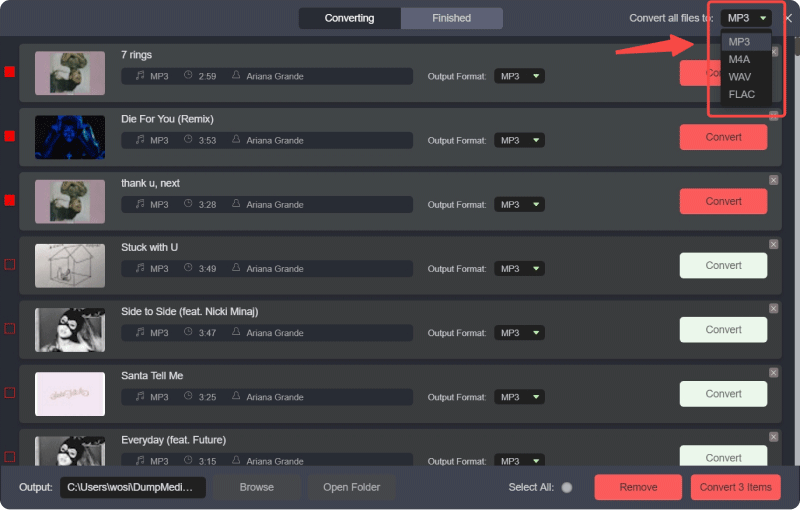
- Formats de sortie polyvalents : DumpMedia offre une large gamme de formats compatibles pour garantir que les fichiers fonctionnent sur presque tous les appareils (MP3 lecteurs, smartphones, autoradios, etc.) : MP3, M4A, WAV, FLAC, AIFF et AAC.
- Qualité sans perte : Prend en charge 100% conservation de la qualité audio originale, généralement jusqu'à 320 kbps pour MP3s.
- Conversion par lots : Permet d’ajouter des listes de lecture ou des albums entiers à une file d’attente pour un traitement simultané.
- Gestion intelligente des métadonnées : Préservation des balises ID3 : Conserve automatiquement les métadonnées essentielles, notamment l’artiste, l’album, le titre, l’année et la pochette de l’album.
- Lecteurs Web intégrés : DumpMedia Chaque service intègre généralement un lecteur web. Cela signifie que vous n'avez pas besoin de… Spotify ou les applications de bureau Apple Music installées ; vous pouvez parcourir et sélectionner des chansons directement dans l’application. DumpMedia interface.
Comment convertir YouTube en Apple Music ?
Étape 1 : Installer DumpMedia N'importe quel convertisseur de musique sur votre WinSur un ordinateur Windows ou Mac, ouvrez le programme et sélectionnez YouTube Music.
Téléchargement gratuit Téléchargement gratuit
Étape 2. Recherchez directement les morceaux, playlists ou albums que vous souhaitez transférer sur Apple Music. Glissez-déposez-les ensuite sur le bouton « + » pour les ajouter à la liste de conversion.
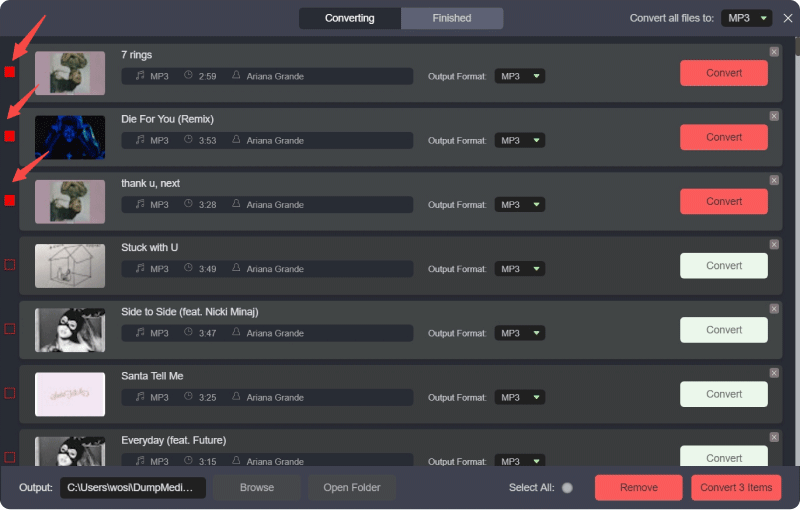
Étape 3 : Cliquez sur le panneau Format pour choisir MP3 comme format de sortie. Les autres paramètres de sortie restants peuvent également être modifiés à votre guise.
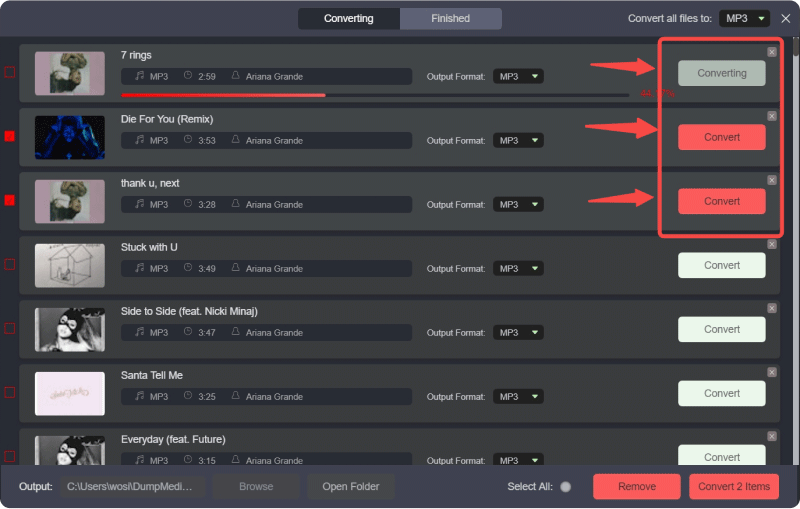
Étape 4. Ensuite, vous pouvez cliquer sur le bouton « Convertir tout » pour enregistrer les fichiers localement en une seule fois.
Étape 5 : Ouvrez l'application Apple Music sur Windows ou Mac.
Étape 6. Allez dans Fichier > Ajouter à la bibliothèque (ou faites glisser et déposez les fichiers dans la bibliothèque).
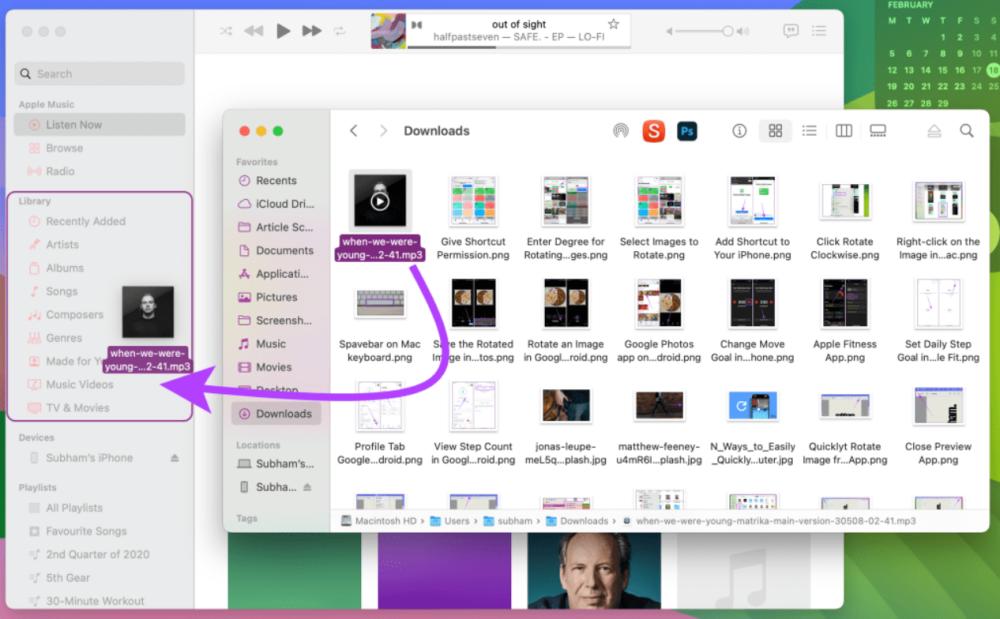
Étape 7. Patientez pendant qu'Apple Music traite les fichiers. Vos titres YouTube Music font désormais partie de votre bibliothèque Apple Music.
En suivant ces étapes, vous pourrez convertir avec succès vos vidéos YouTube en titres Apple Music sans avoir à rechercher et télécharger manuellement chaque chanson individuellement.
Astuce supplémentaire : Transférez des listes de lecture entières avec DumpMedia
DumpMedia Any Music Converter inclut également une fonction de transfert de playlists. Cet outil vous permet de migrer des playlists entières de YouTube Music vers Apple Music :
Étape 1. Ouvrez Any Music Converter. Choisissez Outils > Transfert de playlist.

Étape 2. Sélectionnez YouTube Music comme source.
Étape 3. Sélectionnez Apple Music comme destination.
Étape 4. Sélectionnez les éléments à transférer : nous prenons en charge vos chansons, artistes, albums et listes de lecture préférés.
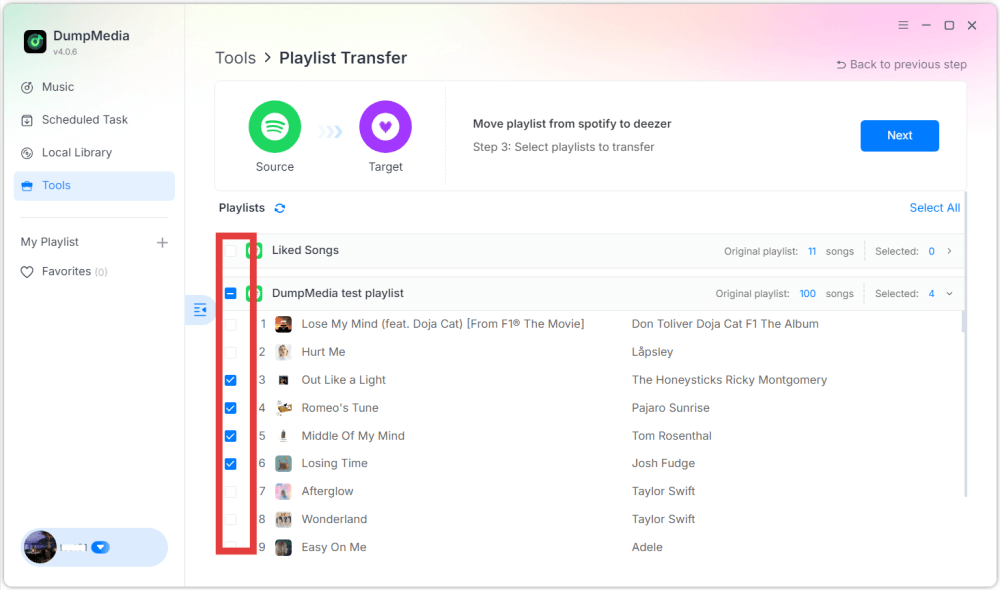
Étape 5. Cliquez sur Convertir pour démarrer le transfert.
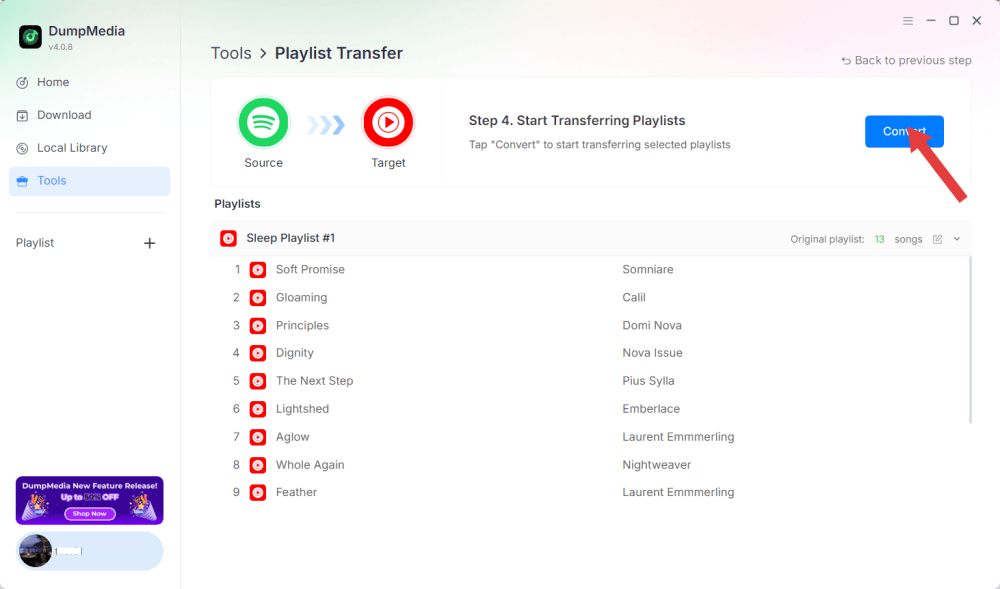
Étape 6. Le transfert est terminé. Cliquez sur « Accéder à Apple Music ». Vos playlists ont été transférées vers un nouveau service et vous pouvez désormais profiter de vos nouvelles playlists sur Apple Music.
Partie 3. FAQ
1. Puis-je convertir gratuitement YouTube en Apple Music ?
Oui, en utilisant des outils comme DumpMedia Avec Any Music Converter, vous pouvez télécharger des titres de YouTube Music et les importer dans Apple Music. DumpMedia propose un essai gratuit ; l’accès à toutes les fonctionnalités peut nécessiter une licence payante.
2. La qualité de la chanson sera-t-elle préservée lors de la conversion ?
DumpMedia vous permet de sélectionner les formats de sortie et les débits binaires, garantissant ainsi une haute qualité audio pour les fichiers téléchargés.
3. Puis-je transférer des listes de lecture entières ?
Oui. En utilisant la fonction de transfert de liste de lecture dans DumpMediaVous pouvez transférer des playlists YouTube Music complètes vers Apple Music sans perdre l'ordre des morceaux ni les métadonnées.
4. Est-il sûr d'utiliser DumpMedia pour les téléchargements de musique sur YouTube ?
Oui. DumpMedia Fonctionnant localement sur votre ordinateur, cette application garantit la sécurité de vos données et de vos comptes. Elle n'interfère pas avec les serveurs d'Apple Music ou de YouTube Music.
Partie 4. Pour tout résumer
Bien que YouTube Music et Apple Music ne soient pas nativement intégrés, vous pouvez tout de même convertir efficacement les titres YouTube en titres Apple Music en utilisant DumpMedia Any Music Converter. En téléchargeant des morceaux, en les important sur Apple Music ou en utilisant la fonction de transfert de playlists, vous pouvez conserver toutes vos chansons préférées bien organisées dans votre bibliothèque Apple Music.